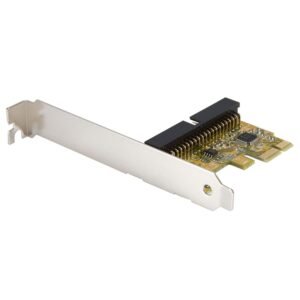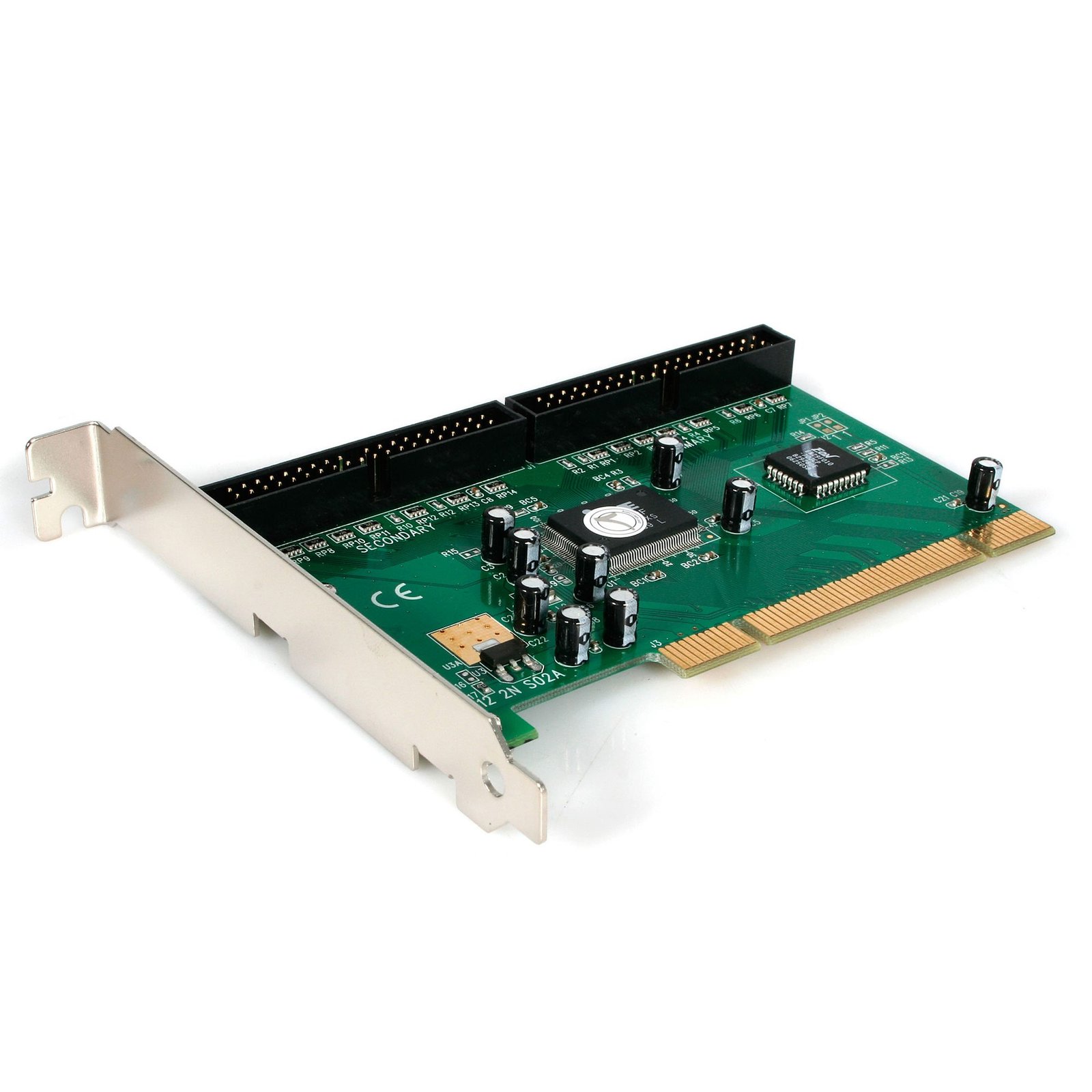
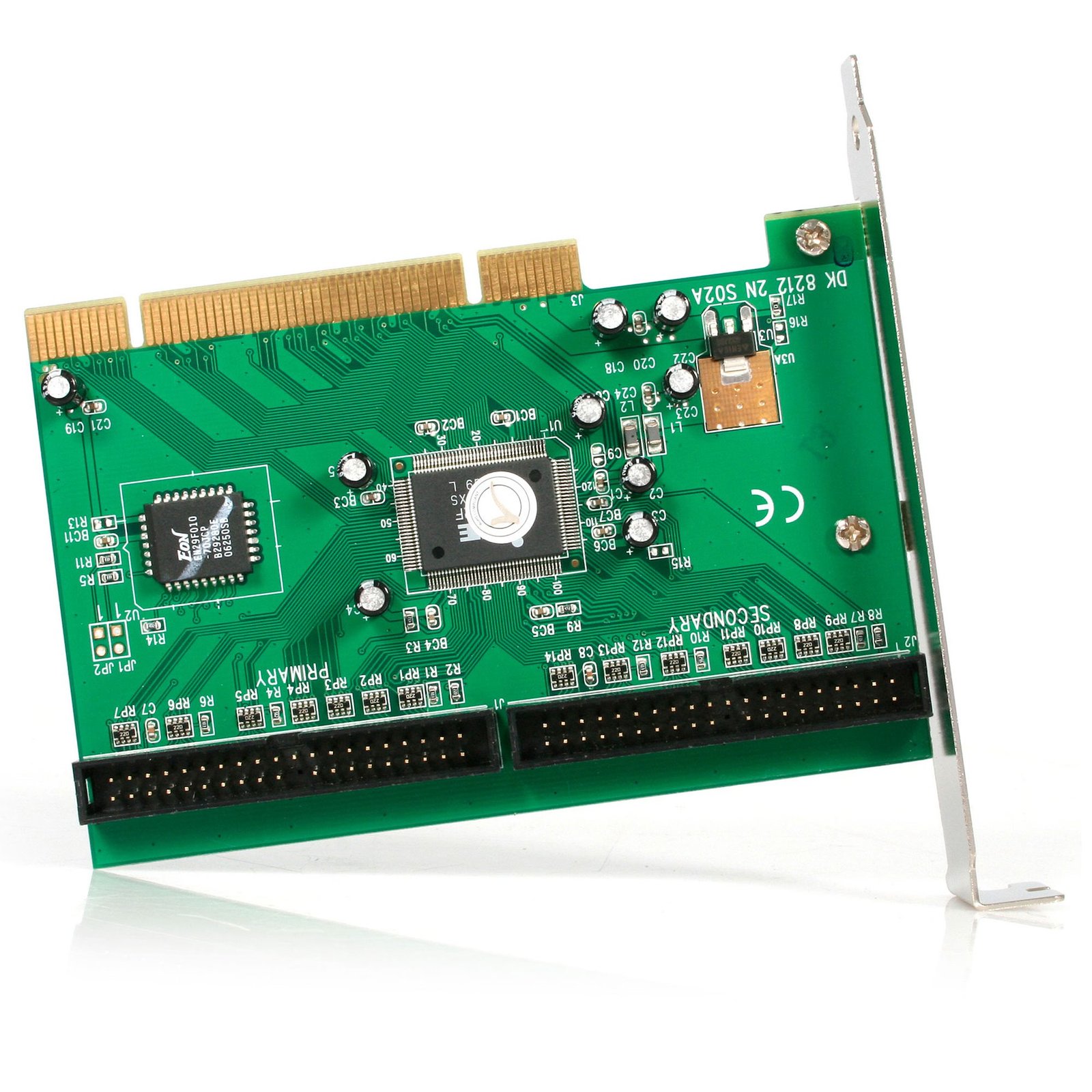
2 Port PCI IDE Controller Adapter Card
$62.99
Add two internal IDE connectors to a computer through a PCI slot
Specifications & Compliance
- UPC
- 065030824330
- Brand
- StarTech.com
- Included in Package
- 1 - 2 Port IDE PCI Controller Card, 1 - IDE Cable, 1 - Driver CD, 1 - Instruction Manual
- Shipping (Package) Weight
- 7.8 oz [220 g]
- Weight of Product
- 2.6 oz [73.0 g]
- Product Length
- 4.7 in [12.0 cm]
- Product Width
- 0.7 in [18.0 mm]
- Product Height
- 3.3 in [85.0 mm]
- Package Depth
- 1.5 in [39 mm]
- Package Width
- 8.3 in [21 cm]
- Package Height
- 5.6 in [14.3 cm]
- Warranty
- Lifetime
- Connector 1
- PCI / PCI-X
- Connector 1 (Quantity)
- 1
- Package Quantity
- 1
- Connector 2
- IDE / PATA (ATA/133)
- Connector 2 (Quantity)
- 2
- Maximum Data Transfer Rate
- 133 MBps
- Industry Standards
- ATA/ATAPI-6
- Chipset ID
- ITE - IT8212F
- Number of Ports
- 2
- Interface
- IDE
- Bus Type
- PCI / PCI-X (5 / 3.3V)
- Card Type
- Standard Profile
- Max Drive Capacity
- Up to 132 GB
Questions & Answers
My hard drive accessory is not detecting my IDE hard drive. What do I do?
Note: If you are using an IDE hard drive 1 Gigabyte in size or smaller, refer to the following FAQ: http://www.startech.com/faq/hard_drive_accessories_minimum_ide_hard_drive_size If you are unable to detect your IDE (PATA) drive using a StarTech.com product, you may need to change the jumper settings on your drive. The jumpers switch the drive between Master, Slave, and Cable Select for most drives. A jumper is a small plastic piece that slides on top of two pins to electrically short them together. When it does not mention what IDE drive configuration is required or if there is only one drive in the setup, the drive should be configured as Master . If Master is not working, try using the drive in Cable Select . There is no standard position for the jumpers on IDE drives. On some drives, the jumper diagram is on the label that is on the top of the drive. On other drives, there are markings on the circuit board for CS , MA , and SL , which means a jumper shorts the pins vertically in that position. For more information, refer to the documentation provided by the manufacturer.
Everything is hooked up but nothing is working. What should I do? (Windows)
When you troubleshoot issues with a hard drive controller card, there are some quick tests that you can complete to rule out potential problems. You can test to make sure that the following components are working correctly and are not the source of the issue: IDE, SATA, and eSATA cables Hard drives Hard drive controller card To test your setup components, try the following: Use the IDE, SATA, or eSATA cable, hard drive, and hard drive controller card in another setup to see if the problem is with the components or the setup. Use a different IDE, SATA, or eSATA cable, hard drive, and hard drive controller card in your setup to see if the problem persists. Ideally, you should test a component that you know works in another setup. When you test your cables, it is recommended that you do the following: Test each cable individually. Use short cables when you are testing. When you test the hard drive and hard drive controller card, it is recommended that you do the following: To open the Device Manager, press the Windows key + R , type devmgmt.msc , and press Enter . Check the IDE ATA/ATAPI controllers (for IDE) section, or the Storage controllers (for SATA) section. Do one of the following: If you do not see the hard drive controller card in Device Manager, refer to the following FAQ: https://www.startech.com/en-us/faq/pci-pcie-cannot-boot-os-or-detect-windows . If the device is listed with an error, reinstall the drivers by completing the instructions on the website. If the hard drive is listed with unallocated space, the hard drive needs to be formatted. Right-click unallocated and click New Simple Volume . Follow the on-screen instructions to complete the reformatting. Note: Formatting a hard drive erases all of the data on it. Make sure that you back up all of your data before you reformat the hard drive. To check Disk Management , press the Windows key + R , type diskmgmt.msc , and press Enter . Check to see if your hard drive is listed. If the hard drive is listed as healthy but does not have a drive letter, for example, C:, right-click healthy and click Change Drive Letter and Paths . Click Add , assign a drive letter, and click OK . Note: A formatted hard drive does not show up in Computer or My Computer until it has a drive letter assigned to it.
How do I confirm that Windows detects my expansion card?
To confirm that Windows detects your expansion card, complete the following: Press the Windows key+ R , type devmgmt.msc , and press Enter . In Device Manager , under the appropriate heading, confirm that your expansion card is listed and that there isn't an exclamation mark next to it. For example, a USB controller card would be under Universal Serial Bus controllers . Your expansion card is listed according to the name of the chipset. To determine the name of the chipset of your expansion card, navigate to www.StarTech.com and look on the Technical Specifications tab for your product.
Does this hard drive controller card support starting an operating system from a connected hard drive?
No, this hard drive controller card does not support starting an operating system from a connected hard drive. For a list of hard drive controller cards that support this feature and instructions on how to configure them, refer to the following FAQ: https://www.startech.com/faq/hard_drive_controllers_os_install_on_controller .
Is there a minimum supported size or type of IDE hard drive for this hard drive accessory?
Yes, this hard drive accessory does not support older IDE hard drives, typically those with capacities under 1 GB or manufactured before the mid‑to‑late 1990s. Explanation: This hard drive accessory is not compatible with certain legacy IDE hard drives due to outdated hardware and interface standards. Unsupported drives are generally those under 1 GB in capacity or produced before the mid‑to‑late 1990s. These drives may not be detected for several reasons, including: The drive operates in PIO (Programmed Input/Output) mode instead of DMA (Direct Memory Access). The drive is non‑ATA or uses an ATA standard earlier than ATA‑4, which is not supported by modern chipsets. The drive uses a sector size other than the standard 512 bytes. There is no workaround to enable compatibility with these older drives. Accessing them requires legacy hardware, such as an older system or an IDE controller card that supports these standards. For additional guidance on IDE drive detection, please refer to: http://www.startech.com/faq/hard_drive_accessories_ide_detection
Will this PCI card work in a PCI-X slot?
Yes. This PCI card uses a universal PCI connector that is compatible with both 3.3V and 5V PCI and PCI-X slots. Explanation: This PCI card features a universal PCI connector that supports both 3.3V and 5V slot keying. As a result, it can be installed in compatible PCI and PCI-X slots that use either voltage standard. A universal PCI connector is easily identified by the presence of two keying notches on the edge connector. Standard PCI cards designed for only one voltage typically have a single notch. Because this card uses a universal PCI connector, slot voltage keying is not a compatibility concern.