
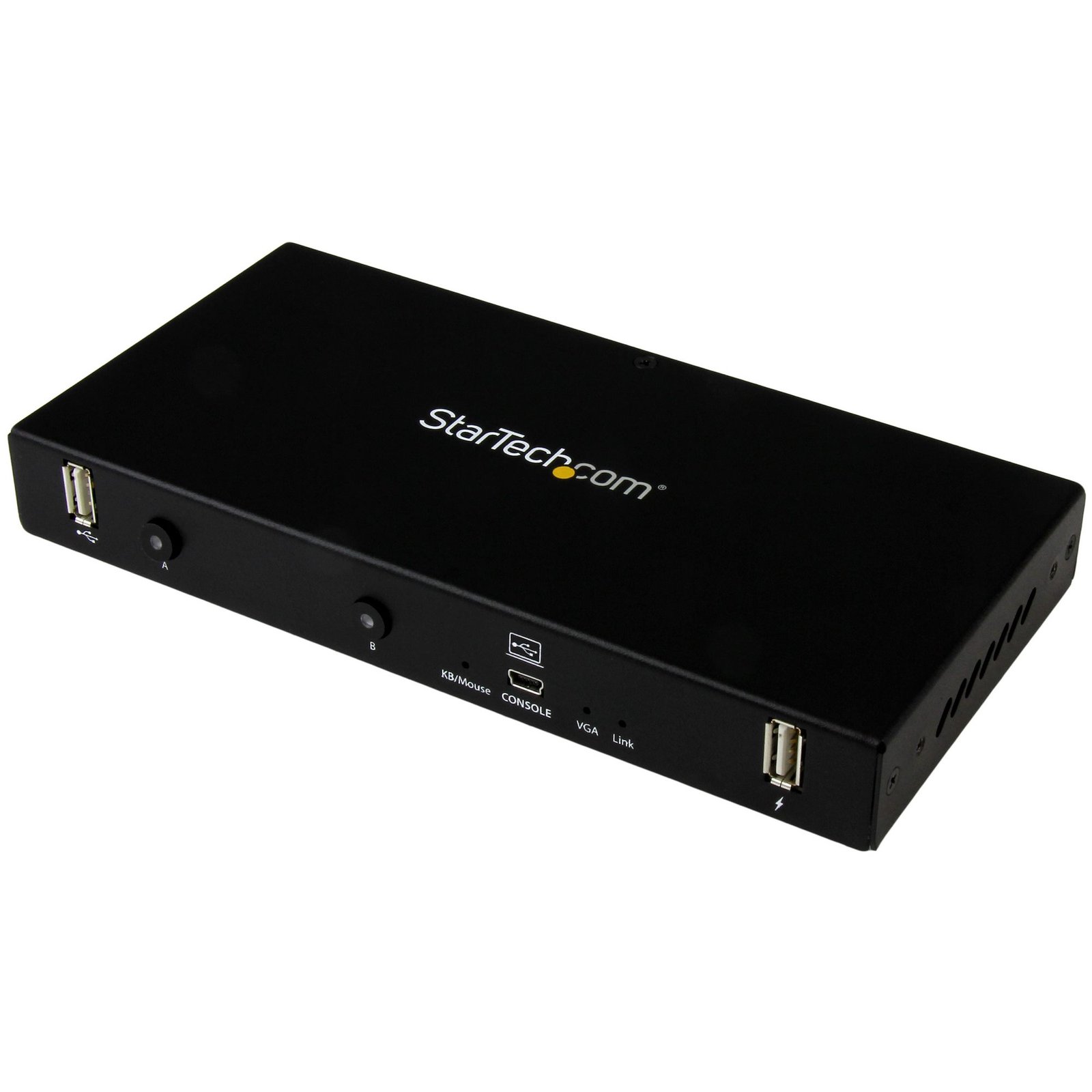
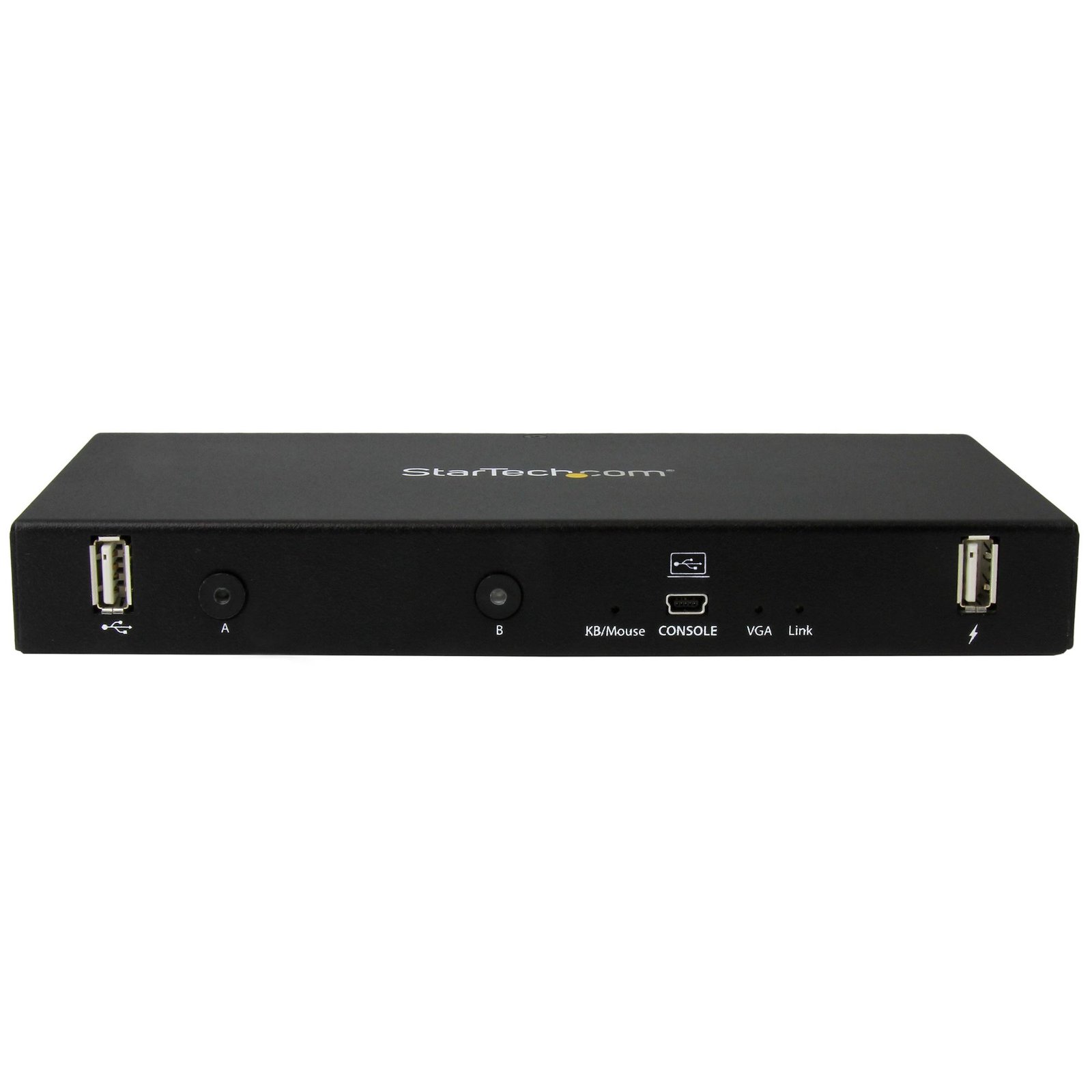
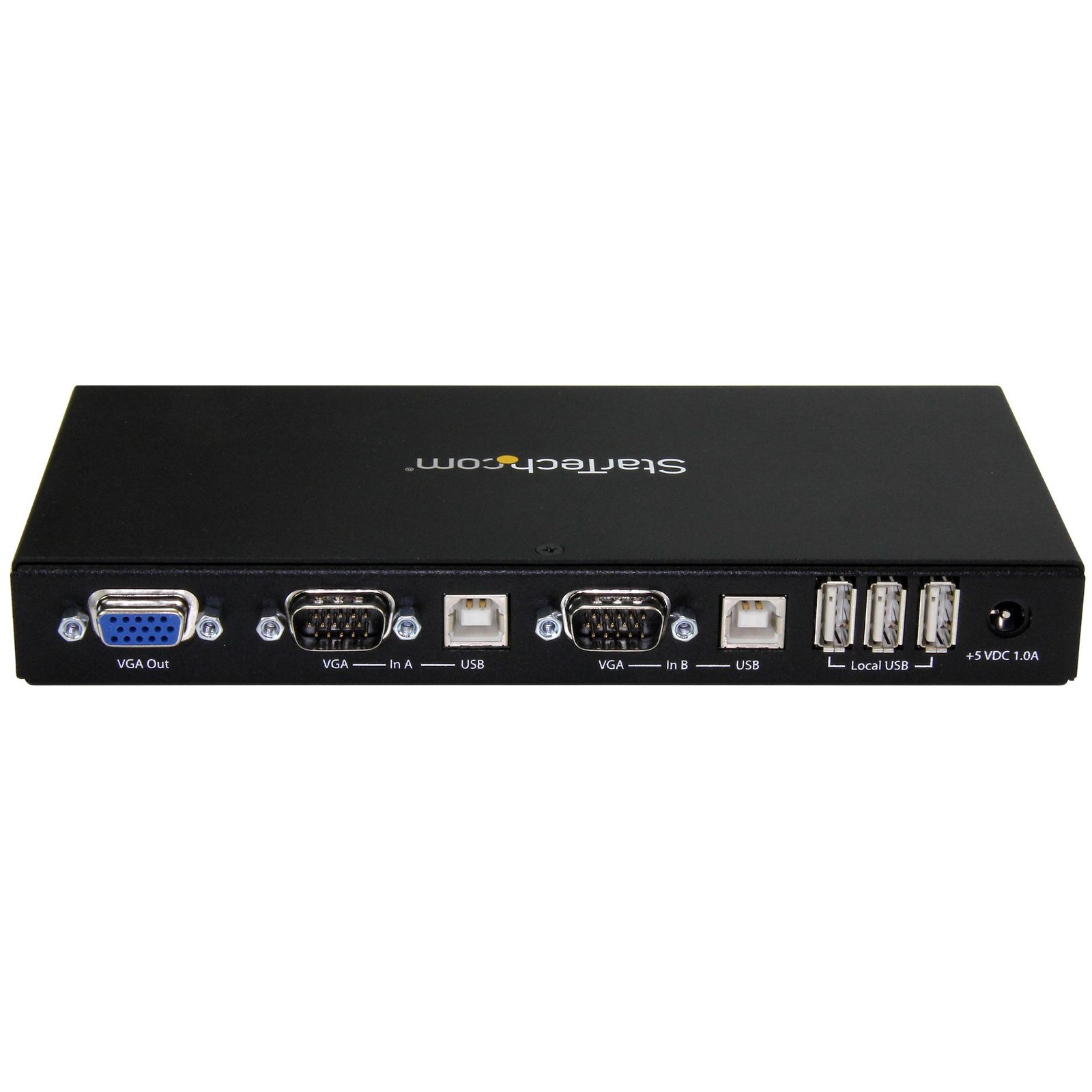
2-port KVM Console Adapter - Laptop-to-Server - TAA
$589.99
Instantly turn your laptop into a 2-port KVM console, by connecting it to this rackmounted crash cart adapter
Specifications & Compliance
- UPC
- 065030862998
- Brand
- StarTech.com
- Included in Package
- 1 - 2-port laptop-to-KVM console adapter, 2 - mounting brackets, 2 - 2-in-1 USB and VGA cables - 6 ft, 1 - USB A to Mini-B cable, 1 - USB software key, 1 - universal power adapter (NA/EU/UK/AU), 1 - quick install guide
- Shipping (Package) Weight
- 3.2 lb [1.5 kg]
- Weight of Product
- 12.9 oz [365.0 g]
- Product Length
- 7.7 in [19.5 cm]
- Product Width
- 3.9 in [100.0 mm]
- Product Height
- 1.0 in [25.0 mm]
- Package Depth
- 11.3 in [28.8 cm]
- Package Width
- 14.4 in [36.5 cm]
- Package Height
- 2.8 in [70 mm]
- Color
- Black
- Cable Length
- 16.4 in [41.6 cm]
- Warranty
- 2 Years
- Connector 1
- VGA
- Connector 1 (Quantity)
- 1
- Package Quantity
- 1
- Connector 2
- USB-A (480Mbps, 2.5W)
- Connector 2 (Quantity)
- 1
- Operating Temperature
- 0°C to 40°C (32°F to 104°F)
- Storage Temperature
- -40°C to 70°C (-40°F to 158°F)
- Humidity
- 80% RH
- Material
- Steel
- Power Source
- AC Adapter Included
- Special Notes
- If you're interfacing with a Linux device, this adapter is only compatible with standard QWERTY keyboards in U.S English configuration
- Input Voltage
- 100 - 240 AC
- Output Voltage
- 5 DC
- Connector 3
- USB Mini-B (480Mbps, 2.5W)
- Connector 3 (Quantity)
- 1
- Power Consumption
- 15
- LED Indicators
- 1 - port 1 activity LED, 1 - port 2 activity LED<br>, 1 - console activity and link LED, 1 - keyboard/mouse activity and link LED, 1 - host/server video (VGA) Link
- Input Current
- 0.75 A
- Output Current
- 3
- Host Connector 1
- VGA
- Host Connector 1 (Quantity)
- 2
- Audio
- No
- Plug Type
- N
- Host Connector 2
- USB-B (480Mbps, 2.5W)
- Host Connector 2 (Quantity)
- 2
- Maximum Analog Resolutions
- 1920x1200 @ 60Hz
- Cascadable
- No
- Rack-Mountable
- No
- Number of KVM Ports
- 2
- IP Control
- No
- Supported Platforms
- USB
- PC Video Type
- VGA
- Number of Monitors Supported
- 1
- Maximum Number of Users
- 1
- Product Depth
- 10.2 in [26 cm]
Questions & Answers
Why did the software not install properly in macOS High Sierra (10.13) or later?
Starting in High Sierra 10.13, macOS enforces stricter security policies than previous revisions. As a result of these changes, software packages, like those used in this installation, will need to be allowed within the macOS Security and Privacy settings, immediately after the software has been installed, in order for the device to operate. To allow the software, follow these steps after you've completed installation on your Mac: Open System Preferences . Open Security & Privacy . Click the Allow button near the bottom of the General tab. Note: The option to allow the software will be available within the Security & Privacy settings for 30 minutes. If the software is not allowed within that time frame, the software must be reinstalled in order for macOS to grant the opportunity to allow it again.
How do I install my laptop crash cart or KVM console adapter in Windows using the Setup.exe installer?
To install the laptop crash cart or KVM console adapter in Windows, install the required software before using the device. Download the latest software package from StarTech.com, extract the files, and run Setup.exe as an administrator. Explanation: The KVM console adapter requires its software package to be installed before you can use the device to view and control a connected computer. To install the software: Download the latest software package from the StarTech.com Drivers & Downloads page. Extract the contents of the downloaded ZIP file. Open the extracted Windows folder. Right-click Setup.exe and select Run as administrator . Follow the on-screen instructions to install the required drivers and software. After installation is complete, the application will be available from the Windows desktop and ready to run. Note: If Run as administrator is not available, ensure that you are launching Setup.exe from the extracted folder rather than directly from within the ZIP file.
How do I install the Laptop Crash Cart Adapter software on macOS using the .dmg file?
Yes, the Laptop Crash Cart Adapter software must be installed before you can use the KVM console adapter to view a connected computer. Download and install the latest software from the StarTech.com Support website. Explanation : To install the Laptop Crash Cart Adapter software on macOS using the .dmg file: Download the latest software from the StarTech.com Support website at http://www.startech.com/Support . Use the product part number or product ID shown on the product packaging to locate the correct software. Locate the downloaded files. Mac OS X typically saves downloaded files in the Downloads folder associated with your user account. Double-click Software Pack.zip . Double-click the Mac folder. Double-click Install.dmg . Double-click USB Crash Cart Adapter . After installation, the USB Crash Cart Adapter program is located on the desktop and is ready to run.
Everything is hooked up but nothing is working. What should I do?
When you troubleshoot issues with a USB crash cart adapter, there are some quick tests that you can complete to rule out potential problems. You can test to make sure that the following components are working correctly and are not the source of the issue: Video cables Video source Computer system USB crash cart adapter To test your setup components, try the following: Use the video cables, video source, computer, and USB crash cart adapter in another setup to see if the problem is with the components or the setup. Use a different video cable, video source, computer, and USB crash cart adapter in your setup to see if the problem persists. Ideally, you should test a component that you know works in another setup. When you test your cables, it is recommended that you do the following: Test each cable individually. Use short cables. When you test the video cables, video source, and the USB crash cart adapter, it is recommended that you do the following: Press the Windows key + R, type devmgmt.msc, and press Enter to open Device Manager. If the device is listed with an error, follow the instructions on the website to reinstall the drivers. In order for the adapter to work correctly, the software must be installed on your operating system. After the software is installed on your operating system, run the software. The software automatically detects the video source when it is present on the video port.
How do I use this USB crash cart adapter to record video?
You can use the USB crash cart adapter software to capture video. Videos taken on the attached host computer are saved on the client computer that's running the USB crash cart software. Note: When you record videos, the file transfer feature is temporarily blocked. To record videos, complete the following: In the USB crash card adapter software, click the record button. Specify the location where you want to save the files. Specify how long you want to record for in seconds.
What do I do if the keyboard or mouse control is not working?
If the video works on your client computer but the keyboard or mouse is not working with your laptop crash cart adapter, try the following: Make sure that the USB cable on the laptop crash cart adapter is firmly connected to the host computer. If you're using multiple monitors with the host computer, make sure that the VGA cable connected to the laptop crash cart adapter is connected to the primary monitor. Under Keyboard , change the Active emulation type to PS/2 .
My servers support a resolution I cannot set in the software. What do I do?
If you experience issues when you attempt to change your resolution, complete the following: Click Video > Advanced > Set DDC2B max resolution . Select your desired resolution. Do one of the following: Unplug the VGA connections from the servers and then plug them back in again. Turn off the SV231USBLC and then turn it back on again.
How do I confirm that Windows detects my USB device?
To confirm that Windows detects your USB device, complete the following: Press the Windows key+ R , type devmgmt.msc , and press Enter . In Device Manager , under the appropriate heading, confirm that your expansion card is listed and that there isn't an exclamation mark next to it. For example, a USB controller card would be under Universal Serial Bus controllers . Your USB device is listed according to the name of the chipset. To determine the name of the chipset of your USB device, navigate to www.StarTech.com and look on the Technical Specifications tab for your product.
How can I check if my USB device is properly detected by Mac OS?
To confirm that the Mac OS detects your USB device, complete the following: Click the Apple icon. Click About This Mac . Click More Info or System Report . Under the appropriate heading, confirm that your USB device is listed and that there isn't an error. For example, a network card would be under Ethernet Cards . You may need to refresh the System Information page after you plug in your device. To do so, press Command + R with the System Information page open. Your USB device is listed according to the name of the chipset. To determine the name of the chipset of your USB device, navigate to www.StarTech.com and look on the Technical Specifications tab for your product.
What DC barrel connector power plug types do StarTech.com products use, and what are their dimensions?
StarTech.com DC barrel connector plug types are defined in the “Plug Type” field of the technical specifications, using a letter code that specifies the connector’s outer diameter (OD) and inner diameter (ID) in millimeters for power adapter compatibility. Explanation: In StarTech.com technical specifications, the “Plug Type” field is a standardized identifier for the exact DC barrel connector size required to power a product. Each plug type is assigned a letter code that corresponds to a specific combination of outer diameter (OD) and inner diameter (ID), measured in millimeters. Common DC barrel plug type dimensions Plug Type OD ID A 2.35 mm 0.7 mm B 4.0 mm 1.7 mm C 4.75 mm 1.7 mm H 3.4 mm 1.3 mm L 5.0 mm 2.5 mm M 5.5 mm 2.1 mm N 5.5 mm 2.5 mm The DC barrel connector plug type must match both the outer diameter and inner diameter exactly. A mismatch between the StarTech.com product requirement and the power adapter connector can prevent proper fit or stable power delivery, which may result in device startup failure or intermittent operation. The plug type defines only the physical connector size. The plug type does not define electrical power requirements such as voltage, current, or polarity. The power adapter used with a StarTech.com product must match the product’s specified electrical requirements. Using an incompatible power adapter can cause device malfunction or permanent damage. This standardized DC barrel connector plug type system enables IT professionals and procurement teams to verify connector dimensions, ensure power adapter compatibility, standardize hardware deployments, and identify the correct replacement power supply for StarTech.com products.
Related products
-

2-Port Dual-Monitor DisplayPort KVM Switch, 8K 60Hz / 4K 144Hz, DP 1.4, 2x USB 10Gbps Ports, 4x USB HID Ports, Hotkey Switching, TAA Compliant
$648.99 Add to cart -

2-Port Dual-Monitor DisplayPort KVM Switch with Dual View Video Matrix, 4K 60Hz, 4x USB Hub Ports, Hotkey Switching, DP 1.2 Matrix KVM, TAA Compliant
$487.99 Add to cart -

4-Port DisplayPort KVM Switch, Single 4K 60Hz Monitor, 6x USB Ports, Push-Button & Hotkey Switching, DisplayPort 1.2, OS Independent, TAA Compliant
$585.99 Add to cart -
2-Port Dual-Monitor DisplayPort KVM Switch, 4K 60Hz, 2x USB 5Gbps Hub Ports, 2x USB 2.0 HID Ports, Hotkey and Push-Button Switching, TAA Compliant - 3.5mm Audio, HDCP
$495.99 Add to cart