
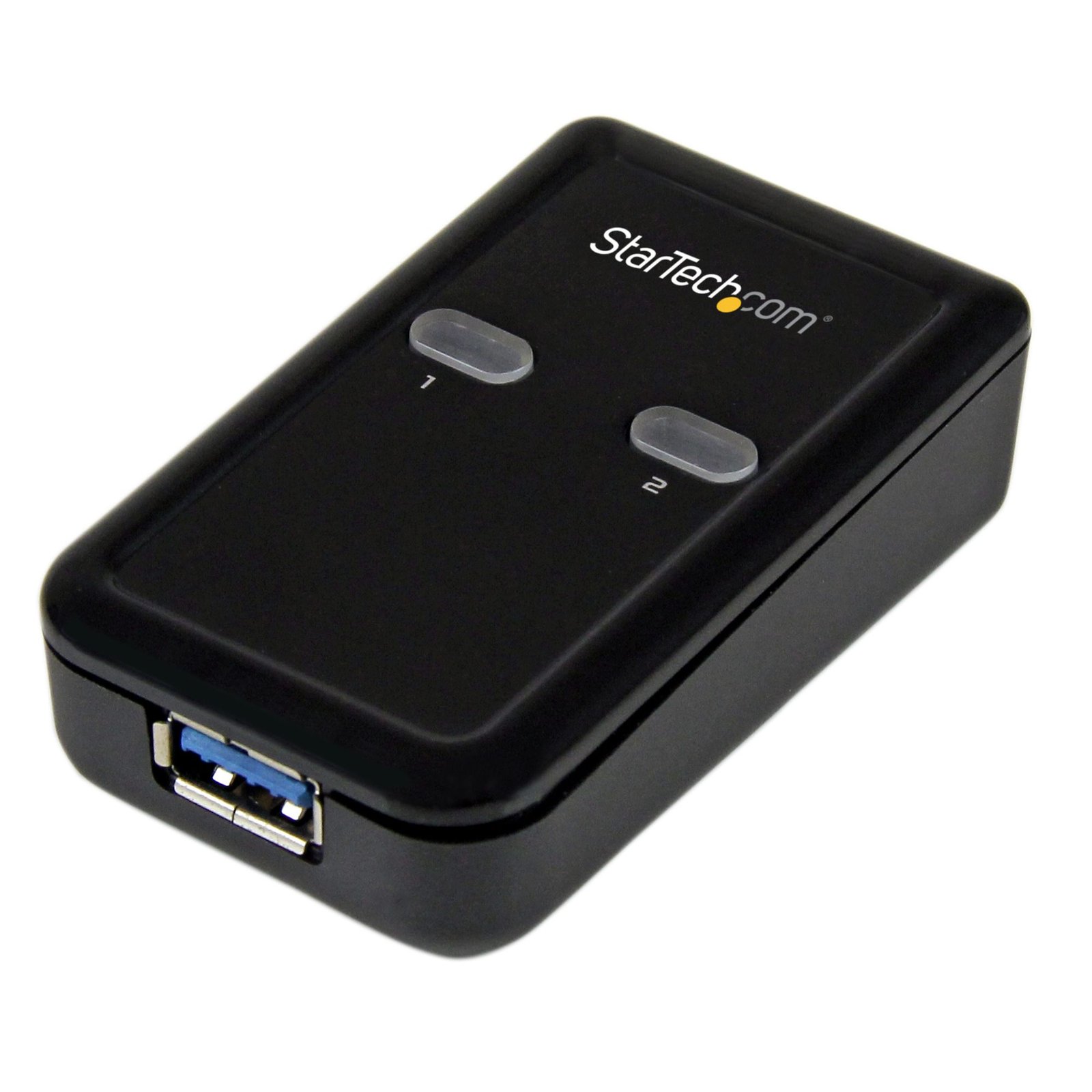
2 Port 2-to-1 USB 3.0 Peripheral Sharing Switch – USB Powered
$46.99
Share a single USB 3.0 device between two different computers
Specifications & Compliance
- UPC
- 065030850902
- Brand
- StarTech.com
- Included in Package
- 1 - USB 3.0 Sharing Switch, 2 - 1m USB 3.0 A-B Cables, 1 - Instruction Manual
- Shipping (Package) Weight
- 8.1 oz [229 g]
- Weight of Product
- 1.4 oz [40.0 g]
- Product Length
- 2.7 in [69.0 mm]
- Product Width
- 1.7 in [42.0 mm]
- Product Height
- 0.9 in [22.0 mm]
- Package Depth
- 6.4 in [16.2 cm]
- Package Width
- 5.2 in [13.1 cm]
- Package Height
- 1.7 in [43 mm]
- Color
- Black
- Warranty
- 2 Years
- Connector 1
- USB-A (5Gbps, 4.5W)
- Connector 1 (Quantity)
- 1
- Package Quantity
- 1
- Connector 2
- USB-B (5Gbps, 4.5W)
- Connector 2 (Quantity)
- 2
- Operating Temperature
- 0°C to 40°C (32°F to 104°F)
- Storage Temperature
- -20°C to 60°C (-4°F to 140°F)
- Humidity
- 0~80% RH
- Material
- Plastic
- Maximum Data Transfer Rate
- 5 Gbps
- Power Source
- USB-Powered
- Special Notes
- The total cable length from host system to your connected peripheral should not exceed 2.5m (8.2ft)
- Input Voltage
- 5V DC
- Output Voltage
- 5 DC
- LED Indicators
- 2 - Computer selection indicators
- Number of Ports
- 2
- Bus Type
- USB 3.2 Gen 1 (5Gbps)
- Type and Rate
- USB 3.0 (5Gbps)
- Maximum Cable Length
- 4.9 ft [1.5 m]
- Fast-Charge Port(s)
- No
- Form Factor
- Compact
- USB-C Host Connection
- No
- USB-C Device Port(s)
- No
Questions & Answers
Why does my USB device stop working after my computer wakes back up from sleep mode in Windows?
If the USB device does not work after your computer has been in extended hibernation, it is likely that Windows has automatically turned off the USB Root hub to save power. The steps below outline how to configure the USB root hub to stay on during hibernation, to prevent this from happening. Windows 10 / 8 On your keyboard, press the Windows key + X and select Control Panel . Click Hardware and Sound , then click Power Options . Click Change plan settings for the plan you want to change. Click Change advanced power settings . Click the plus sign (+) next to “USB settings” and “USB selective suspend setting” to expand the options and change the setting to Disabled . Click OK to apply the setting. Note : You may need to disconnect and re-connect your USB device after applying these settings to re-establish the connection. Windows 7 / Vista Click the Start button and select Control Panel . Click Hardware and Sound , then click Power Options . Click Change plan settings for the plan you want to change. Click Change advanced power settings . Click the plus sign (+) next to “USB settings” and “USB selective suspend setting” to expand the options and change the setting to Disabled . Click OK to apply the setting. Note : You may need to disconnect and re-connect your USB device after applying these settings to re-establish the connection. Windows XP On your desktop, right-click the My Computer icon and select Properties . Click the Device Manager tab. Expand Universal Serial Bus controllers by clicking the arrow to the left of it. Right-click the first USB Root Hub device and select Properties . Click the Power Management tab. Clear the box next to Allow the computer to turn off this device to save power . Click OK to apply the setting. Repeat steps 4-7 for any remaining devices in the Universal Serial Bus Controllers section with “ Root Hub ” in the name. Note : You may need to disconnect and re-connect your USB device after applying these settings to re-establish the connection.
Related products
-

4 Port Self-Powered USB C Hub with Individual On/Off Switches, USB 3.0 (5Gbps) Expansion Hub with Power Supply, Desktop Laptop USB-C to USB-A Splitter
$54.99 Add to cart -

4-Port USB Hub - USB 3.0 5Gbps, Bus Powered, USB-A to 4x USB-A Hub w/ Optional Auxiliary Power Input - Portable Desktop/Laptop USB Hub, 1ft/30cm Cable, USB Expansion Hub
$43.04 Add to cart -
4 Port USB 3.0 Hub - USB-A to 4x USB-A - SuperSpeed 5Gbps Portable USB 3.2 Gen 1 Type-A Hub - USB Bus Powered - Laptop/Desktop USB Hub with Long Cable 28cm & Cable Management
$39.96 Add to cart -

4-Port USB 2.0 Hub, USB Bus Powered, Small Travel Mini USB Hub, USB 2.0 Splitter, Portable Multi-Port USB Hub, 480Mbps, Overcurrent Protection (OCP)
$12.29 Add to cart