
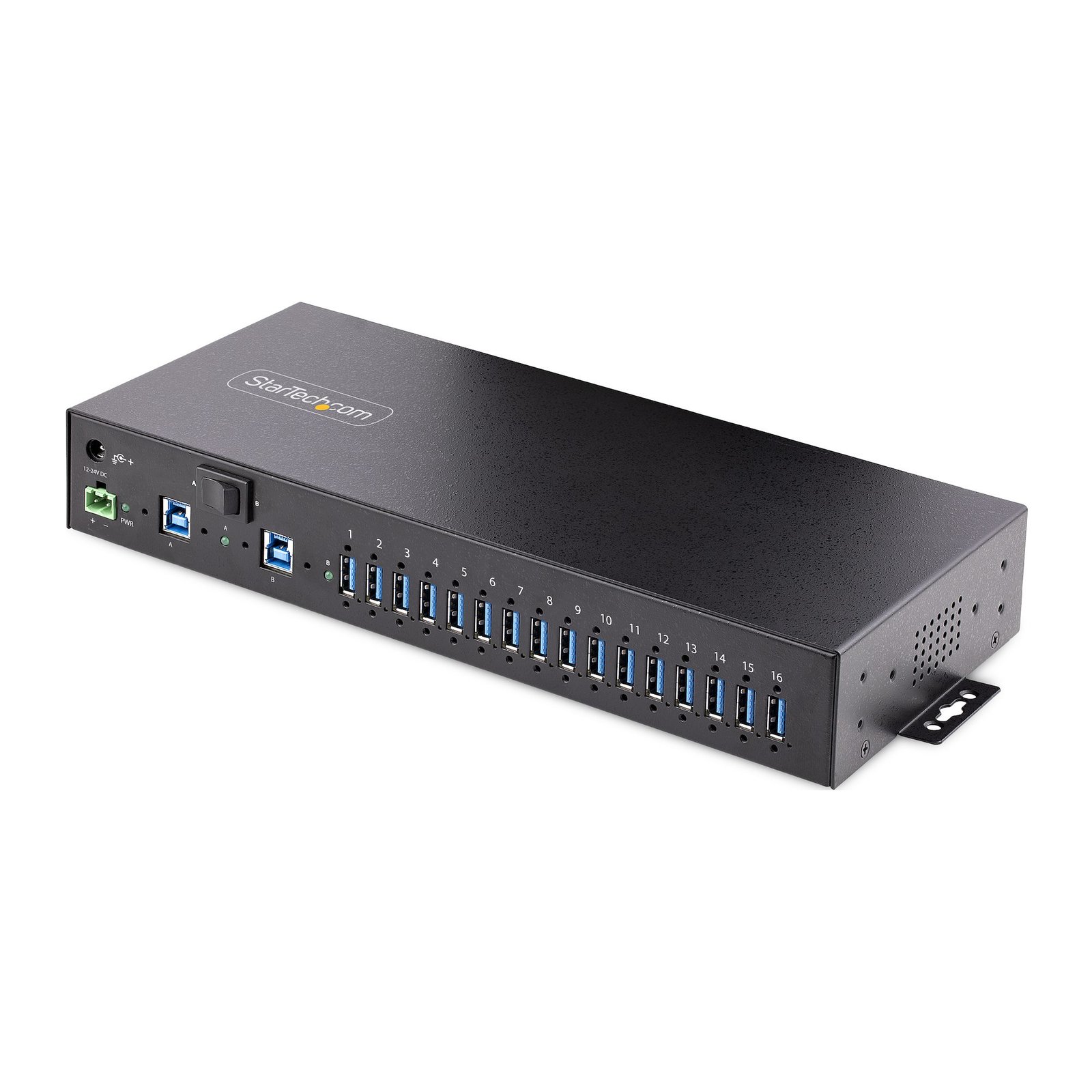
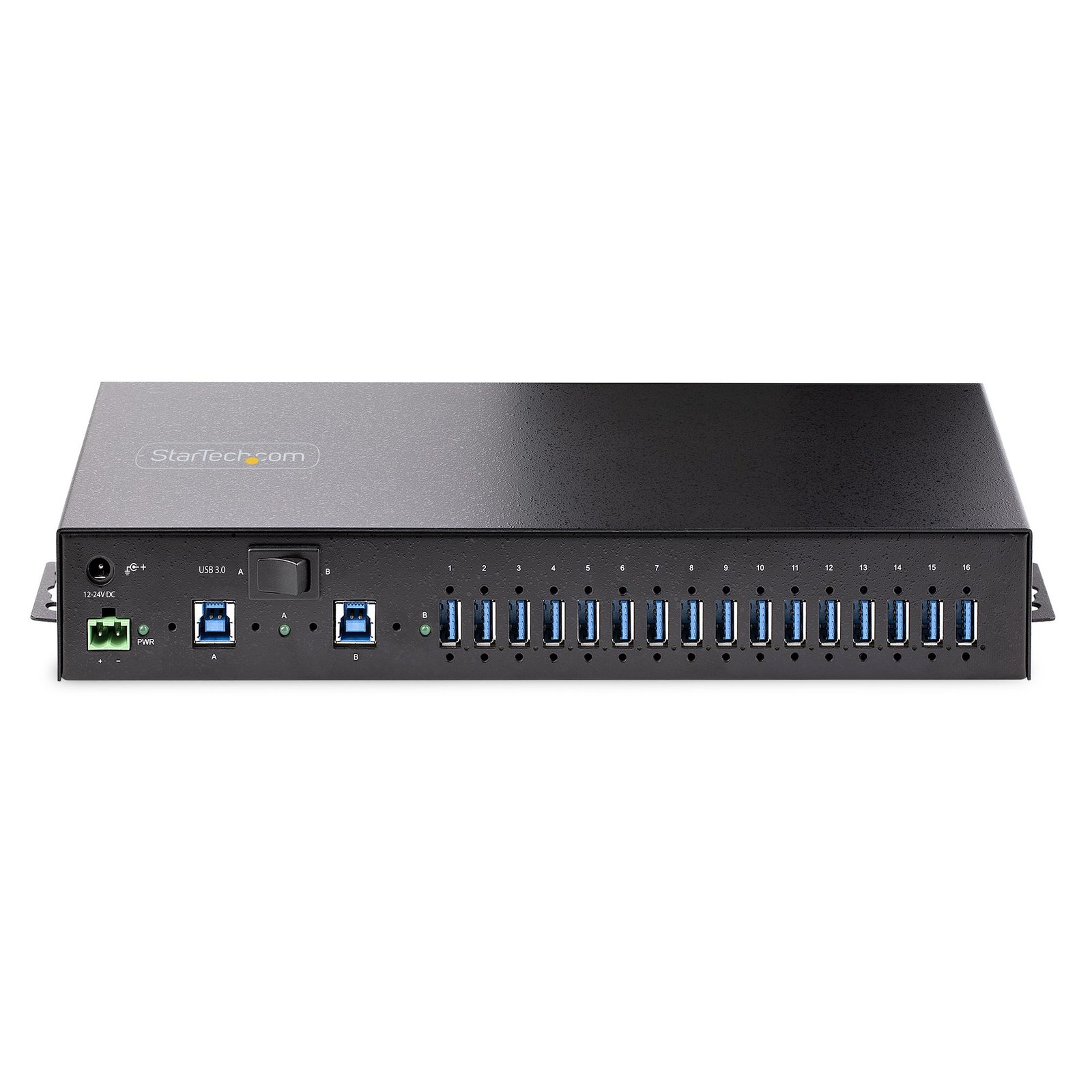


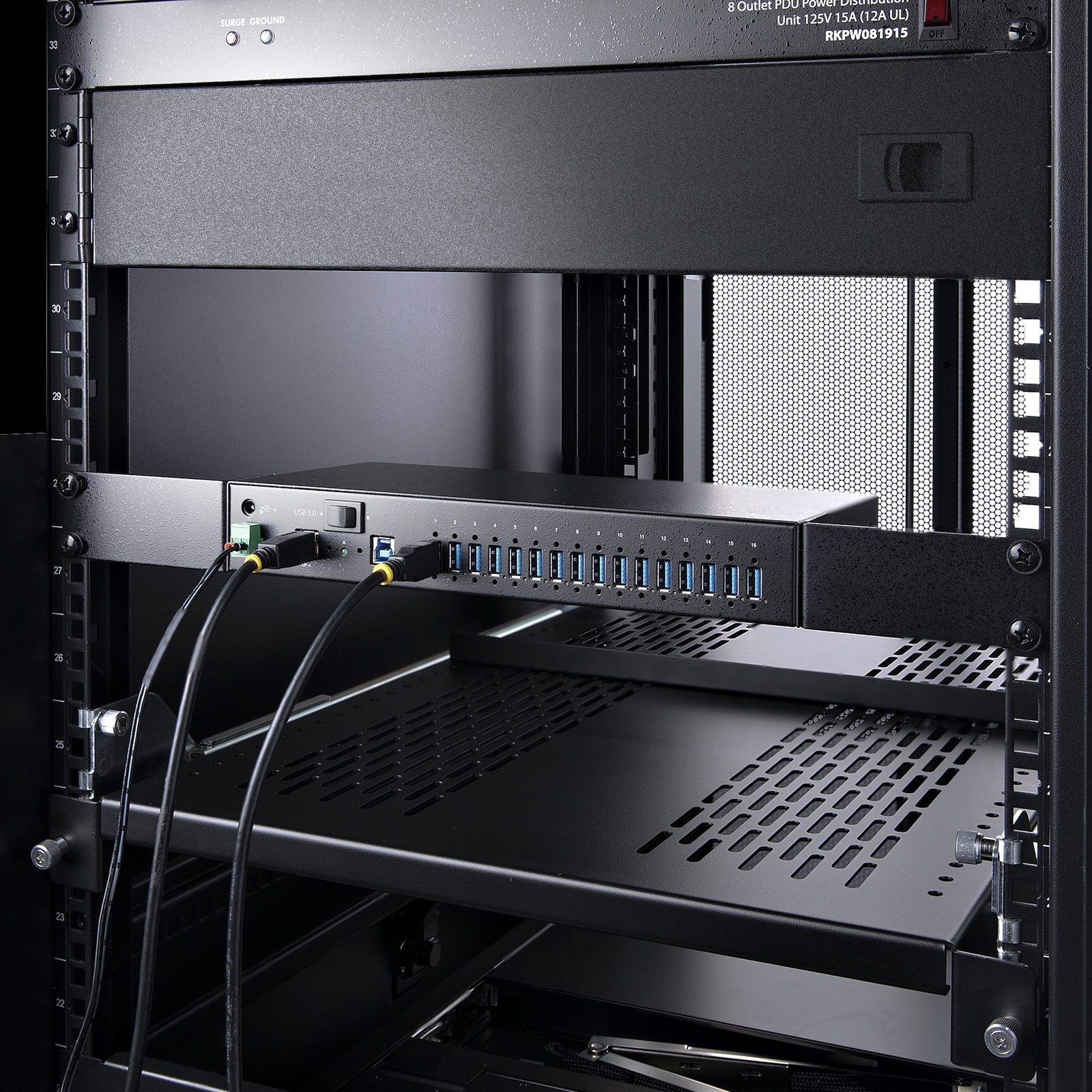
16-Port Industrial USB 3.0 Hub 5Gbps, Metal, DIN/Surface/Rack Mountable, ESD Protection, Terminal Block Power, up to 120W Shared USB Charging, Dual-Host Hub/Switch - TAA
$535.99
Add 16x USB 3.2 Gen 1 (5 Gbps) ports to two host computers, using this DIN-rail/Surface/Rack-mountable industrial hub
Specifications & Compliance
- UPC
- 065030894999
- Brand
- StarTech.com
- Included in Package
- 1 - USB Hub, 1 - 10 ft [3 m] USB-A to USB-B Cable, 1 - Terminal Block Connector (Attached), 2 - Rack Mounting Brackets, 2 - DIN Rail Brackets, 4 - DIN Bracket Screws, 6 - Rack Mounting Screws, 1 - Quick-Start Guide
- Shipping (Package) Weight
- 4.2 lb [1.9 kg]
- Weight of Product
- 2.4 lb [1.1 kg]
- Product Length
- 12.1 in [30.8 cm]
- Product Width
- 5.1 in [13 cm]
- Product Height
- 0.2 in [4.4 mm]
- Package Depth
- 14.6 in [37.1 cm]
- Package Width
- 11.0 in [27.9 cm]
- Package Height
- 4.0 in [10.1 cm]
- Color
- Black
- Warranty
- 2 Years
- Connector 1
- USB-A (5Gbps, 4.5W)
- Connector 1 (Quantity)
- 16
- Package Quantity
- 1
- Connector 2
- Terminal Block (2 Wire)
- Connector 2 (Quantity)
- 1
- Operating Temperature
- 32°F to 140°F (0°C to 60°C)
- Storage Temperature
- -4°F to 167°F (-20°C to 75°C)
- Humidity
- 5% - 95% RH
- Material
- Steel
- Maximum Data Transfer Rate
- 5 Gbps
- Power Source
- Not Included (DC/Terminal Block)
- Chipset ID
- Genesys Logic - GL3523
- Input Voltage
- 12 ~ 24 DC
- Connector 3
- Barrel Power (M-Type, OD 5.5mm / ID 2.1mm)
- Connector 3 (Quantity)
- 1
- MTBF
- 122,383.8 Hours
- LED Indicators
- 1 - Power (Green) - Solid Green - Indicates if the USB Hub is receiving power from either a USB Host or a DC Power Source, 2 - USB Host Selection LEDs - Solid Green - Indicates which Host Device is currently selected
- Number of Ports
- 16
- Interface
- USB 3.2 Gen 1 (5Gbps)
- Type and Rate
- USB 5Gbps
- System and Cable Requirements
- Available USB 3.2 Gen 1 Port, USB 3.2 Gen 1 (5 Gbps) is also know as SuperSpeed USB, USB 3.1 Gen 1, and USB 3.0, Ports are grouped in 8 pairs (1&2, 3&4, 5&6, 7&8, 9&10, 11&12, 13&14, 15&16) and each pair supports max 3A/15W combined (1.5A/7.5W per port), or max 2.0A/10W per port when only one of both ports is used.
- Host Connector 1
- USB-B (5Gbps, 4.5W)
- Host Connector 1 (Quantity)
- 2
- Plug Type
- M, Terminal Block (2 Wire)
- Mounting Options
- DIN Rail
- U Height
- 1U
- Fast-Charge Port(s)
- Yes
- USB-C Host Connection
- No
- USB-C Device Port(s)
- No
- Total Available Power Output
- 120W
- Number of Battery Charge 1.2 Ports
- 16
- ESD Protection
- +/-8kV (Contact), +/-15kV (Air)
Questions & Answers
How do I provide external power to my industrial USB hub?
Industrial USB hubs offered by StarTech.com require an external power supply that connects to the terminal block on the hub. To select a power supply, you need to determine the maximum power requirements (wattage) of the hub. The equation you should use to determine the power requirements is P = 5 * I * N , where the following is true: P is the power in watts. 5 is the voltage of the USB port. I is the current of the USB port in Amps. I = 0.5 A for USB 2.0. I = 0.9 A for USB 3.0. N is the number of USB ports. For example, a four-port USB 3.0 hub's maximum power requirement is P = 5 * 0.9 * 4. Therefore, the minimum wattage of the power supply for the four-port USB 3.0 hub is 18 watts. When you determine the power requirements of the hub, you can choose a power supply. The following criteria must be met when you select the power supply: The voltage must be within 7 to 24 or 7 to 40 Volts DC, depending on the specifications of the USB hub. The power supply must convert AC to DC (no AC output). The power rating is equal or greater to the requirements of the hub. Most power supplies come with a rating in volts (V) and amps (A). To determine the current in amps, use I = P / V , where the following is true: I is the current of the power supply. P is the calculated power of the hub. V is the chosen voltage of the power supply (between 7 to 24 or 7 to 40 volts). For example, if a hub requires 18 W and you choose a 12 V power supply, the current of the power supply would be I = 18/12, I = 1.5A.
Everything is hooked up but nothing is working. What should I do?
When you troubleshoot issues with a USB hub, there are some quick tests that you can complete to rule out potential problems. You can test to make sure that the following components are working correctly and are not the source of the issue: USB A-to-B cable Computer USB port USB peripheral(s) To test your setup components, try the following: Use the USB cable and USB peripheral(s) in another setup to see if the problem is with the components or the setup. Use a different USB cable, USB port, and USB peripheral in your setup to see if the problem persists. Ideally, you should test a component that you know works in another setup. When you test your cables, it is recommended that you do the following: Test each cable individually. Use short cables when you are testing. When you test the hub, make sure that you do the following: If a power adapter is included, provide power to the USB hub. Attach a USB peripheral. The USB hub will not appear in any hardware listings on your system, but USB devices do appear when they are connected. Install the drivers for the USB peripheral. Install the latest drivers for the USB controller and motherboard chipset. Note: No drivers or software are required for the USB hub to work with your operating system. The USB hub works independently of software and works with any operating system. When testing your USB peripherals, make sure that you do the following: If required, attach external power. Confirm that the peripheral works on a standard USB port. If the USB peripheral(s) can be detected on a standard USB port and not on the hub, do the following: Use a new USB A-to-B cable. Test your setup using basic USB peripherals, such as a keyboard or mouse. Test using another USB port.
Can a USB hub be used without a power adapter, and how does this affect performance?
Yes, a USB hub can be used without a power adapter , but doing so reduces the available power to connected devices and may prevent high‑power devices from functioning properly. Explanation Some USB hubs can operate without an external power adapter by drawing power directly from the host computer’s USB port. In this configuration, the available power is shared across all ports on the hub, which limits the amount of power delivered to each connected device. As a result, high‑power USB devices—such as external hard drives—may not start or may function unreliably when connected to an unpowered hub. When a power adapter is connected, the USB hub can supply more power to each port than a single computer USB port can provide. This improves overall stability and compatibility with power‑intensive devices. Low‑power USB devices, such as keyboards and mice, typically function without issues on an unpowered hub. Additionally, USB devices that use their own external power adapters rely on the hub only for data transfer and do not draw power from the hub. Recommendation For consistent performance and full device compatibility, using the included power adapter is recommended whenever it is available.
What DC barrel connector power plug types do StarTech.com products use, and what are their dimensions?
StarTech.com DC barrel connector plug types are defined in the “Plug Type” field of the technical specifications, using a letter code that specifies the connector’s outer diameter (OD) and inner diameter (ID) in millimeters for power adapter compatibility. Explanation: In StarTech.com technical specifications, the “Plug Type” field is a standardized identifier for the exact DC barrel connector size required to power a product. Each plug type is assigned a letter code that corresponds to a specific combination of outer diameter (OD) and inner diameter (ID), measured in millimeters. Common DC barrel plug type dimensions Plug Type OD ID A 2.35 mm 0.7 mm B 4.0 mm 1.7 mm C 4.75 mm 1.7 mm H 3.4 mm 1.3 mm L 5.0 mm 2.5 mm M 5.5 mm 2.1 mm N 5.5 mm 2.5 mm The DC barrel connector plug type must match both the outer diameter and inner diameter exactly. A mismatch between the StarTech.com product requirement and the power adapter connector can prevent proper fit or stable power delivery, which may result in device startup failure or intermittent operation. The plug type defines only the physical connector size. The plug type does not define electrical power requirements such as voltage, current, or polarity. The power adapter used with a StarTech.com product must match the product’s specified electrical requirements. Using an incompatible power adapter can cause device malfunction or permanent damage. This standardized DC barrel connector plug type system enables IT professionals and procurement teams to verify connector dimensions, ensure power adapter compatibility, standardize hardware deployments, and identify the correct replacement power supply for StarTech.com products.
Related products
-

4-Port USB Hub - USB 3.0 5Gbps, Bus Powered, USB-A to 4x USB-A Hub w/ Optional Auxiliary Power Input - Portable Desktop/Laptop USB Hub, 1ft/30cm Cable, USB Expansion Hub
$51.99 Add to cart -
4-Port Industrial USB 3.0 5Gbps Hub, Rugged USB Hub with ESD Protection, DIN/Wall/Desk Mountable USB-A Hub, USB Expander w/Locking Ports, Heavy Duty - TAA
$141.99 Add to cart -

10-Port USB-C Hub - 8x USB-A/2x USB-C - Self-Powered w/65W Power Supply - USB 3.1 10Gbps - Desktop/Laptop USB Hub w/USB-IF Certified 3ft Locking Cable, USB C Hub - TAA
$166.99 Add to cart -
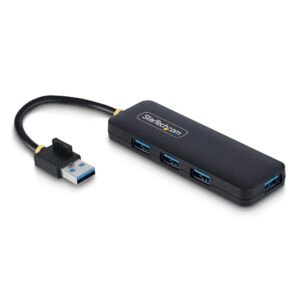
4-Port USB-A Hub, 5Gbps, Bus Powered, Small Travel Mini USB Hub, Multi-Port USB 3.0 Splitter, Portable USB Hub, Overcurrent Protection (OCP)
$24.99 Add to cart