
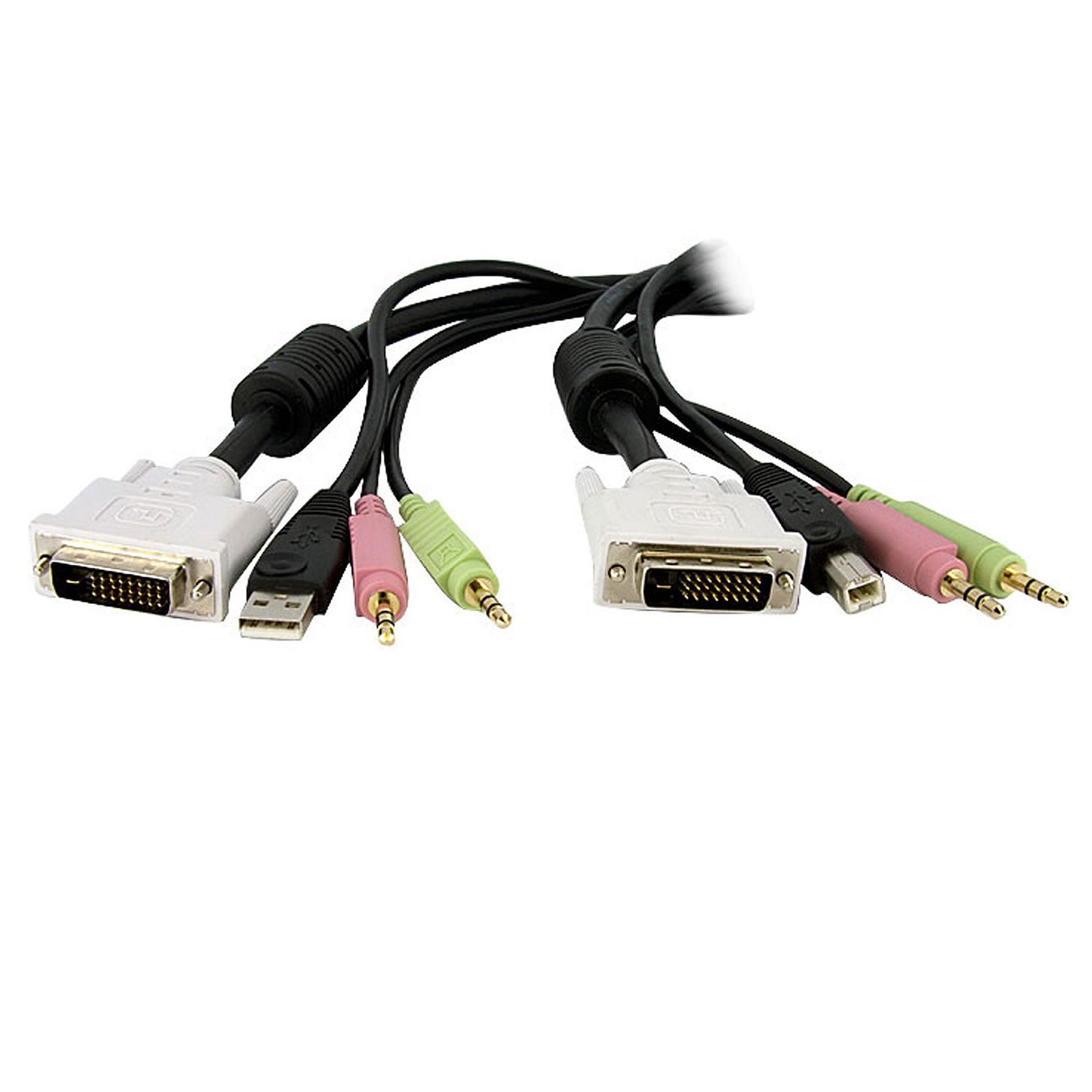
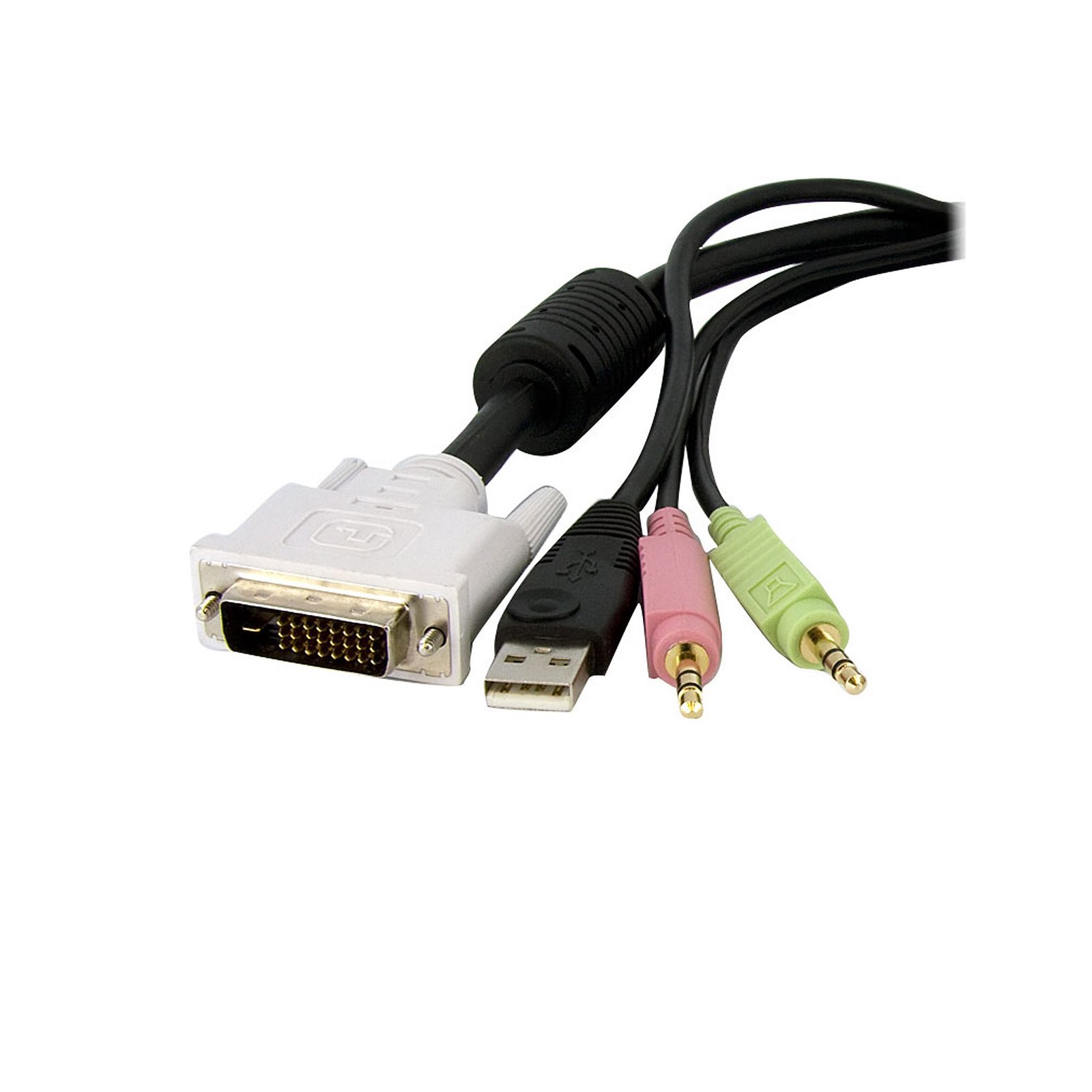
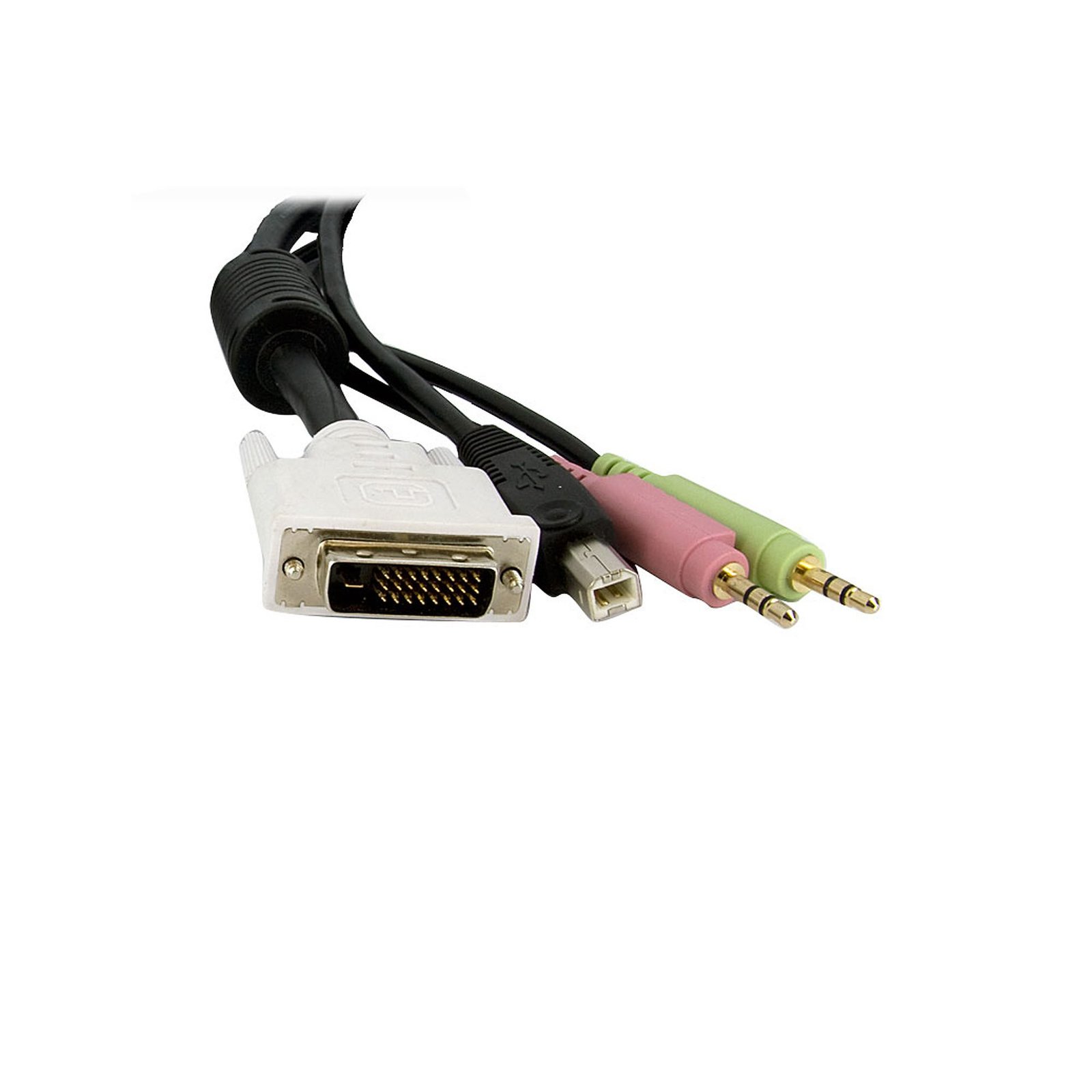
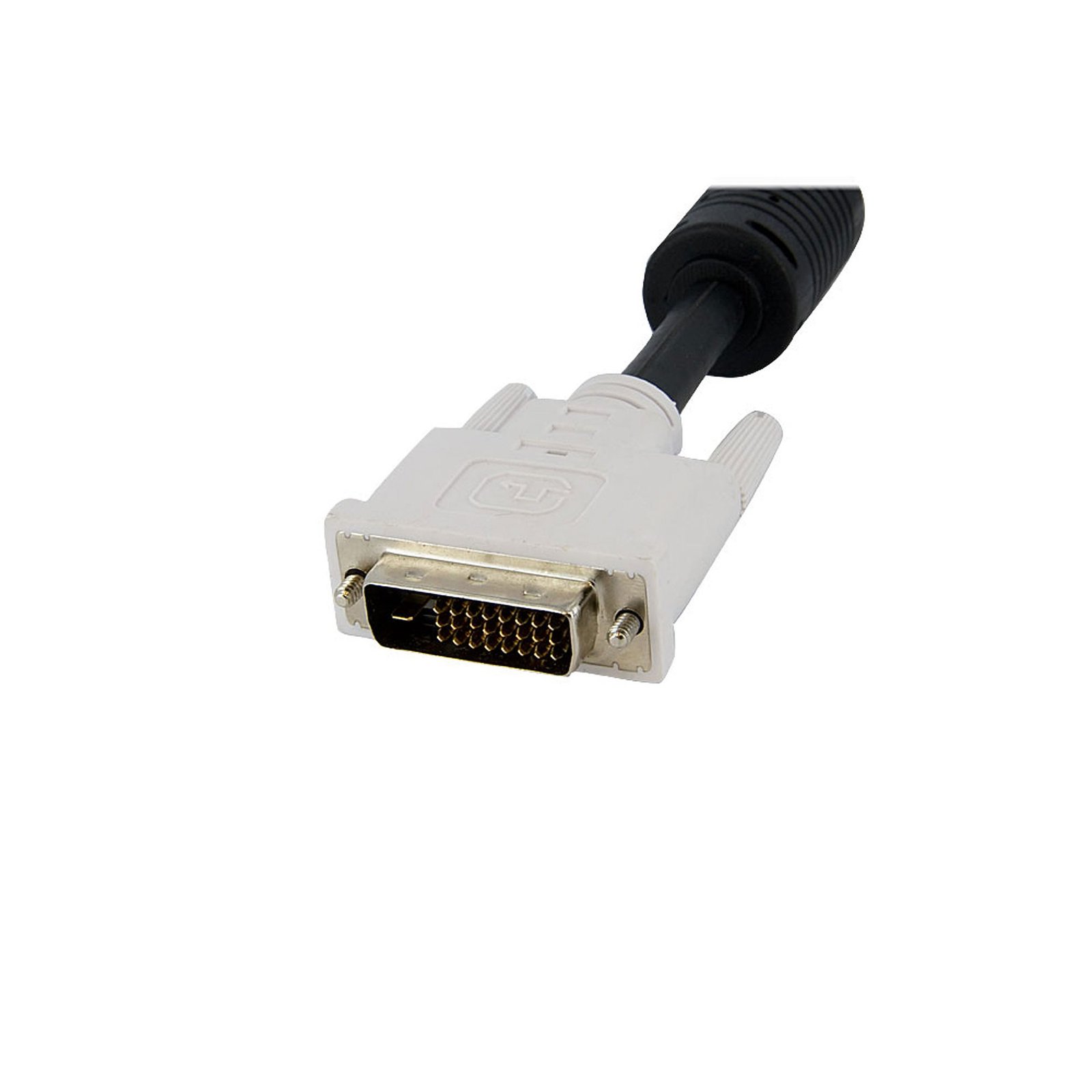
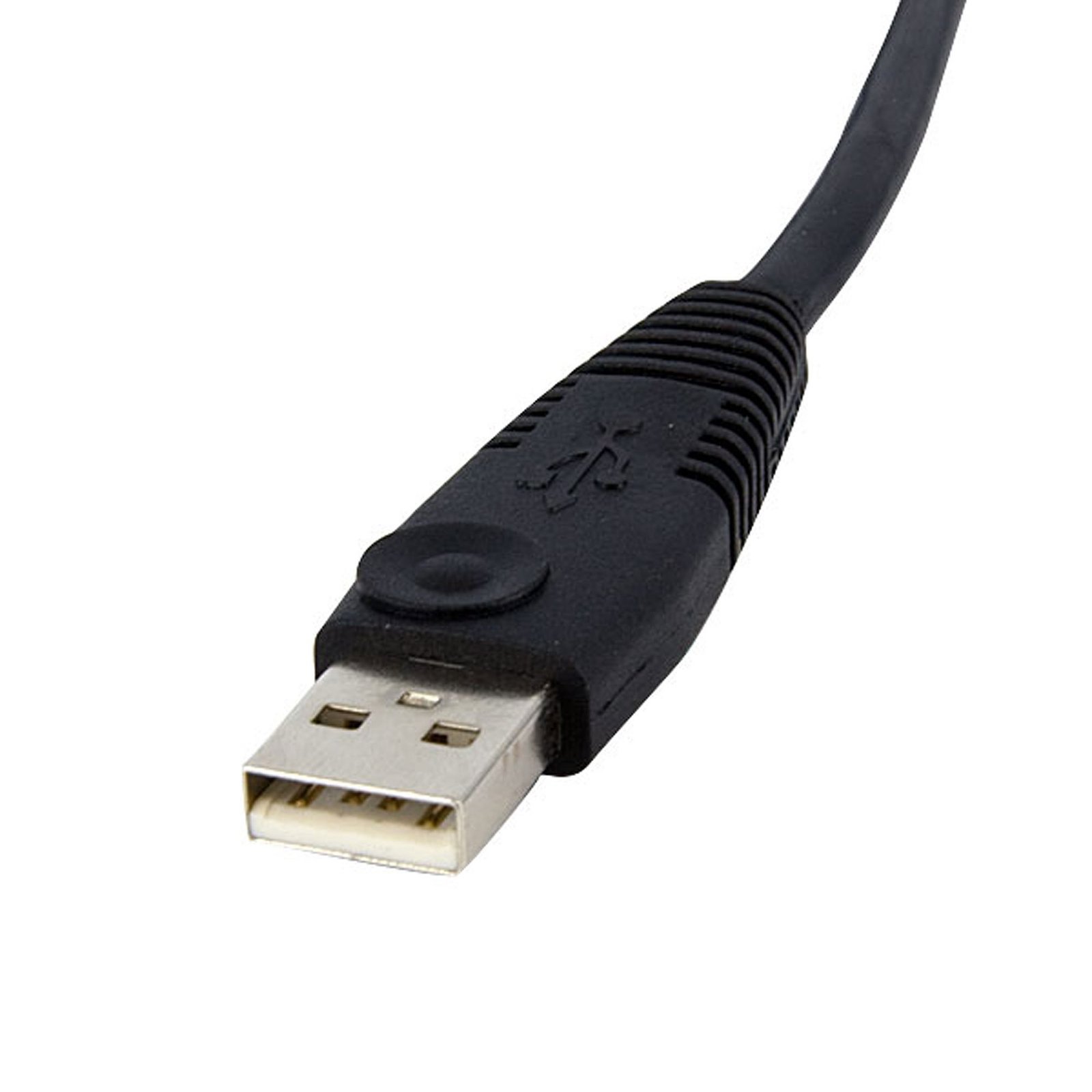
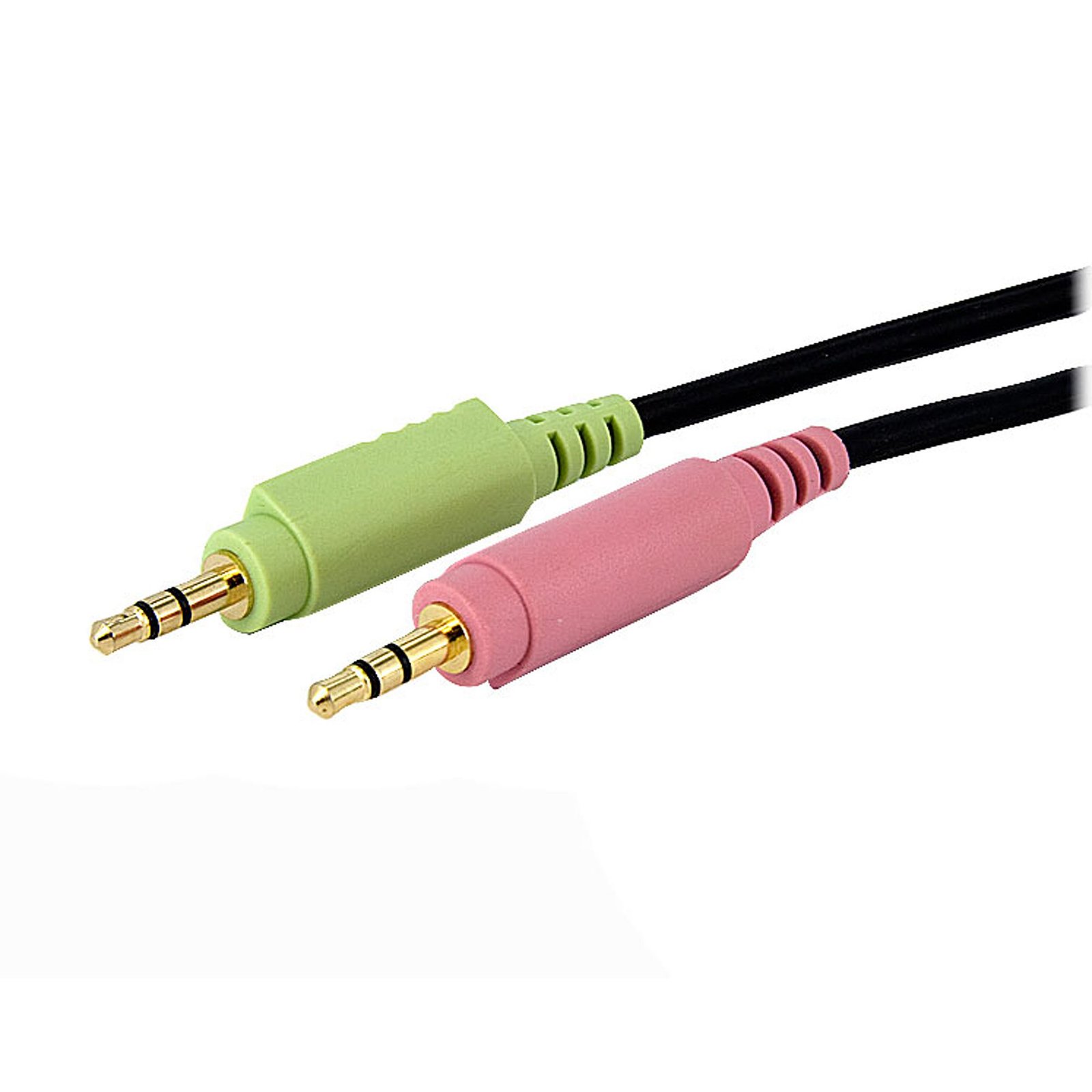
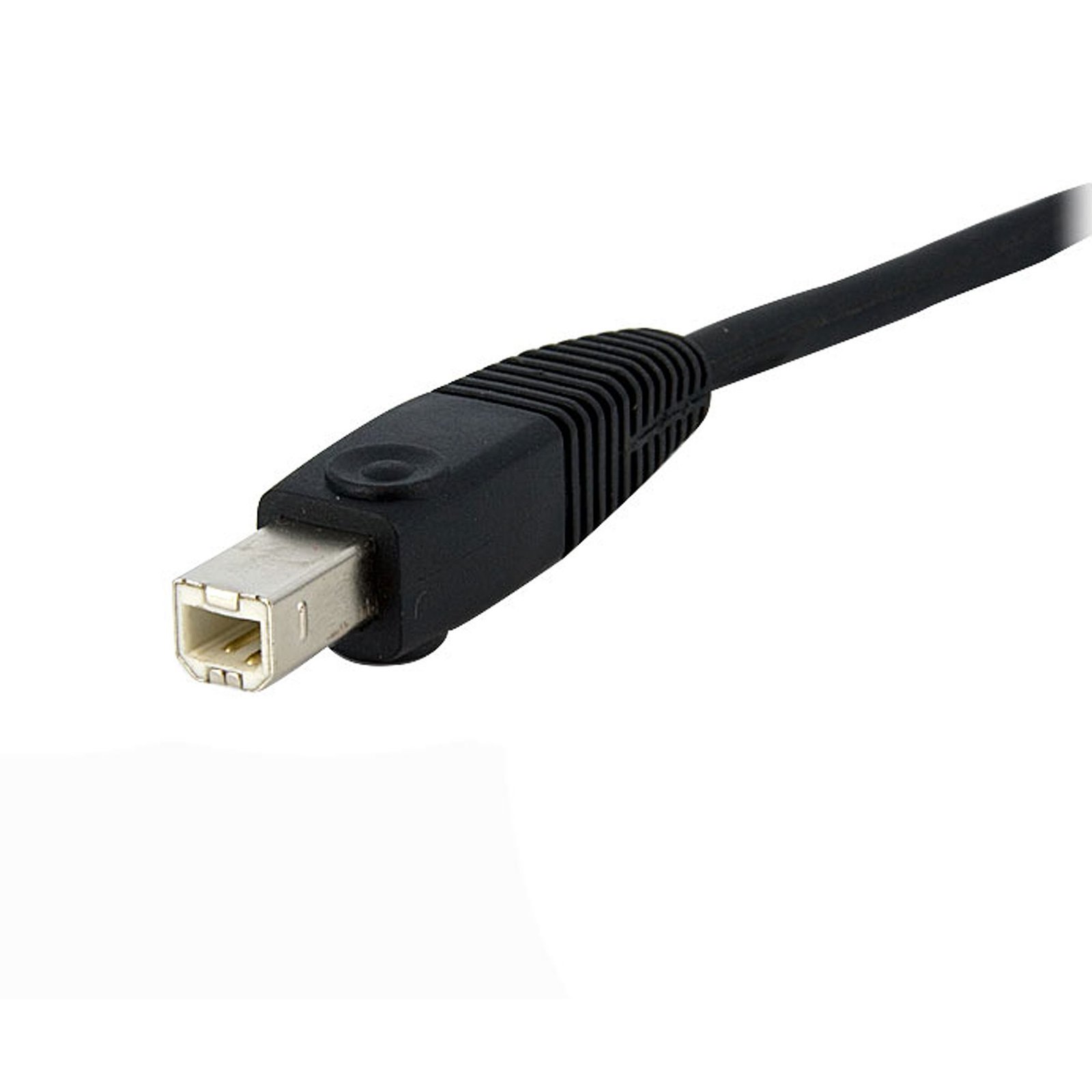
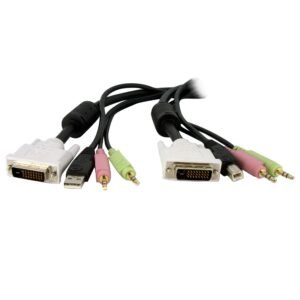
10ft 4-in-1 USB Dual Link DVI-D KVM Switch Cable w/ Audio & Microphone
$43.99
Connect high resolution DVI video, USB, and audio all in one cable
Specifications & Compliance
- UPC
- 065030836616
- Brand
- StarTech.com
- Included in Package
- 1 - 4-n-1 Dual Link DVI-D USB KVM Cable with Audio
- Shipping (Package) Weight
- 22.7 oz [644 g]
- Weight of Product
- 22.1 oz [627.0 g]
- Product Length
- 10.0 ft [3.0 m]
- Product Width
- 0.0 in [0.0 mm]
- Package Depth
- 10.0 in [25.5 cm]
- Package Width
- 13.0 in [33 cm]
- Package Height
- 1.6 in [40 mm]
- Color
- Black
- Warranty
- Lifetime
- Connector 1
- DVI-D Dual-Link (25-Pin)
- Connector 1 (Quantity)
- 1
- Package Quantity
- 1
- Connector 2
- 3.5mm (3 Conductors, TRS)
- Connector 2 (Quantity)
- 2
- Cable Jacket Material
- PVC - Polyvinyl Chloride
- Connector 3
- USB-A (480Mbps, 2.5W)
- Connector 3 (Quantity)
- 1
- Connector 4 (Quantity)
- 1
- Connector 5 (Quantity)
- 2
- Connector 6
- USB-B (480Mbps, 2.5W)
- Connector 6 (Quantity)
- 1
Questions & Answers
How can I identify which DVI connector type I have or need?
You can identify the DVI connector type by the pin configuration and determine compatibility based on whether the connection supports analog, digital, or both signal types. Explanation: DVI (Digital Visual Interface) connectors are defined by their pin layout and supported signal type. The main DVI connector types are: DVI-A (17 pin) . Analog signal only DVI-D Single Link (19 pin) . Digital signal only DVI-D Dual Link (25 pin) . Digital signal only, higher bandwidth DVI-I Single Link (23 pin) . Supports both analog and digital signals DVI-I Dual Link (29 pin) . Supports both analog and digital signals, higher bandwidth DVI-A is used for analog signals (similar to VGA), while DVI-D is used for digital signals (similar to HDMI). DVI-I connectors can carry both analog and digital signals, but actual support depends on the device’s specifications. Single Link and Dual Link indicate bandwidth capacity, which affects maximum supported resolution. Typical limits are up to 1920 × 1080 @ 60 Hz for Single Link and up to 2560 × 1600 @ 60 Hz for Dual Link. However, actual resolution support depends on the capabilities of the connected devices, not just the connector type. To ensure compatibility, verify both the connector type and the signal support in the specifications of the source and display devices.
What should I consider when choosing cables for a KVM switch?
KVM cable requirements depend on the specific KVM switch; some use standard cables, while others require proprietary cables designed for that model. Explanation: KVM switches connect multiple computers to a single set of peripherals, and each connected computer typically requires one set of cables. Cable requirements vary by KVM switch design: Standard KVM switches : Use standard video (such as HDMI, DisplayPort, or DVI) and USB or PS/2 cables. These cables can be purchased individually or as bundled kits for convenience. Opposite gender connections : Some KVM switches use different connector genders for computer and console ports to prevent incorrect connections. These setups may require extension cables or specific cable kits. Proprietary cable KVM switches : Some models, especially those designed for server environments, require proprietary cables. These cables combine video and USB or PS/2 signals into a single connector and cannot be replaced with standard cables. To determine the correct cables: Check the product’s Technical Specifications and “What’s in the Box” to see if cables are included. Review the Accessories section for compatible cable options. Inspect the port layout; if there are no standard USB or PS/2 ports for computers, proprietary cables are required. Using the correct cable type is essential to ensure proper functionality and compatibility with the KVM switch. If at this point you require further assistance in deciding which cables to purchase with your StarTech.com KVM switch, contact our technical support team.
Related products
-
6ft (1.8m) Dual-DisplayPort and USB 5Gbps KVM Cable, 4K 60Hz, Universally Compatible DP 1.2/USB 3.0 Combo Cable for Dual-Monitor KVM Switches
$49.99 Add to cart -
KVM Cable for DVI and USB KVM Switches with Audio & Microphone - 6ft
$20.99 Add to cart -

6ft (1.8m) HDMI and USB 5Gbps KVM Cable, 4K 60Hz, HDMI 2.0 and USB Combo Cable for KVM Switches
$28.99 Add to cart -

8 Pack PS2 Cat5 Dongle for Single Console IP KVM Switch
$587.99 Add to cart