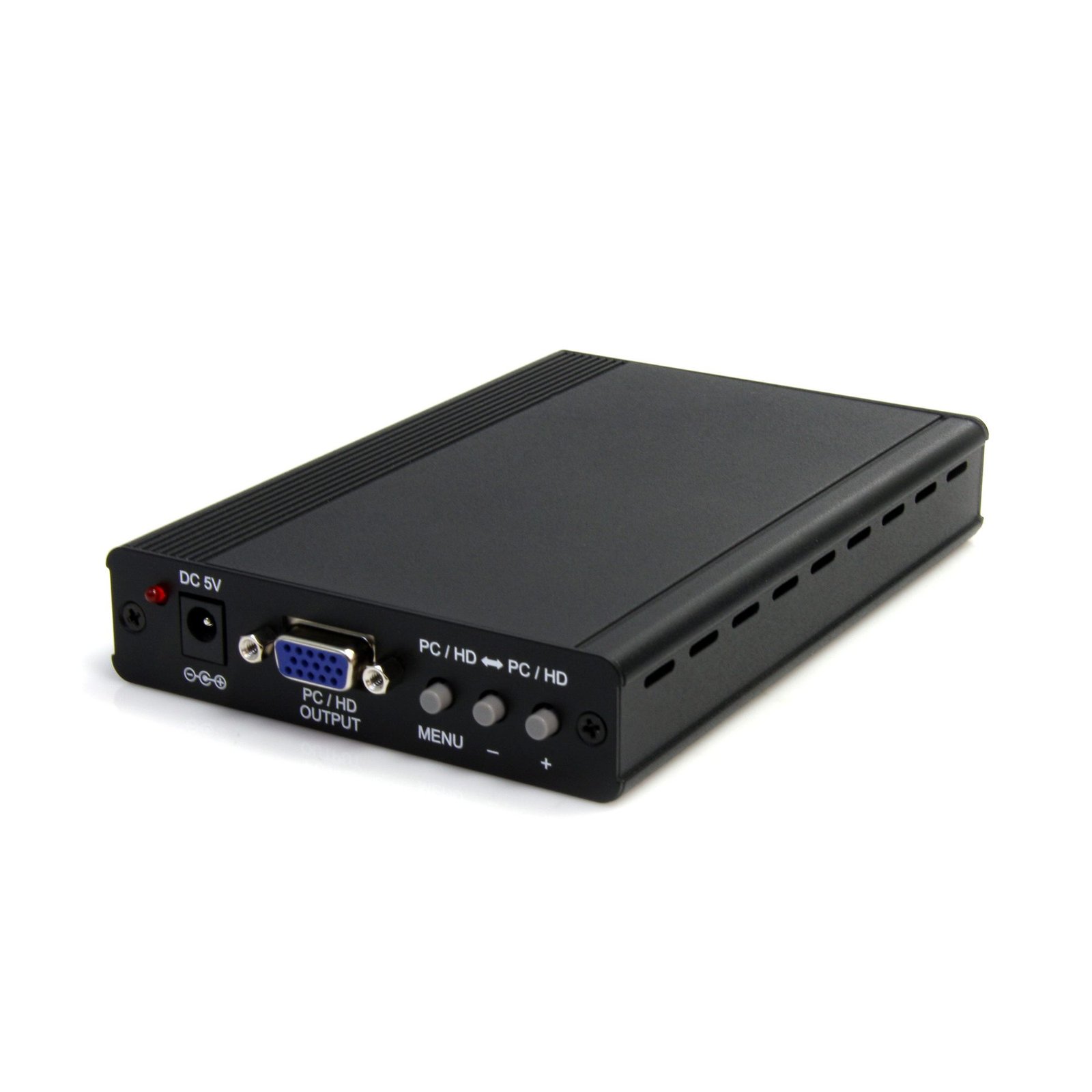
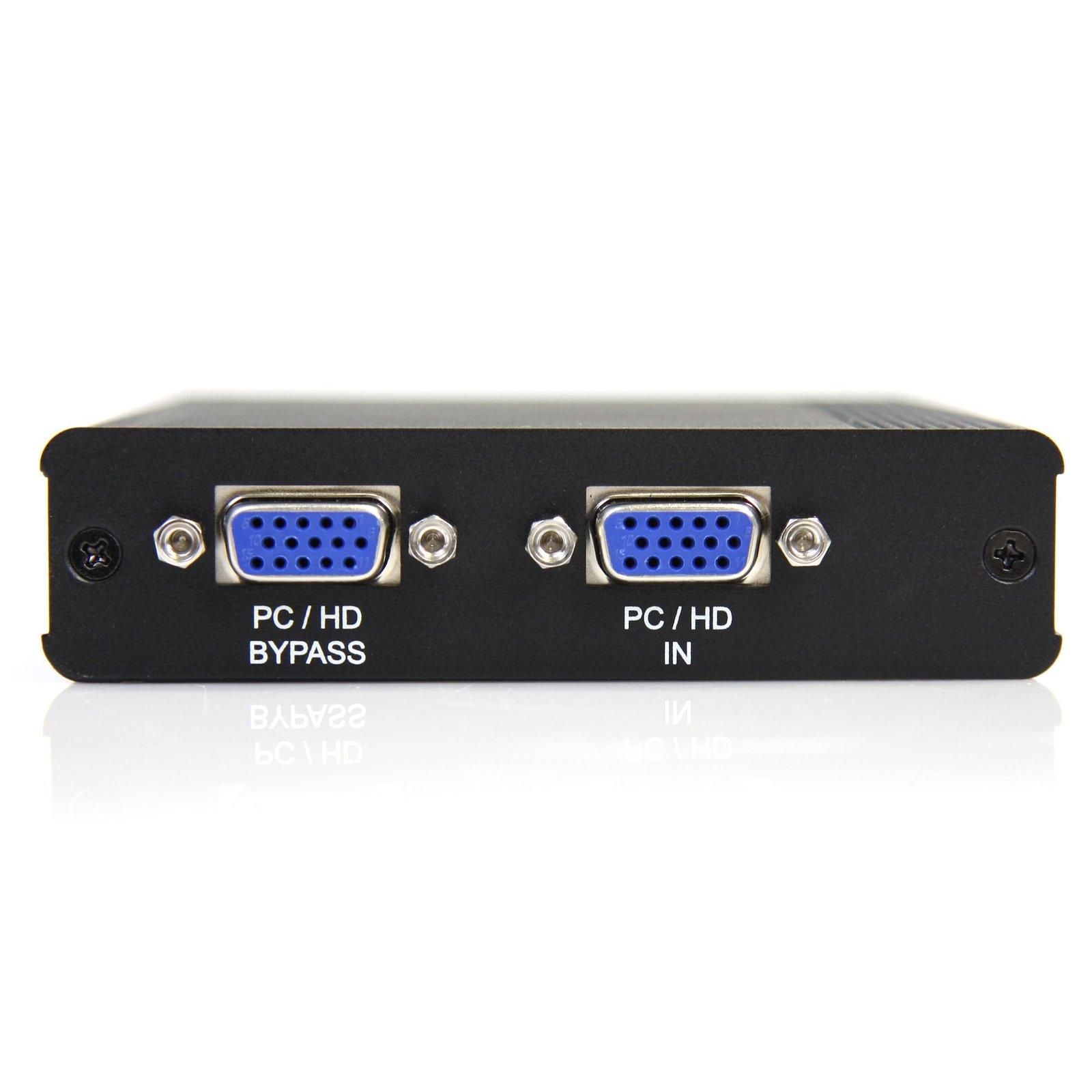

2 Way High Resolution HDTV VGA Video Converter with Scaler
$347.99
Convert and scale PC to HDTV or HDTV to PC resolutions
Specifications & Compliance
- UPC
- 065030837958
- Brand
- StarTech.com
- Included in Package
- 1 - HDTV VGA Video Converter, 1 - 3ft (1m) VGA to YPbPr RCA adapter, 1 - 4ft (1.2m) VGA Cable M/M, 1 - Universal Power Adapter (US/UK/EU/AUS), 1 - User manual
- Shipping (Package) Weight
- 2.3 lb [1.1 kg]
- Weight of Product
- 11.7 oz [332 g]
- Product Length
- 6.2 in [15.7 cm]
- Product Width
- 4.0 in [10.2 cm]
- Product Height
- 1.0 in [25 mm]
- Package Depth
- 2.7 in [69 mm]
- Package Width
- 11.1 in [28.1 cm]
- Package Height
- 7.0 in [17.8 cm]
- Color
- Black
- Warranty
- 2 Years
- Connector 1
- VGA
- Connector 1 (Quantity)
- 2
- Package Quantity
- 1
- Connector 2
- VGA
- Connector 2 (Quantity)
- 1
- Operating Temperature
- 0°C to 40°C (32°F to 104°F)
- Storage Temperature
- 0°C to 60°C (32°F to 140°F)
- Humidity
- 0~60% RH
- Material
- Aluminum
- Power Source
- AC Adapter Included
- Output Voltage
- 5 DC
- Connector 3
- VGA
- Connector 3 (Quantity)
- 1
- Output Current
- 2.6
- Audio
- No
- Plug Type
- M
- Center Tip Polarity
- Positive
- AV Input
- Component, VGA
- AV Output
- Component, VGA
- Wide Screen Supported
- Yes
- Supported Resolutions
- TV - 480i, 576i, 480p, 576p(NTSC/PAL), 720p(50/60Hz), 1080i(25/30Hz), 1080p(50/60Hz)<br><br> PC (60Hz) - 1920x1200, 1680x1050, 1600x1200, 1280x800, 1280x1024, 1024x768, 800x600, 640x480
- Maximum Analog Resolutions
- 1920x1200
Questions & Answers
Does this device require drivers or additional setup?
No. This device is plug and play and does not require drivers or additional software. Simply connect the source device and the destination device to begin using it. Explanation: This device is designed for plug-and-play operation and is automatically recognized by the connected system. To use the device: Connect the source device (such as a computer). Connect the destination device (such as a monitor, projector, or other compatible peripheral). Power on the connected devices, if required. No driver installation, software configuration, or additional setup is necessary. If the device is not detected, verify that: All cables are securely connected. The source and destination devices are compatible with the product. The correct input and output ports are being used.
Everything is hooked up but nothing is working. What should I do?
When you troubleshoot issues with a video adapter, there are some quick tests that you can complete to rule out potential problems. You can test to make sure that the following components are working correctly and are not the source of the issue: Video cables Video adapter Video source (such as a DVD player or computer) Video destination (such as a monitor or projector) To test your setup components, try the following: Use the cable, video adapter, video source, and video destination in another setup to see if the problem is with the components or the setup. Use a different cable, video adapter, video source, and video destination in your setup to see if the problem persists. Ideally, you should test a component that you know works in another setup. When you test your cables, it is recommended that you do the following: Test each cable individually. Use short cables when you are testing. When you test the video source and video destination, it is recommended that you do the following: Remove the video adapter from your setup and test to make sure that the video source and video destination work together without the video adapter. Test to make sure that the video source and video destination work together at the resolution that you want to use. Note: In order for your setup to work properly, the video source, adapter, and destination all need to support the resolution that you are using.
The monitor is not getting a signal and there is no error on the monitor. What do I do?
Try the following: Check that the monitor’s video port works with another source. Check that the cables between the source and the destination work with other equipment. Check whether the video adapter works with another source and another destination. NOTE: Thunderbolt 3 to DisplayPort video adapters will require active adapters to convert from DisplayPort to DVI or HDMI.
What to do When the Monitor is Not Getting a Signal and the Monitor Says “Out of Range"
The error “Out of Range” normally means that the resolution being output by the computer is not compatible with the display. Try lowering the resolution to see if that helps resolve the issue. You may need to connect another monitor or restart the computer or source to accomplish this.
What DC barrel connector power plug types do StarTech.com products use, and what are their dimensions?
StarTech.com DC barrel connector plug types are defined in the “Plug Type” field of the technical specifications, using a letter code that specifies the connector’s outer diameter (OD) and inner diameter (ID) in millimeters for power adapter compatibility. Explanation: In StarTech.com technical specifications, the “Plug Type” field is a standardized identifier for the exact DC barrel connector size required to power a product. Each plug type is assigned a letter code that corresponds to a specific combination of outer diameter (OD) and inner diameter (ID), measured in millimeters. Common DC barrel plug type dimensions Plug Type OD ID A 2.35 mm 0.7 mm B 4.0 mm 1.7 mm C 4.75 mm 1.7 mm H 3.4 mm 1.3 mm L 5.0 mm 2.5 mm M 5.5 mm 2.1 mm N 5.5 mm 2.5 mm The DC barrel connector plug type must match both the outer diameter and inner diameter exactly. A mismatch between the StarTech.com product requirement and the power adapter connector can prevent proper fit or stable power delivery, which may result in device startup failure or intermittent operation. The plug type defines only the physical connector size. The plug type does not define electrical power requirements such as voltage, current, or polarity. The power adapter used with a StarTech.com product must match the product’s specified electrical requirements. Using an incompatible power adapter can cause device malfunction or permanent damage. This standardized DC barrel connector plug type system enables IT professionals and procurement teams to verify connector dimensions, ensure power adapter compatibility, standardize hardware deployments, and identify the correct replacement power supply for StarTech.com products.