

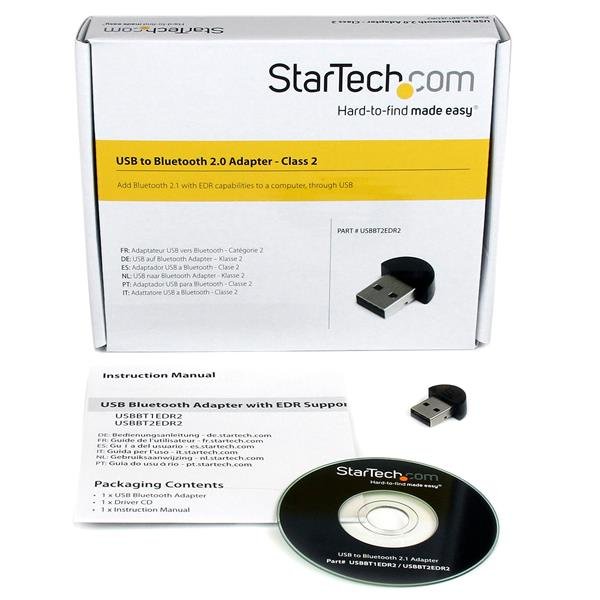
Mini USB Bluetooth 2.1 Adapter - Class 2 EDR Wireless Network Adapter
$20.99
Add Bluetooth 2.0 with EDR capabilities to a computer, through USB
Specifications & Compliance
- UPC
- 065030846103
- Brand
- StarTech.com
- Included in Package
- 1 - USB to Bluetooth Adapter, 1 - Driver CD, 1 - Instruction Manual
- Shipping (Package) Weight
- 2.6 oz [75 g]
- Weight of Product
- 0.1 oz [2 g]
- Product Length
- 0.8 in [20 mm]
- Product Width
- 0.4 in [9.7 mm]
- Product Height
- 0.2 in [6 mm]
- Package Depth
- 5.7 in [14.4 cm]
- Package Width
- 6.9 in [17.4 cm]
- Package Height
- 1.7 in [44 mm]
- Color
- Black
- Warranty
- 2 Years
- Connector 1
- USB-A (480Mbps, 2.5W)
- Connector 1 (Quantity)
- 1
- Package Quantity
- 1
- Connector 2
- Bluetooth Class 2 (10m)
- Connector 2 (Quantity)
- 0
- Operating Temperature
- -10°C to 50°C (14°F to 122°F)
- Storage Temperature
- -25°C to 80°C (-13°F to 176°F)
- Humidity
- 75% RH
- Material
- Plastic
- Maximum Data Transfer Rate
- 3 Mbps
- Industry Standards
- Bluetooth v2.1 + EDR
- Chipset ID
- CSR - BC0401PC08
- Power Consumption
- 0.1W
- MTBF
- 12,000 hours
- LED Indicators
- 1 - Power/Standby
- Interface
- USB 1.1
- System and Cable Requirements
- Available USB port
- Antenna Configuration
- Chip Antenna
- Frequency
- 2.4 GHz ISM
Questions & Answers
How do I pair my Bluetooth device to my computer?
To pair a Bluetooth device to your computer, complete the following: Note: These instructions require that your Bluetooth device's drivers are already installed, that the Bluetooth interface is enabled, and it is in Discovery mode. For instructions on how to do so, refer to your Bluetooth device’s manual. Windows Right-click the Start menu. Click Control Panel . Select Hardware and Sound . Click Devices and Printers . Click Add a device . Select your device from the list. Click Next . Note: A pairing code may be required for your Bluetooth device. If this is the case, a pairing code request may appear on the screen. Make sure that this code matches the code on your device and click Yes . You may also need to confirm this code on your device. Your device should now be paired to the computer. Mac OS X Click the Apple logo. Click System Preferences… . Click Bluetooth . Select your device from the list. Click Pair . Note: A pairing code may be required for your Bluetooth device. If this is the case, a pairing code request may appear on the screen. Make sure that this code matches the code on your device and click Yes . You may also need to confirm this code on your device. Your device should now be paired to the computer.
How do I install this device in Windows 7 / 8?
Before you install drivers and software for the device, make sure that your operating system is current (for example, the most recent service pack is installed). Download the latest drivers and software from the StarTech.com website at www.startech.com/Support . The part number and product ID are on the product packaging. Note: Windows usually saves the files to the Downloads folder that is associated with your user account (for example, C:Users your_name Downloads). After the download is complete, right-click the zip folder that you downloaded, click Extract All , and complete the instructions. In the list of extracted files, right-click the driver or software setup.exe file and select Run as Administrator . Note: If the Run as Administrator option is not available, you might be attempting to run the installer from within the zipped file. Extract the files using the instructions in Step 2. Follow the on-screen prompts to install the device drivers and software and restart the computer when prompted. Your computer will automatically complete the installation and your device should be ready to use.
How do I install this device in Windows 8.1 / 10?
The drivers for this device are native to Windows® 8.1 and 10. Connect your Bluetooth device to your computer and Windows will automatically install the drivers. If the drivers do not automatically install, or your device does not function as it should, you can install the latest drivers from StarTech.com. To do so, refer to the following FAQ: www.startech.com/faq/bluetooth-adapters-install-windows-78 .
Why does my USB device stop working after my computer wakes back up from sleep mode in Windows?
If the USB device does not work after your computer has been in extended hibernation, it is likely that Windows has automatically turned off the USB Root hub to save power. The steps below outline how to configure the USB root hub to stay on during hibernation, to prevent this from happening. Windows 10 / 8 On your keyboard, press the Windows key + X and select Control Panel . Click Hardware and Sound , then click Power Options . Click Change plan settings for the plan you want to change. Click Change advanced power settings . Click the plus sign (+) next to “USB settings” and “USB selective suspend setting” to expand the options and change the setting to Disabled . Click OK to apply the setting. Note : You may need to disconnect and re-connect your USB device after applying these settings to re-establish the connection. Windows 7 / Vista Click the Start button and select Control Panel . Click Hardware and Sound , then click Power Options . Click Change plan settings for the plan you want to change. Click Change advanced power settings . Click the plus sign (+) next to “USB settings” and “USB selective suspend setting” to expand the options and change the setting to Disabled . Click OK to apply the setting. Note : You may need to disconnect and re-connect your USB device after applying these settings to re-establish the connection. Windows XP On your desktop, right-click the My Computer icon and select Properties . Click the Device Manager tab. Expand Universal Serial Bus controllers by clicking the arrow to the left of it. Right-click the first USB Root Hub device and select Properties . Click the Power Management tab. Clear the box next to Allow the computer to turn off this device to save power . Click OK to apply the setting. Repeat steps 4-7 for any remaining devices in the Universal Serial Bus Controllers section with “ Root Hub ” in the name. Note : You may need to disconnect and re-connect your USB device after applying these settings to re-establish the connection.
My Bluetooth adapter is not working. What do I do?
When you troubleshoot issues with a Bluetooth adapter, there are some quick tests that you can complete to rule out potential problems. You can test to make sure that the following are not the source of the issue: Operating system Up to date drivers Range It’s important to make sure that the operating system that is being used with the Bluetooth adapter is supported by the device. You can be check which operating systems a device supports on the StarTech.com product page, under the Technical Specifications tab for the device. The most up-to-date drivers and software should be used with the Bluetooth adapter. These are found on the StarTech.com website on the product page, under the Support tab. It is important to be aware of the range of the Bluetooth adapter, and the distance to the Bluetooth device that pairing is being attempted with. The range of the adapter can also be viewed under the Technical Specifications tab for the device. If the source of the issue has still not been found, these can be investigated: Detection on system Bluetooth device USB port Computer system Bluetooth adapter If the Bluetooth adapter is not being detected by the computer while connected to your computer, refer to the following FAQs, based on your operating system: For Windows: www.startech.com/faq/usb-cannot-detect-windows . For Mac OS: www.startech.com/faq/usb-cannot-detect-mac-os . If you encounter issues pairing with a Bluetooth device, another device should be tested (if possible). If the adapter is not functional in the first USB port on the first computer system that is used, additional ports and an additional computer system should be tried. If you have a second Bluetooth adapter, you should test with it as well.
How do I confirm that Windows detects my USB device?
To confirm that Windows detects your USB device, complete the following: Press the Windows key+ R , type devmgmt.msc , and press Enter . In Device Manager , under the appropriate heading, confirm that your expansion card is listed and that there isn't an exclamation mark next to it. For example, a USB controller card would be under Universal Serial Bus controllers . Your USB device is listed according to the name of the chipset. To determine the name of the chipset of your USB device, navigate to www.StarTech.com and look on the Technical Specifications tab for your product.
What is a Bluetooth class, and what is a Bluetooth profile?
A Bluetooth class defines the maximum transmission power and potential wireless range of a Bluetooth device. A Bluetooth profile defines the specific functions and features that Bluetooth devices can use when communicating with each other. Explanation: Bluetooth Class Bluetooth classes determine a device's transmission power and maximum theoretical operating range. Class Average power Average range 1 100 mW ~100m 2 2.5 mW ~10 m 3 1 mW ~1 m 4 0.5 mW ~0.5 m Actual range depends on environmental factors such as walls, interference, and physical obstructions. To achieve the maximum range of a Bluetooth connection, both devices must support the same Bluetooth class. If devices use different classes, the connection range is typically limited by the lower-powered device. Bluetooth Profiles Bluetooth profiles are standardized protocols that define how Bluetooth devices communicate for specific applications. A Bluetooth device must support the required profile to use a particular feature. Common Bluetooth profiles include: SPP (Serial Port Profile): Serial data communication between devices. HID (Human Interface Device): Keyboards, mice, and other input devices. HFP (Hands-Free Profile): Hands-free calling and communication devices. HSP (Headset Profile): Basic headset audio functionality. When evaluating Bluetooth compatibility, verify both the Bluetooth version and the supported Bluetooth profiles required for your application.
Related products
-

Mini USB Bluetooth 2.1 Adapter - Class 1 EDR Wireless Network Adapter
$33.99 Add to cart -

Mini USB Bluetooth 4.0 Adapter - 50m (165ft) Class 1 EDR Wireless Dongle
$36.99 Add to cart -

USB 2.0 Fax Modem - 56K External Hardware Dial Up V.92 Modem/ Dongle/Adapter - Computer/Laptop Fax Modem - USB to Telephone Jack - USB Data Modem - Network Fax/CMR/POS - TAA
$70.99 Add to cart -
External USB Modem - 2-Port, 56K, Hardware Based
$59.99 Add to cart