

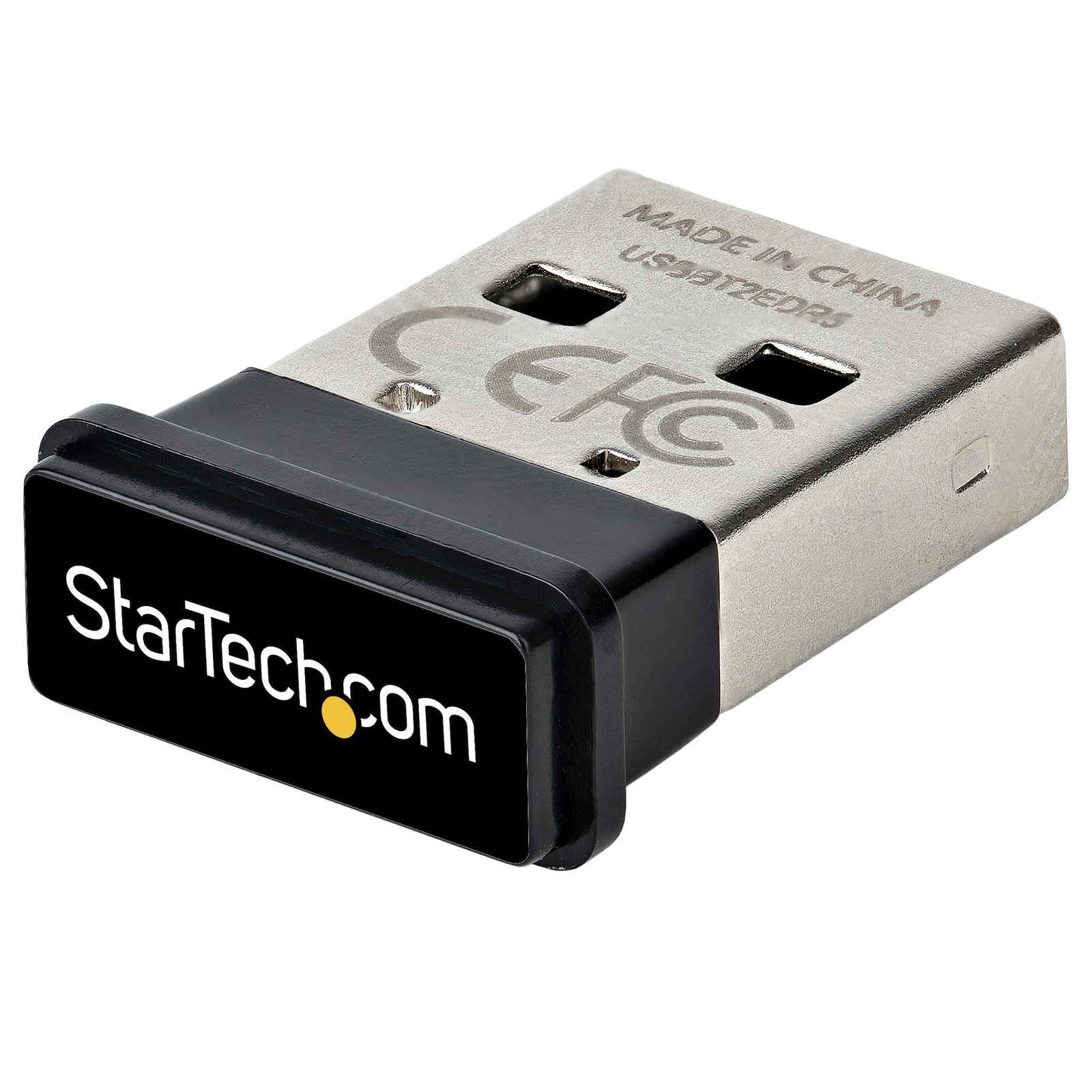
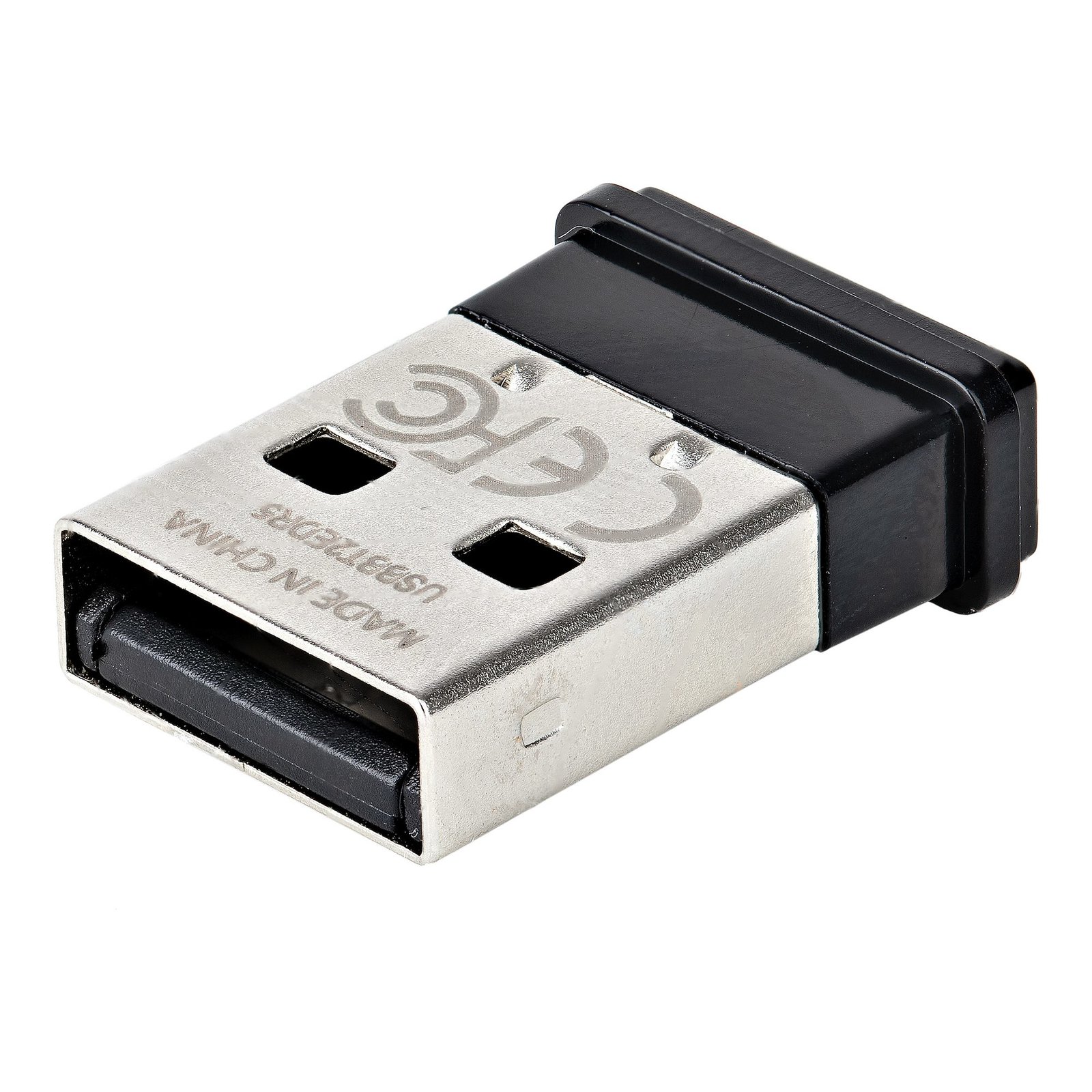
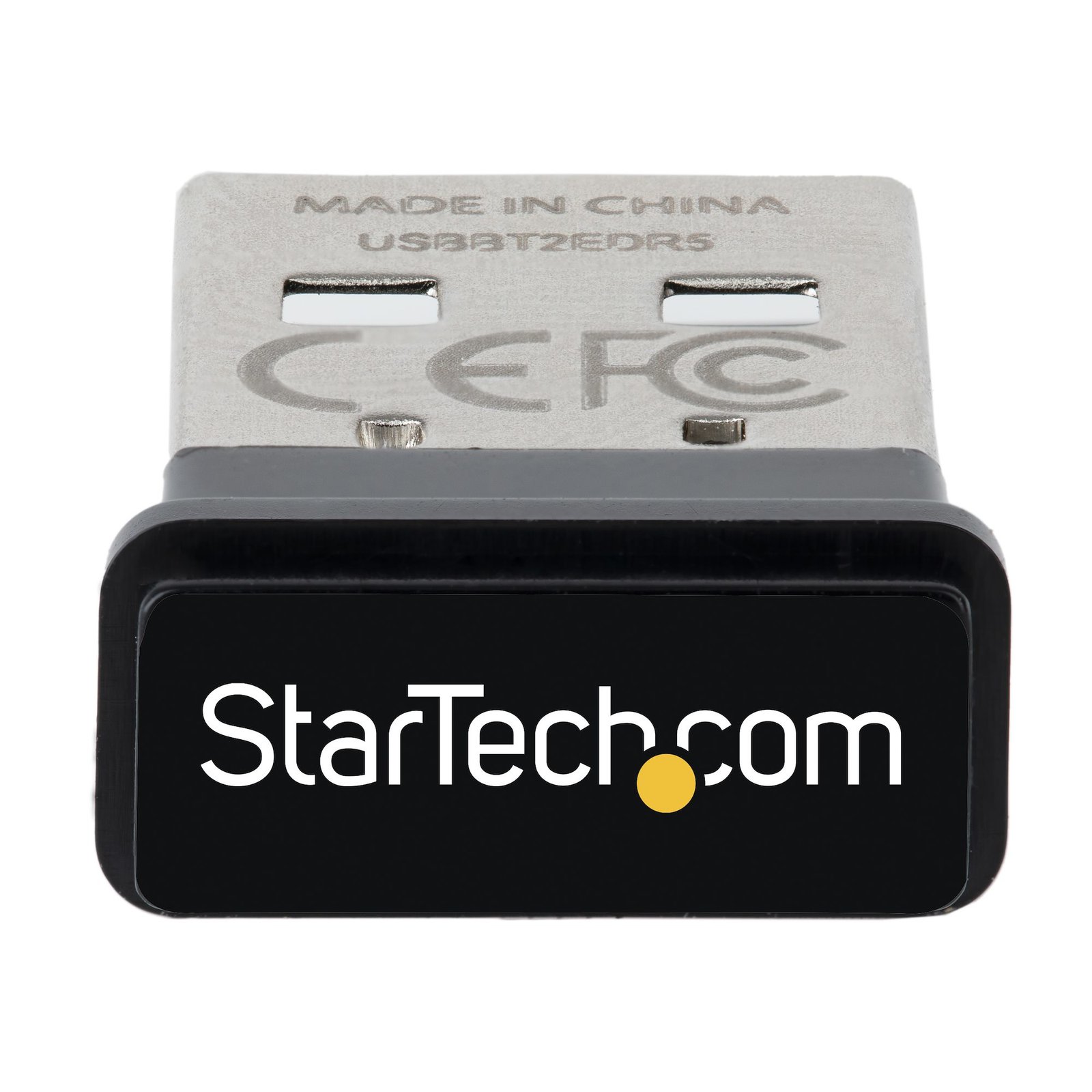
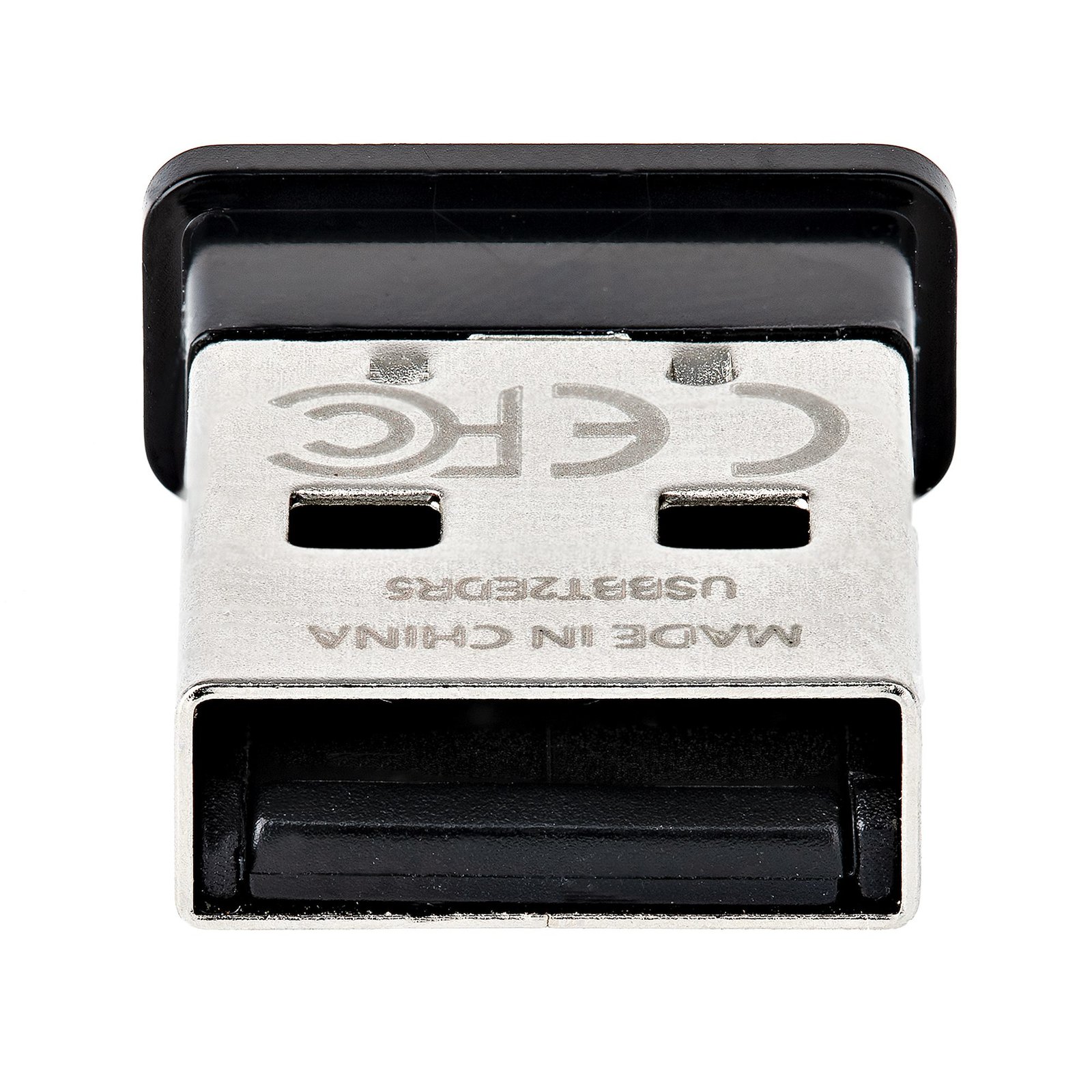
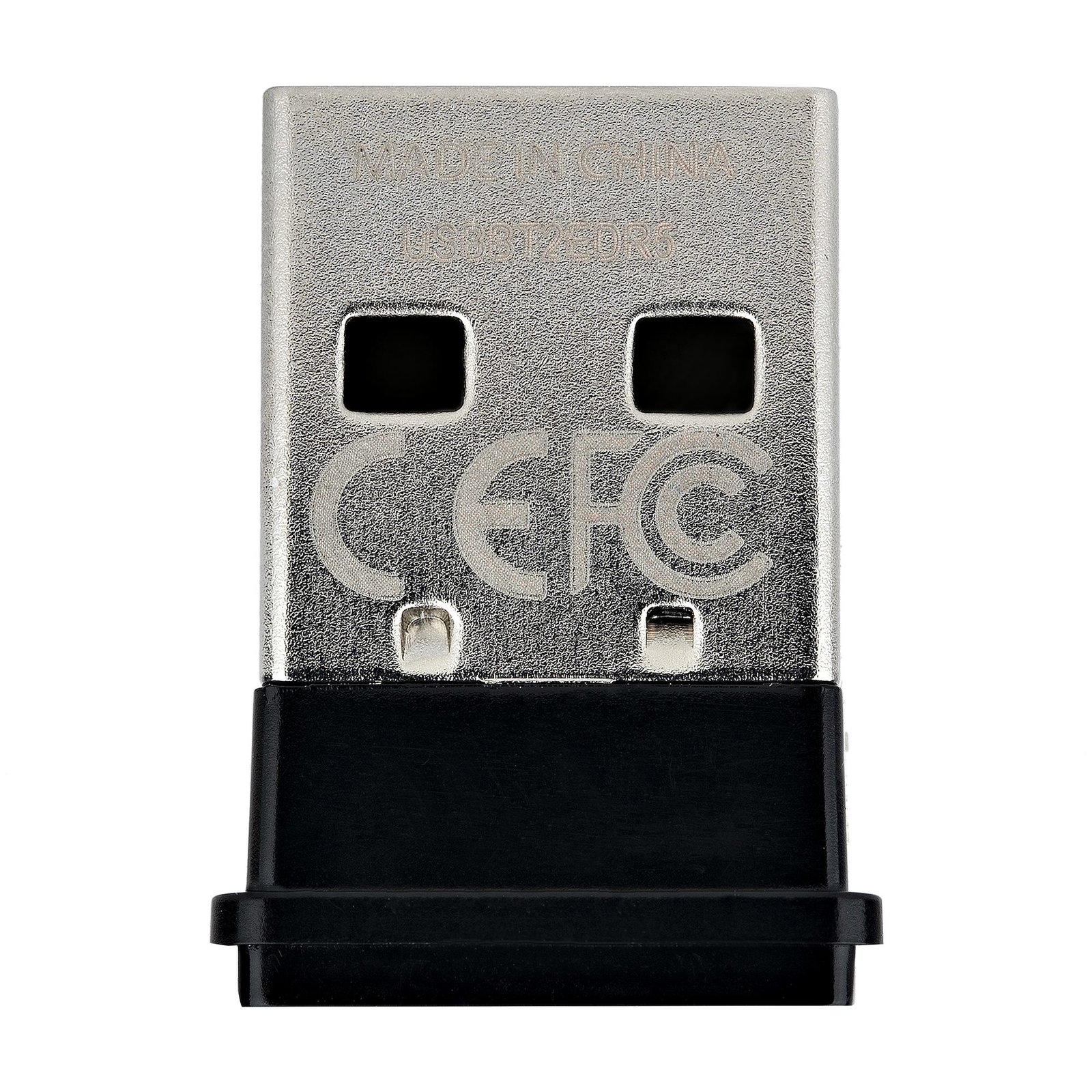
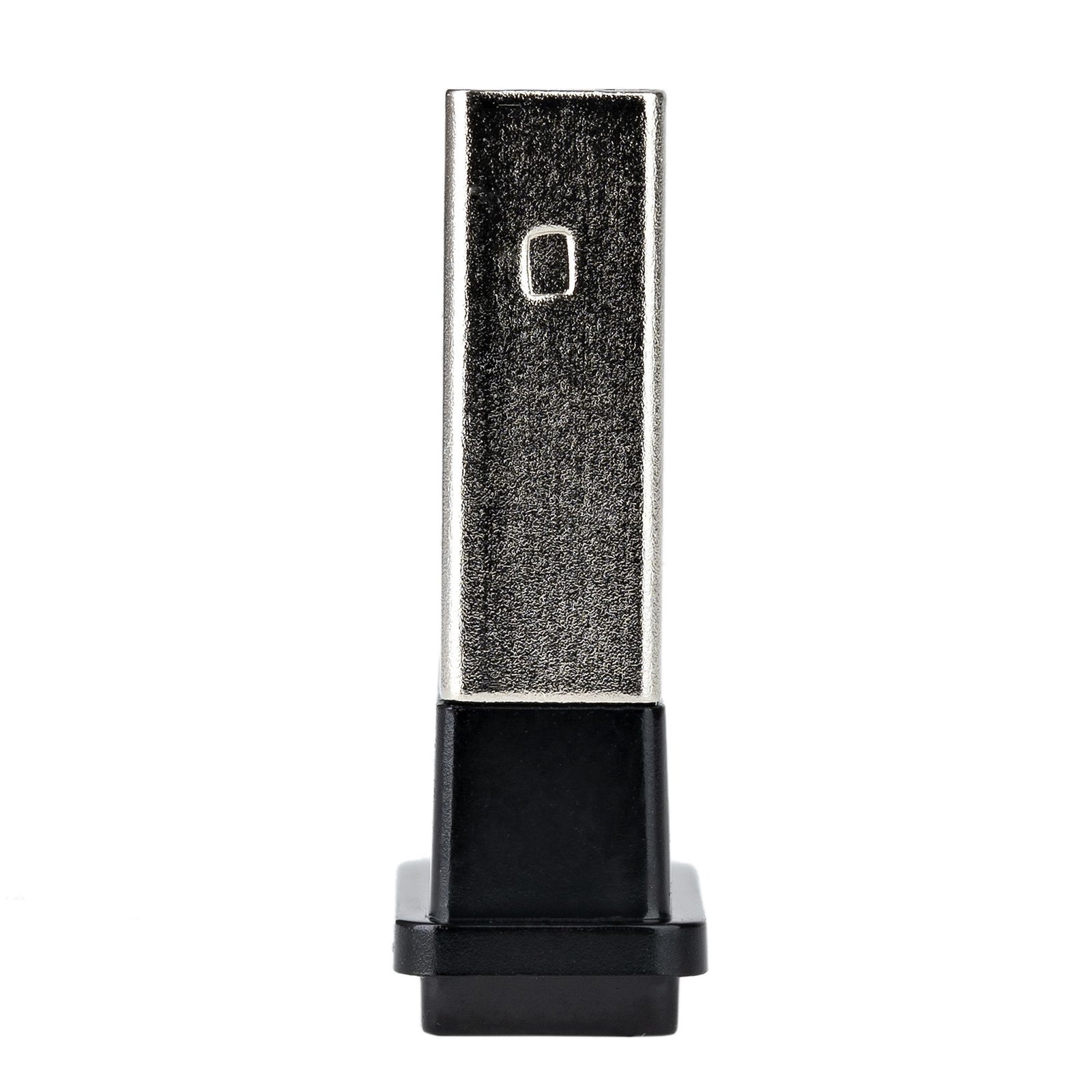
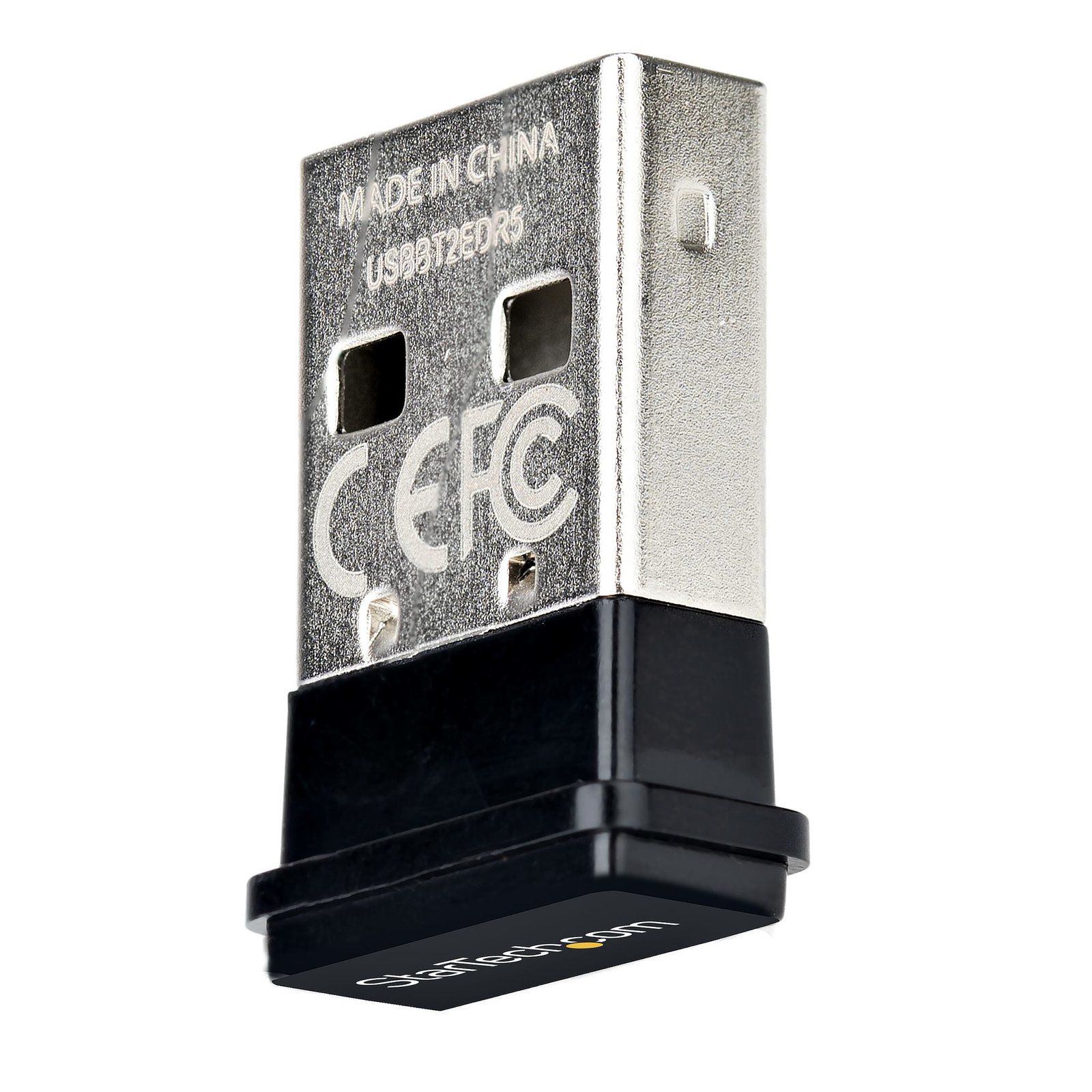
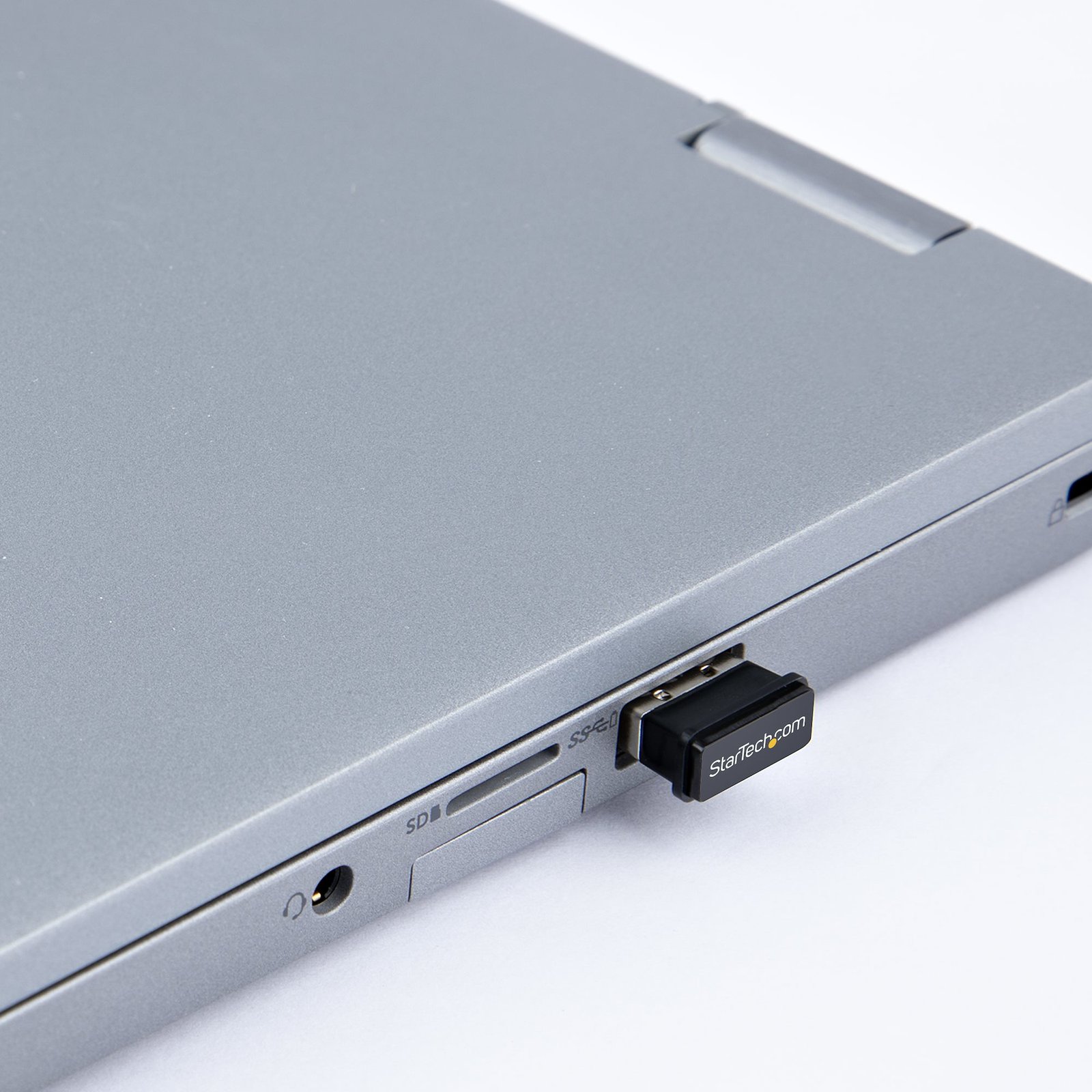
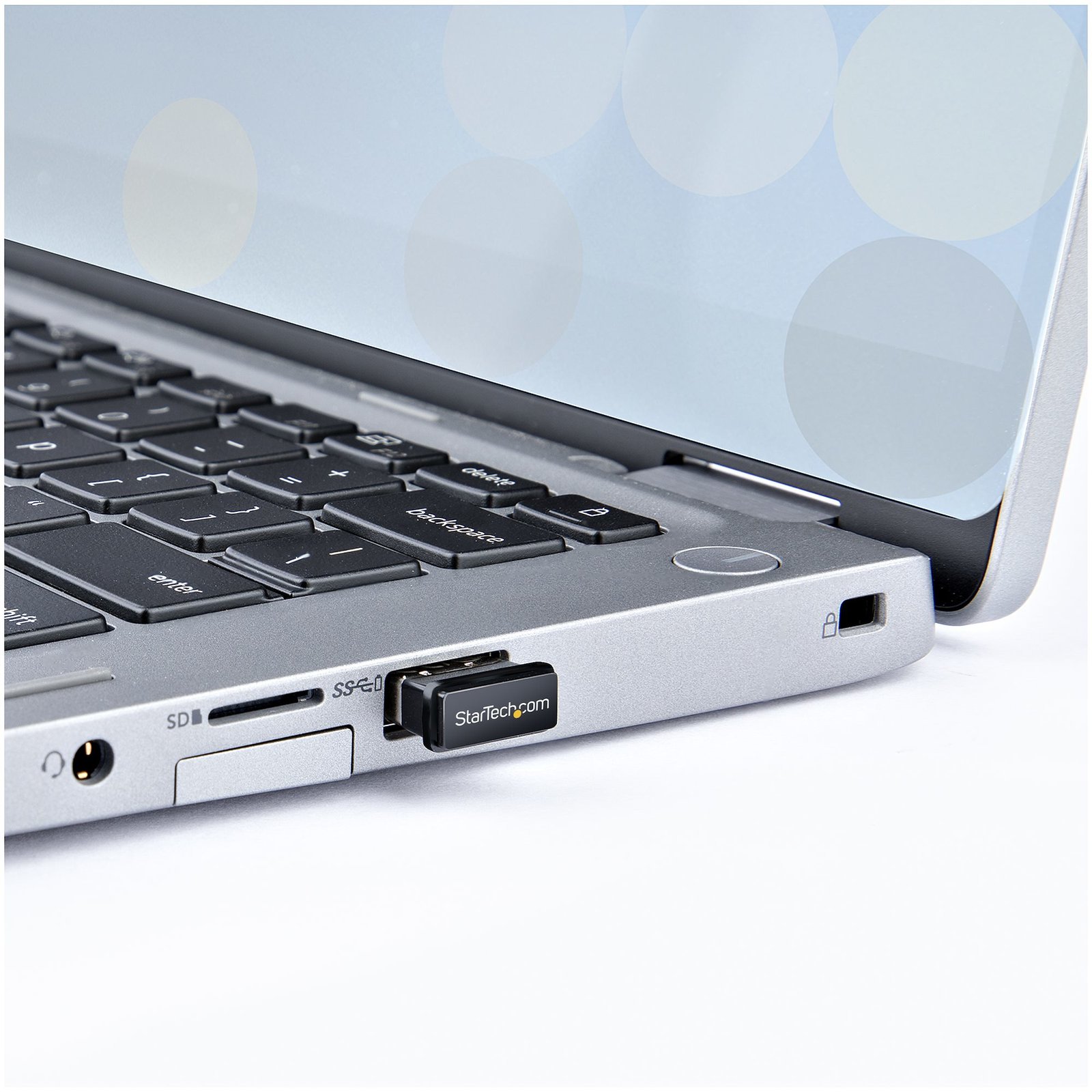
USB Bluetooth 5.0 Adapter, USB Bluetooth Dongle for PC/Computer/Laptop/Keyboard/Mouse, BT 5.0 Adapter for Headsets, Mini USB Bluetooth Receiver, Windows/Linux
$25.99
USB Bluetooth 5.0 Adapter For PC/Laptop | For Keyboard/Mouse/Headset | 33ft/10m Range | EDR/LE | Windows/Linux
Specifications & Compliance
- UPC
- 065030894951
- Brand
- StarTech.com
- Included in Package
- 1 - USB to Bluetooth V5.0 Adapter, 1 - Quick-start guide
- Shipping (Package) Weight
- 1.2 oz [34 g]
- Weight of Product
- 0.1 oz [2.0 g]
- Product Length
- 0.8 in [20.0 mm]
- Product Width
- 0.5 in [13.0 mm]
- Product Height
- 0.2 in [5.0 mm]
- Package Depth
- 4.6 in [11.8 cm]
- Package Width
- 3.1 in [80 mm]
- Package Height
- 0.9 in [23 mm]
- Color
- Black
- Warranty
- 2 Years
- Connector 1
- USB-A (480Mbps, 7.5W)
- Connector 1 (Quantity)
- 1
- Package Quantity
- 1
- Connector 2
- Bluetooth Class 2 (10m)
- Connector 2 (Quantity)
- 1
- Operating Temperature
- 5°C ~ 50°C (41°F to 122°F)
- Storage Temperature
- -20°C ~ 85°C (-4°F to 185°F)
- Humidity
- 10 ~ 90% RH
- Material
- Plastic and Steel
- Maximum Data Transfer Rate
- 2 Mbps
- Industry Standards
- USB 1.1, Bluetooth 5.0, Class 2, BDR Basic data rate, EDR Enhanced data rate, BLE Bluetooth low energy
- Power Source
- USB-Powered
- Chipset ID
- Realtek - RTL8761B
- System and Cable Requirements
- Available USB type-A port
- Max Distance
- 10m [33ft]
Questions & Answers
How do I pair my Bluetooth device to my computer?
To pair a Bluetooth device to your computer, complete the following: Note: These instructions require that your Bluetooth device's drivers are already installed, that the Bluetooth interface is enabled, and it is in Discovery mode. For instructions on how to do so, refer to your Bluetooth device’s manual. Windows Right-click the Start menu. Click Control Panel . Select Hardware and Sound . Click Devices and Printers . Click Add a device . Select your device from the list. Click Next . Note: A pairing code may be required for your Bluetooth device. If this is the case, a pairing code request may appear on the screen. Make sure that this code matches the code on your device and click Yes . You may also need to confirm this code on your device. Your device should now be paired to the computer. Mac OS X Click the Apple logo. Click System Preferences… . Click Bluetooth . Select your device from the list. Click Pair . Note: A pairing code may be required for your Bluetooth device. If this is the case, a pairing code request may appear on the screen. Make sure that this code matches the code on your device and click Yes . You may also need to confirm this code on your device. Your device should now be paired to the computer.
My Bluetooth adapter is not working. What do I do?
When you troubleshoot issues with a Bluetooth adapter, there are some quick tests that you can complete to rule out potential problems. You can test to make sure that the following are not the source of the issue: Operating system Up to date drivers Range It’s important to make sure that the operating system that is being used with the Bluetooth adapter is supported by the device. You can be check which operating systems a device supports on the StarTech.com product page, under the Technical Specifications tab for the device. The most up-to-date drivers and software should be used with the Bluetooth adapter. These are found on the StarTech.com website on the product page, under the Support tab. It is important to be aware of the range of the Bluetooth adapter, and the distance to the Bluetooth device that pairing is being attempted with. The range of the adapter can also be viewed under the Technical Specifications tab for the device. If the source of the issue has still not been found, these can be investigated: Detection on system Bluetooth device USB port Computer system Bluetooth adapter If the Bluetooth adapter is not being detected by the computer while connected to your computer, refer to the following FAQs, based on your operating system: For Windows: www.startech.com/faq/usb-cannot-detect-windows . For Mac OS: www.startech.com/faq/usb-cannot-detect-mac-os . If you encounter issues pairing with a Bluetooth device, another device should be tested (if possible). If the adapter is not functional in the first USB port on the first computer system that is used, additional ports and an additional computer system should be tried. If you have a second Bluetooth adapter, you should test with it as well.
Related products
-
Mini USB Bluetooth 2.1 Adapter - Class 2 EDR Wireless Network Adapter
$20.99 Add to cart -

Mini USB Bluetooth 2.1 Adapter - Class 1 EDR Wireless Network Adapter
$33.99 Add to cart -

Mini USB Bluetooth 4.0 Adapter - 50m (165ft) Class 1 EDR Wireless Dongle
$36.99 Add to cart -

USB to Infrared IrDA Adapter
$41.99 Add to cart