
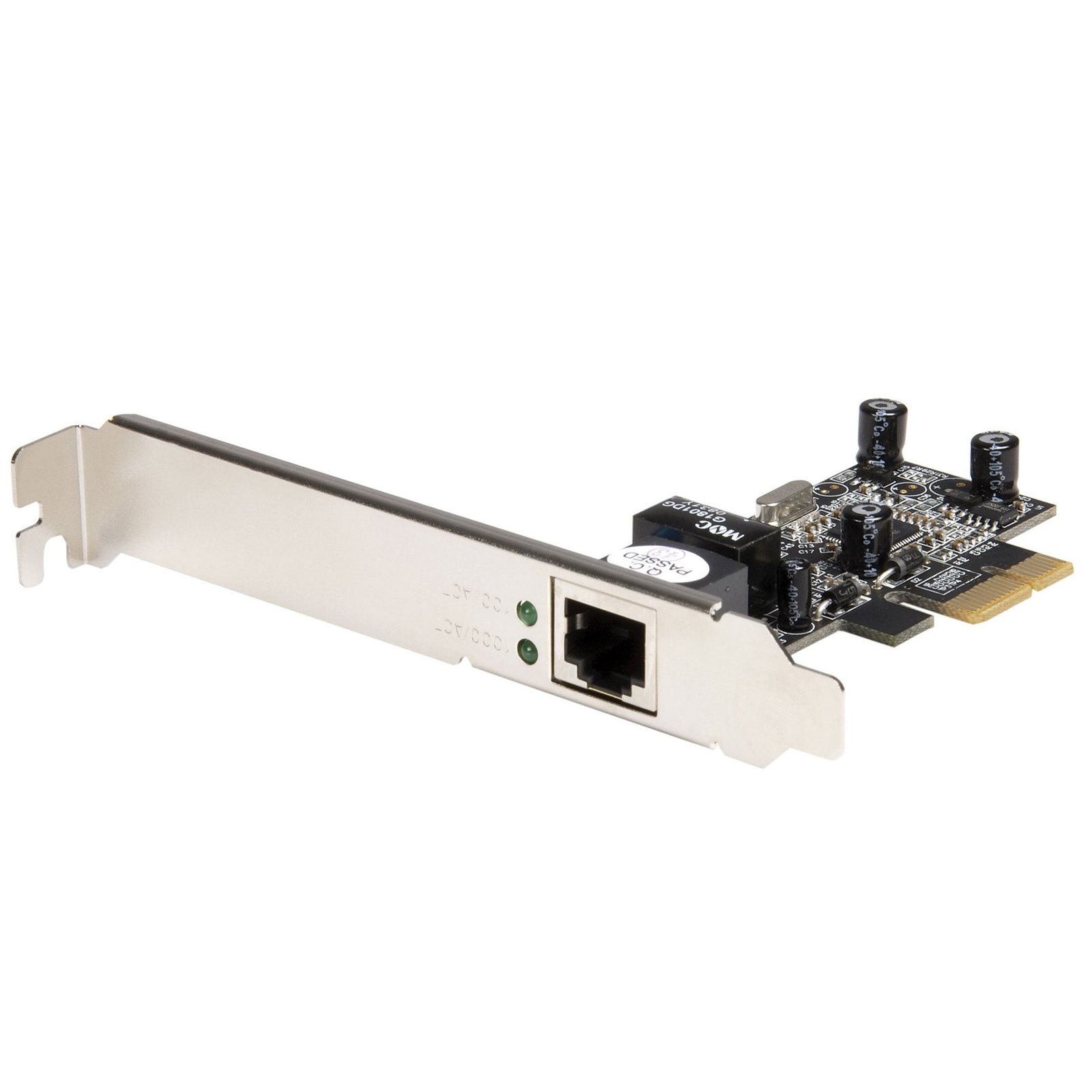
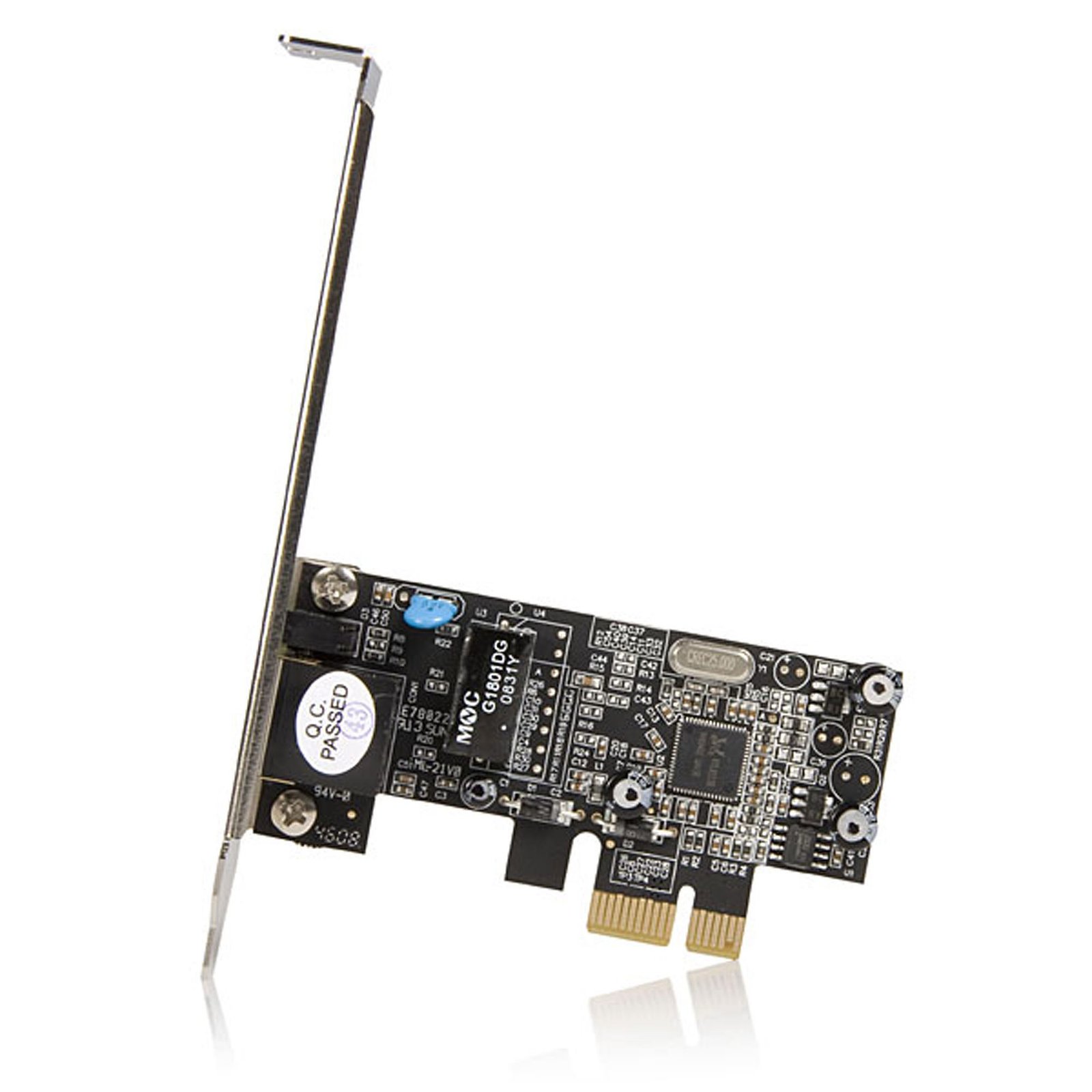

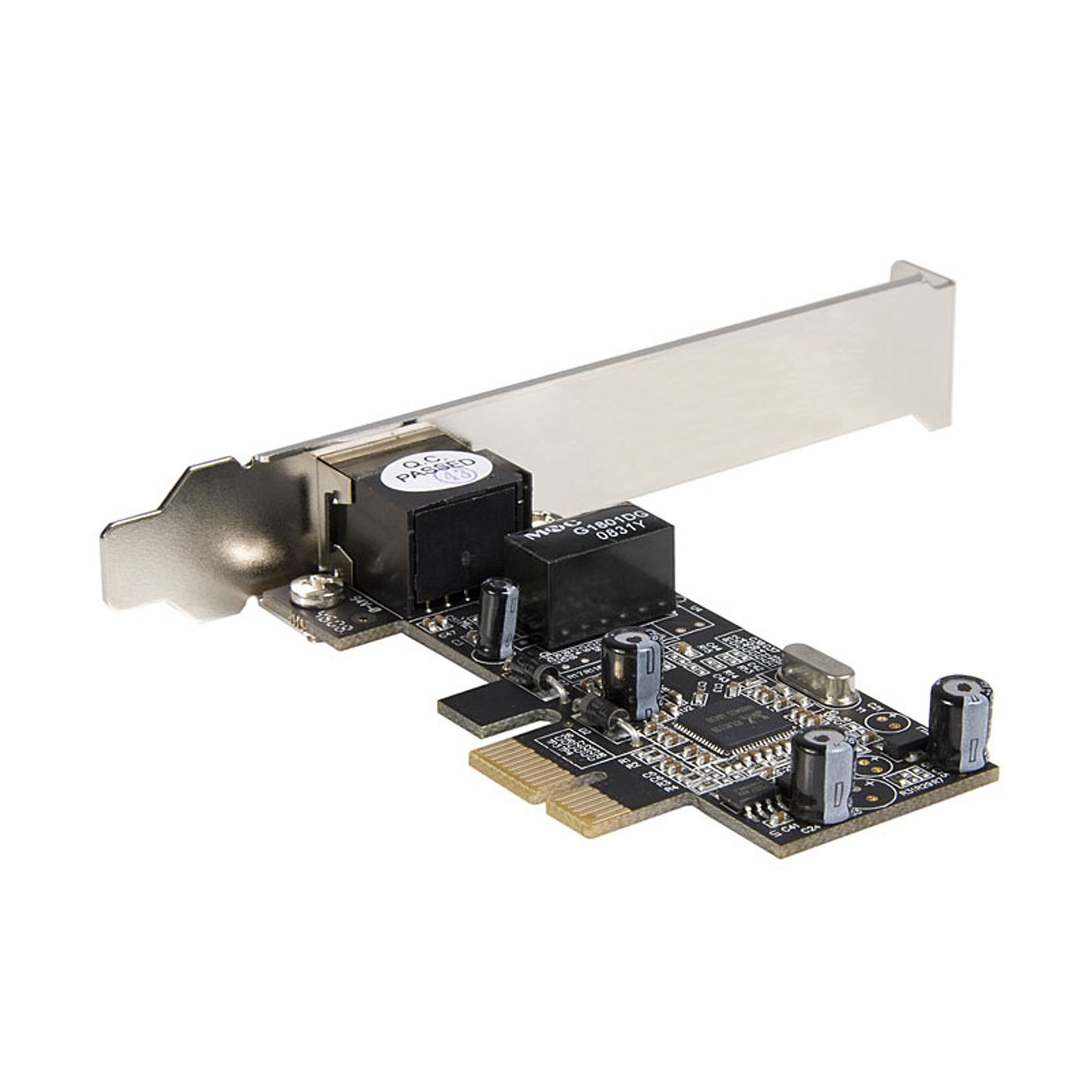
1 Port PCI Express Gigabit Ethernet NIC Network Adapter Card
$46.99
Add a 10/100/1000Mbps Ethernet port to any PC through a PCI Express slot
Specifications & Compliance
- UPC
- 065030833745
- Brand
- StarTech.com
- Included in Package
- 1 - Gigabit Ethernet PCI Express Card, 1 - Low Profile Bracket, 1 - Driver CD, 1 - Instruction Manual
- Shipping (Package) Weight
- 4.3 oz [122 g]
- Weight of Product
- 1.4 oz [40 g]
- Product Length
- 4.7 in [12 cm]
- Product Width
- 0.8 in [21 mm]
- Product Height
- 3.6 in [92.5 mm]
- Package Depth
- 5.5 in [14 cm]
- Package Width
- 6.9 in [17.5 cm]
- Package Height
- 1.2 in [30 mm]
- Warranty
- 2 Years
- Connector 1
- PCI Express x1
- Connector 1 (Quantity)
- 1
- Connector 2
- RJ-45
- Connector 2 (Quantity)
- 1
- Operating Temperature
- 0 degrees Celcius to 50 degrees Celcius
- Storage Temperature
- 20 degrees Celcius to 70 degrees Celcius
- Maximum Data Transfer Rate
- 1000 Mbps
- Chipset ID
- Realtek - RTL8111DL
- LED Indicators
- 2 - 100 Link/Active LED (Green) Gigabit Link/Active LED (Green)
- Number of Ports
- 1
- Interface
- RJ45 (Gigabit Ethernet)
- Bus Type
- PCI Express
- Compatible Networks
- 10/100/1000 Mbps
- Card Type
- Standard Profile (LP bracket incl.)
- Auto MDIX
- Yes
- Full Duplex Support
- Yes
- Wake-On-LAN (WOL)
- Yes
- Supported Protocols
- CSMA/CD
Questions & Answers
How do I install my network card in Windows Vista, Windows 7, Windows 8, Windows 10, or Windows 11? (.exe method)
To install your network card in Windows, download the latest driver package from StarTech.com, extract the files, run Setup.exe as an administrator, and restart the computer if prompted. Explanation: Before installing the network card, ensure that Windows is fully updated with the latest service packs, security updates, and feature updates available for your operating system. To install the driver: Download the latest driver package from the StarTech.com Drivers & Downloads page. Extract the contents of the downloaded ZIP file. Open the folder for your version of Windows, if applicable. Right-click Setup.exe and select Run as administrator . Follow the on-screen instructions to install the driver. Restart the computer if prompted. After Windows restarts, the operating system will complete the driver installation and the network card will be ready to use. Note: If Run as administrator is not available, ensure that you are running Setup.exe from the extracted folder rather than directly from the ZIP file.
When should I upgrade my device's firmware?
You should not upgrade your device's firmware if you do not have any issues with the functionality of your device. The only time you should consider an upgrade is if you are experiencing a problem with the device, and you have confirmed that the firmware addresses this problem. You can confirm this is the case by reviewing the documentation included with the firmware or by consulting with our Technical Support team. Incorrectly upgrading firmware can result in diminished performance so it is best to contact StarTech.com if you would like to perform this operation.
Related products
-

1-Port 10G Open SFP+ Network Card - PCIe - Intel Chip - MM/SM
$384.99 Add to cart -

1 Port PCI Express 10/100 Ethernet Network Interface Adapter Card
$30.99 Add to cart -

4-Port GbE SFP Network Card, PCIe 2.0 x2 (x4, x8, x16 Compatible), Intel I350-AM4 4x 1GbE Controller, 1000BASE Copper/Fiber Optic, Desktop/Server Quad-Port Gigabit Ethernet NIC - Windows & Linux
$296.99 Add to cart -
1-Port 10G SFP+ Fiber Optic Network Card - PCIe - Intel Chip - MM
$408.99 Add to cart