
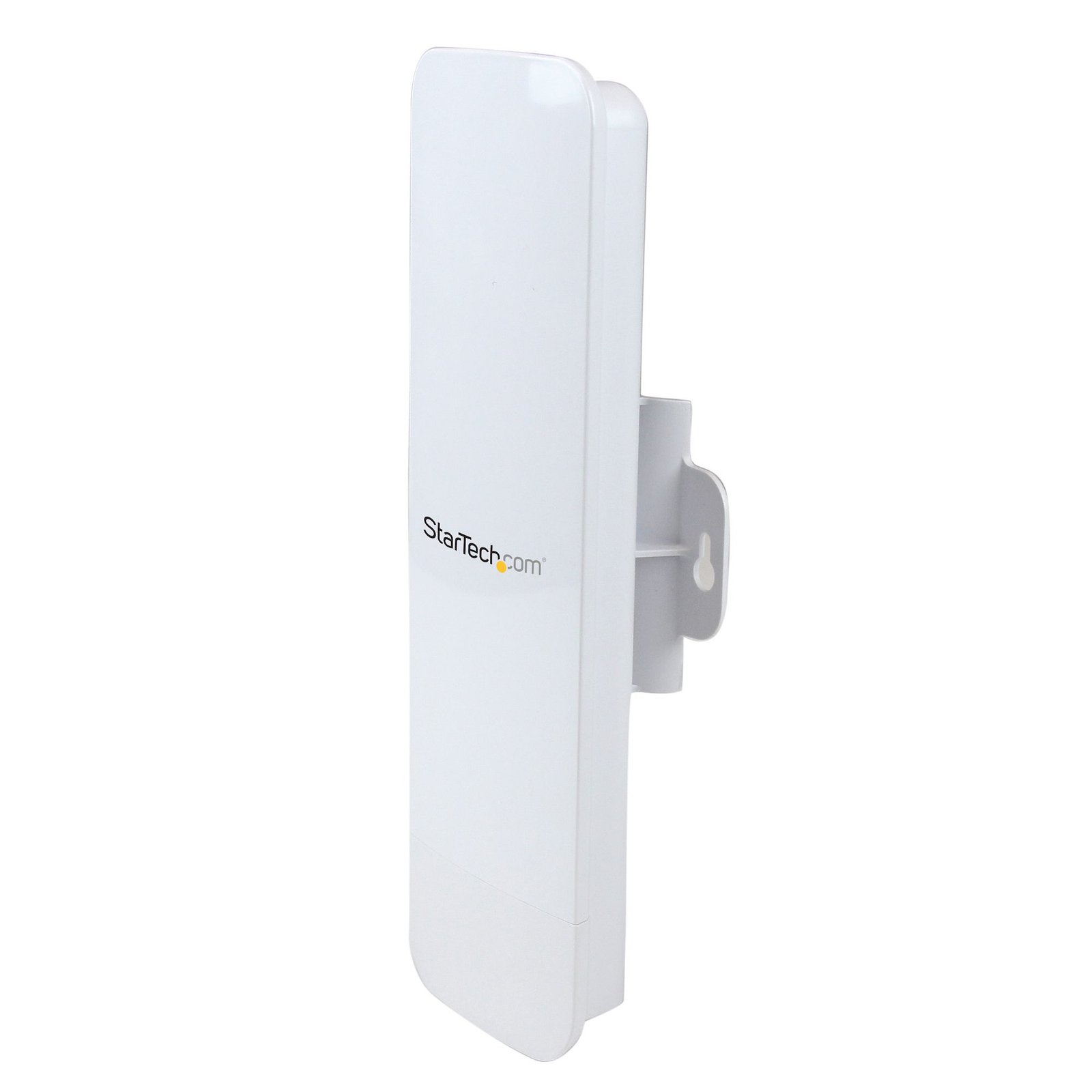
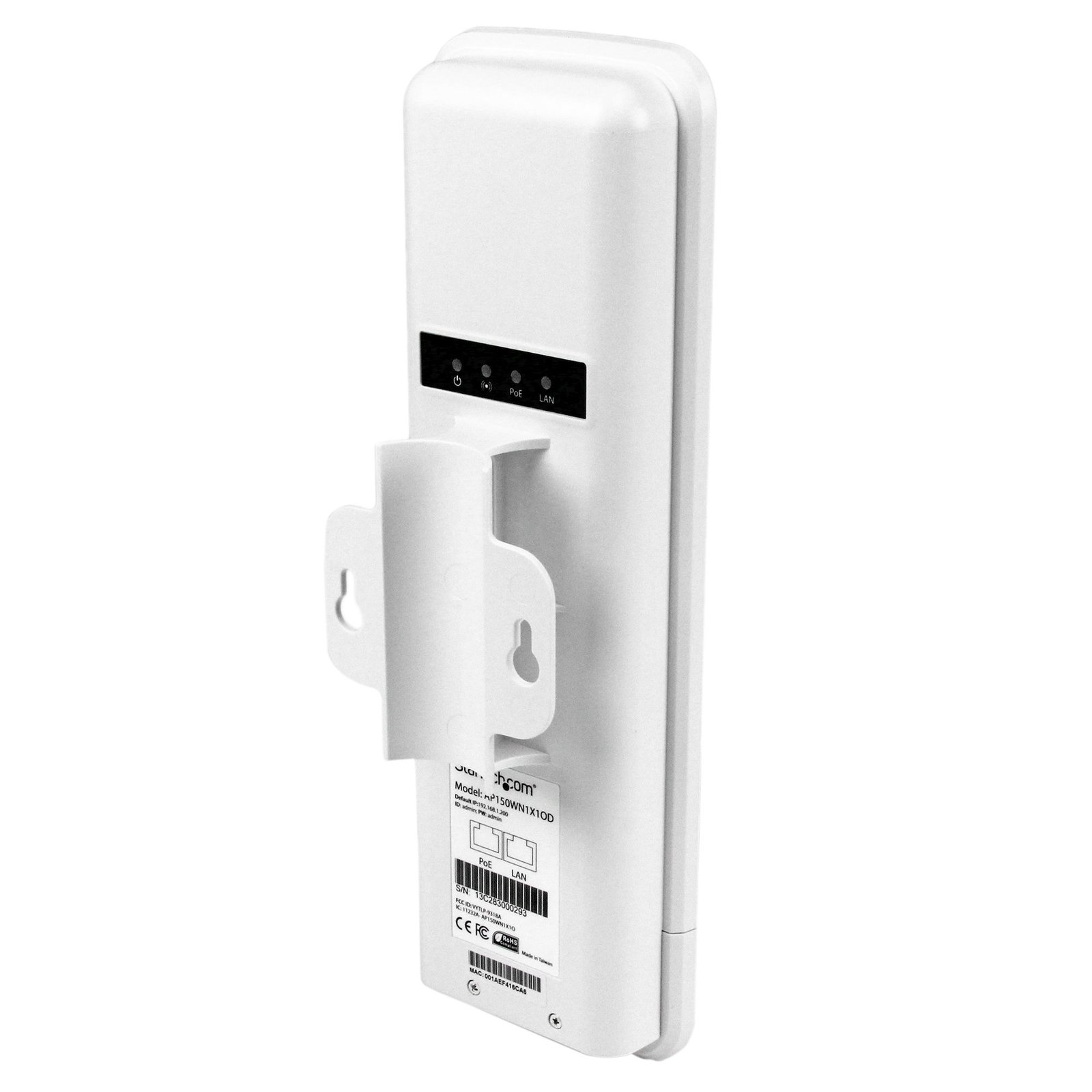
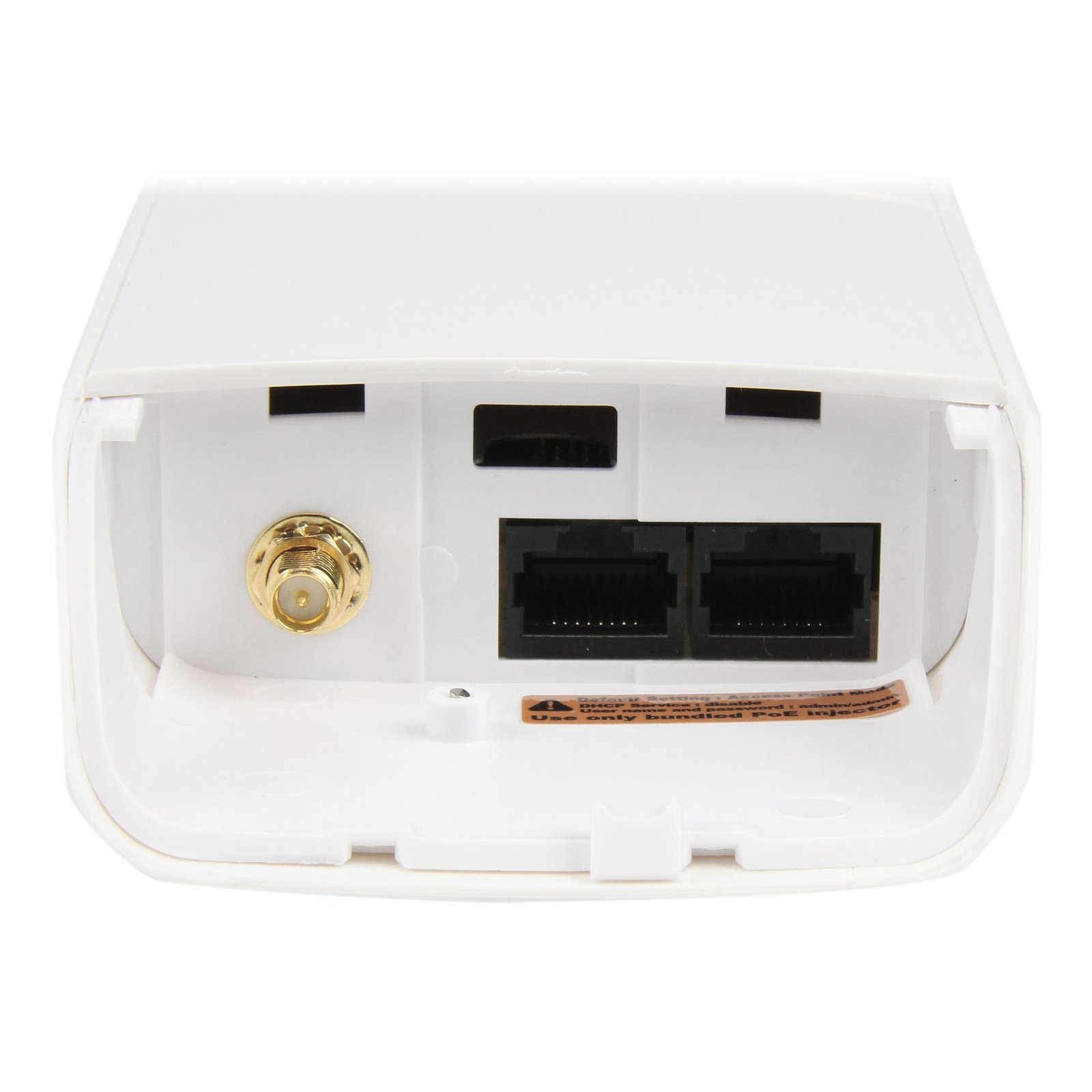
Outdoor 150 Mbps 1T1R Wireless-N Access Point - 2.4GHz 802.11b/g/n PoE-Powered WiFi AP
$103.99
Create a long-range, high-performance Wireless-N network from a wired connection – PoE powered
Specifications & Compliance
- UPC
- 065030853569
- Brand
- StarTech.com
- Included in Package
- 1 - Outdoor Access Point, 1 - PoE Injector, 1 - Metal Hose Clamp, 1 - Power Adapter, 1 - Instruction Manual CD
- Shipping (Package) Weight
- 24.5 oz [693 g]
- Weight of Product
- 12.1 oz [344.0 g]
- Product Length
- 11.5 in [29.2 cm]
- Product Width
- 3.6 in [92.0 mm]
- Product Height
- 2.3 in [59.0 mm]
- Package Depth
- 13.3 in [33.8 cm]
- Package Width
- 4.6 in [11.7 cm]
- Package Height
- 3.6 in [92 mm]
- Color
- White
- Warranty
- 2 Years
- Connector 1
- RJ-45
- Connector 1 (Quantity)
- 2
- Package Quantity
- 1
- Connector 2
- RP-SMA (50 Ohm)
- Connector 2 (Quantity)
- 1
- Operating Temperature
- 0°C to 70°C (32°F to 122°F)
- Storage Temperature
- -20°C to 70°C (-4°F to 158°F)
- Humidity
- 10~90% RH
- Material
- Plastic
- Maximum Data Transfer Rate
- 150 Mbps
- Industry Standards
- IEEE 802.3, IEEE 802.3u <br /> IEEE 802.11b, IEEE 802.11g, IEEE 802.11n
- Power Source
- AC Adapter Included
- Chipset ID
- Realtek - RTL8196C
- Input Voltage
- 100 - 240 AC
- Output Voltage
- 12V DC
- Power Consumption
- 12
- LED Indicators
- 1 - Power, 1 - PoE Link/Activity, 1 - Wireless Link/Activity, 1 - LAN Link/Activity
- Interface
- Wireless Ethernet
- Input Current
- 0.3 A
- Output Current
- 1
- System and Cable Requirements
- Available indoor AC electrical outlet, Cat 5 (or better) network cabling from PoE Injector to Wireless AP and PoE Injector to LAN Switch/router (no more than 100m total)
- Plug Type
- M
- Center Tip Polarity
- Positive
- General Specifications
- Maximum Clients: 16
- Max Distance
- 3 km (1.86 mi)
- Supported Protocols
- CSMA/CA
- Bandwidth
- 20/40 MHz
- Security Features
- WEP Data Encryption, TKIP/AES, WPA and WPA2-PSK Data Encryption, WPA and WPA2 Enterprise Data Encryption
- Antenna Configuration
- 1x1:1 (TxR:S)
Questions & Answers
I can’t access the web interface to set up the device, what should I do?
On the computer that you are using to access the product, configure the Ethernet interface to a static IP address on the same subnet as the wireless access point (e.g., 192.168.0.5). If you have connected our product to your network already, it may have obtained a DHCP address. In this case, disconnect it from the LAN and use the reset button on the PoE injector to restore the default settings. Then, connect it directly to the computer for configuration. Once complete, connect the wireless access point to the network.
How do I configure the StarTech.com AP150WN1X1OD as a wireless access point for an existing wired network?
The AP150WN1X1OD can create a wireless network from an existing wired network by operating in Access Point (AP) mode. To configure AP mode, connect the AP150WN1X1OD to a computer using Ethernet, access its web configuration interface at 192.168.1.200, and complete the Setup Wizard. Explanation : To configure the AP150WN1X1OD in Access Point (AP) mode, you need: A TCP/IP-compliant network infrastructure or network device. A computer with a wired Ethernet connection. Two Ethernet patch cables. If the AP150WN1X1OD is not brand new or has previously saved settings, perform a factory reset before continuing. For factory reset instructions, refer to: http://www.startech.com/faq/networking_ap150wn1x1od_factory_reset . Connect the AP150WN1X1OD Remove the plastic panel from the bottom of the AP150WN1X1OD. Connect the power adapter to the PoE injector. Connect an Ethernet cable between the PoE injector and the AP150WN1X1OD. Confirm that the AP150WN1X1OD receives power. If the unit does not receive power, move the Ethernet cable to the other port on the PoE injector. Connect an Ethernet cable from the LAN port on the PoE injector to the computer. Wait 30 seconds for the AP150WN1X1OD to restart before changing its configuration. Reattach the plastic panel after configuration is complete. Configure the computer's network connection The computer must be on the same IP network as the AP150WN1X1OD to access its configuration interface. By default, the AP150WN1X1OD uses the 192.168.1.XXX network and has an IP address of 192.168.1.200. If the computer cannot access the AP150WN1X1OD, manually configure the computer with an IP address in the 192.168.1.XXX range. Use a value from 1 through 255 for XXX, except 200. For example, use 192.168.1.1. For instructions on manually changing the computer's IP address, refer to: https://www.startech.com/en-us/faq/ip-address-change-windows-mac-os . Configure Access Point mode Open a web browser on the connected computer. Enter http://192.168.1.200 in the address bar. Enter admin in both the username and password fields. Click Start at the bottom of the screen to open the Setup Wizard. Follow the Setup Wizard to enable AP mode. Configure the wireless SSID, security settings, and password as required. After completing the Setup Wizard: If you manually changed the computer's IP configuration, restore the computer's original IP settings. Connect the wired network to the LAN port on the AP150WN1X1OD or PoE injector. The AP150WN1X1OD will then provide Wi-Fi access to the connected wired network.
How do I configure the StarTech.com AP150WN1X1OD for a Wireless Distribution System (WDS)?
The AP150WN1X1OD can be configured in a Wireless Distribution System (WDS) to connect multiple WDS-compatible access points wirelessly. Configure one AP150WN1X1OD as the main access point connected to the wired network, and configure the additional access points as relay APs. Each AP requires a unique MAC address, SSID, and static IP address, while all APs must use matching wireless and network settings. A WDS can extend network connectivity across a larger area or around physical obstructions. However, network speed can be reduced by up to 50% each time another AP is added to the WDS. Only IP-based networks can be used with WDS. Explanation : The following procedure applies to AP150WN1X1OD firmware version 1.2f.05 using the factory default settings. Connect the AP150WN1X1OD hardware Use a wired Ethernet connection when configuring each AP150WN1X1OD. Connect the supplied power adapter to the PoE injector. Connect an Ethernet cable between the PoE injector and the AP150WN1X1OD. Confirm that the AP150WN1X1OD is receiving power. If the AP does not receive power, move the Ethernet cable to the other port on the PoE injector. Connect an Ethernet cable from the LAN port on the PoE injector to the computer. Wait 30 seconds for the AP150WN1X1OD to start before changing its configuration. Plan the WDS configuration The maximum range of the AP150WN1X1OD is 3 km. Physical obstructions, including buildings, can reduce this range. Multiple WDS-compatible APs, including additional AP150WN1X1OD units, can be used to extend connectivity around physical barriers. Assign one AP150WN1X1OD as the main AP and connect it to the wired network. Configure each additional unit as a relay AP that connects wirelessly to the main AP. Before configuration, record the MAC address of every AP. The MAC address appears on the label on the back of each unit below the barcode in the format MAC: 001AEF[xxxxxx] . Record which MAC address corresponds to each planned AP location. Assign each AP a unique static IP address on the same network as the wired network. Ideally, use addresses outside the DHCP server's address range to prevent IP address conflicts. For example, if the network uses 192.168.1.xxx and the default gateway is 192.168.1.1, assign each AP an available static address from 192.168.1.2 through 192.168.1.255. Obtain the applicable network settings from the network router. Each AP requires a unique: MAC address SSID IP address All APs in the WDS must use identical settings for: Band , such as 2.4 GHz (B+G+N) Channel Number , from 1 to 11 DHCP , set to Disabled Subnet Mask , such as 255.255.255.0 Default Gateway For example: AP Location SSID MAC address IP address Main Data center StarTech.com Guest 001AEF41687F 192.168.1.200 Relay 1 Upstairs StarTech.com Upstairs 001AEF416880 192.168.1.201 Relay 2 Downstairs StarTech.com Downstairs 001AEF416881 192.168.1.202 Assign each AP a unique SSID (Wi-Fi network name) rather than using the same SSID for all APs. Configure the main AP Connect the AP150WN1X1OD to a computer using an Ethernet cable. Make sure the computer is on the 192.168.1.xxx network. Open a web browser. Go to http://192.168.1.200 . Enter admin for the username. Enter admin for the password. Select More Settings > Wireless Settings > WDS Settings . Under Wireless Network , enter the SSID of the main AP. Set DHCP to Disabled . Set the Channel Number , IP Address , Subnet Mask , and Default Gateway to the predetermined values. Enter the MAC address of the first relay AP. Add a comment that identifies the relay AP by its location or SSID. Set Band to the predetermined value. Click Apply , and wait for the AP to restart. Repeat the relay-AP registration steps for each additional relay AP. To encrypt the wireless network, click Set Security and complete the security settings. If you change the AP to an IP address on a different network, change the computer's IP configuration to the same network before making additional changes. Configure each relay AP Connect the relay AP150WN1X1OD to a computer using an Ethernet cable. Make sure the computer is on the 192.168.1.xxx network. Open a web browser. Go to http://192.168.1.200 . Enter admin for the username. Enter admin for the password. Select More Settings > Wireless Settings > WDS Settings . Under Wireless Network , enter the SSID of the main AP. Set DHCP to Disabled . Set the Channel Number , IP Address , Subnet Mask , and Default Gateway to the predetermined values for that relay AP. Enter the MAC address of the main AP. Add a comment that identifies the main AP. Set Band to the same predetermined value used by the other APs. Click Apply , and wait for the relay AP to restart. Repeat these steps for each additional relay AP. To encrypt the wireless network, click Set Security and complete the security settings. After configuring the main and relay APs, install the units in their planned locations and connect the wired LAN to the main AP. To verify connectivity for a relay AP, open WDS Settings and click Show Statistics . This structure emphasizes explicit compatibility, configuration requirements, and troubleshooting-oriented documentation for technical users.
How do I configure the StarTech.com AP150WN1X1OD as a wireless repeater?
It depends. The AP150WN1X1OD does not have a dedicated wireless repeater mode, but you can configure multiple AP150WN1X1OD access points using WDS (Wireless Distribution System) to extend a wireless network. Explanation : To use the AP150WN1X1OD as part of a repeater-style network, configure the access points in a WDS and use the same SSID and wireless security settings on the main and relay access points. Relay access points can be daisy-chained with additional relay access points. To create a daisy chain, add the MAC addresses of the additional relay access points to the WDS AP List of the primary relay access point. For WDS configuration instructions, see the StarTech.com FAQ: http://www.startech.com/faq/networking_ap150wn1x1od_wds_setup Consider the following limitations when using this configuration: Adding each relay access point reduces the available network bandwidth by half. When multiple access points use the same SSID, some wireless devices may connect to an access point with a weaker signal, which may cause connectivity issues. Large distances and physical obstructions can reduce network integrity. WDS supports only IP-based networks.
What is this device’s default static IP address?
This device's default static IP address is 192.168.1.200.
How do I access this device’s web interface?
Make sure that the AP150WN1X1OD is on the same network as your computer. In an Internet browser, enter the IP address of the unit. The default IP address is 192.168.1.1. In the user name field, enter the user name. The default user name is admin . In the password field, enter the password. The default password is admin .
How do I reset my device to the default factory settings?
Press and hold the reset button for 10 seconds.
When should I upgrade my device's firmware?
You should not upgrade your device's firmware if you do not have any issues with the functionality of your device. The only time you should consider an upgrade is if you are experiencing a problem with the device, and you have confirmed that the firmware addresses this problem. You can confirm this is the case by reviewing the documentation included with the firmware or by consulting with our Technical Support team. Incorrectly upgrading firmware can result in diminished performance so it is best to contact StarTech.com if you would like to perform this operation.
How should I position my AP150WN1X1OD?
The AP150WN1X1OD features a directional antenna at the front of the unit (the front of the unit being the large open surface with the StarTech.com logo on it). The AP150WN1X1OD radiation pattern has a horizontal beam width of 30 degrees and a vertical beam width of 20 degrees. For best results, you should position the AP150WN1X1OD towards the majority of wireless clients. Optimally, you should place the unit in a corner of a larger area, as opposed to the center. Connectivity can be improved when there is as few obstructions as possible, so you should use the AP150WN1X1OD in open areas. To get more coverage in a larger geographical area, you can set up a WDS. A WDS works best when there is line-of-sight between the access points. For more information about WDS, refer to the following FAQ: http://www.startech.com/faq/networking_ap150wn1x1od_wds_setup .
Can the AP150WN1X1OD be used as a router?
You cannot replace the function of a router with the AP150WN1X1OD. You need a router connected to a modem to access the Internet. The AP150WN1X1OD can be used to create a wireless access point for a router, switch, or networking device that does not have wireless capabilities. When you use the AP150WN1X1OD to create a wireless access point, wireless devices can be connected to a wired device. To connect a wireless device to a wired device, connect the wired network connection to the LAN port on the POE injector (gray box) or on the LAN port of the unit. For more information about how to set up an access point, refer to the following FAQ: http://www.startech.com/faq/networking_ap150wn1x1od_access_point_setup .
The signal strength is not very good. What can I do to make it stronger?
Try positioning the access point as high as possible against the wall or mounting surface. If the problem continues, try giving your wireless device a clean line of sight to the access point. In the web interface, increase the “wireless output power” setting if it is not set to 100%.
What DC barrel connector power plug types do StarTech.com products use, and what are their dimensions?
StarTech.com DC barrel connector plug types are defined in the “Plug Type” field of the technical specifications, using a letter code that specifies the connector’s outer diameter (OD) and inner diameter (ID) in millimeters for power adapter compatibility. Explanation: In StarTech.com technical specifications, the “Plug Type” field is a standardized identifier for the exact DC barrel connector size required to power a product. Each plug type is assigned a letter code that corresponds to a specific combination of outer diameter (OD) and inner diameter (ID), measured in millimeters. Common DC barrel plug type dimensions Plug Type OD ID A 2.35 mm 0.7 mm B 4.0 mm 1.7 mm C 4.75 mm 1.7 mm H 3.4 mm 1.3 mm L 5.0 mm 2.5 mm M 5.5 mm 2.1 mm N 5.5 mm 2.5 mm The DC barrel connector plug type must match both the outer diameter and inner diameter exactly. A mismatch between the StarTech.com product requirement and the power adapter connector can prevent proper fit or stable power delivery, which may result in device startup failure or intermittent operation. The plug type defines only the physical connector size. The plug type does not define electrical power requirements such as voltage, current, or polarity. The power adapter used with a StarTech.com product must match the product’s specified electrical requirements. Using an incompatible power adapter can cause device malfunction or permanent damage. This standardized DC barrel connector plug type system enables IT professionals and procurement teams to verify connector dimensions, ensure power adapter compatibility, standardize hardware deployments, and identify the correct replacement power supply for StarTech.com products.
Related products
-

PCI Wireless N Card - 150Mbps 802.11b/g/n Network Adapter Card – 1T1R 2dBi
$40.99 Add to cart -
PCI Express AC1200 Dual Band Wireless-AC Network Adapter - PCIe 802.11ac WiFi Card - TAA
$121.99 Add to cart -

PCI Express Wireless N Adapter - 300 Mbps PCIe 802.11 b/g/n Network Adapter Card – 2T2R 2.2 dBi - TAA
$46.99 Add to cart -
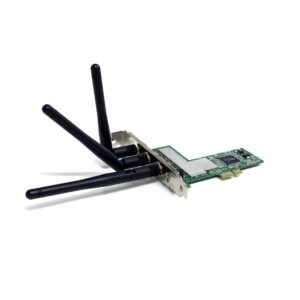
PCI Express 802.11N 300 Mbps Wireless Network Adapter - 2T3R
$17.99 Add to cart