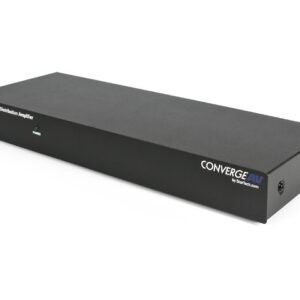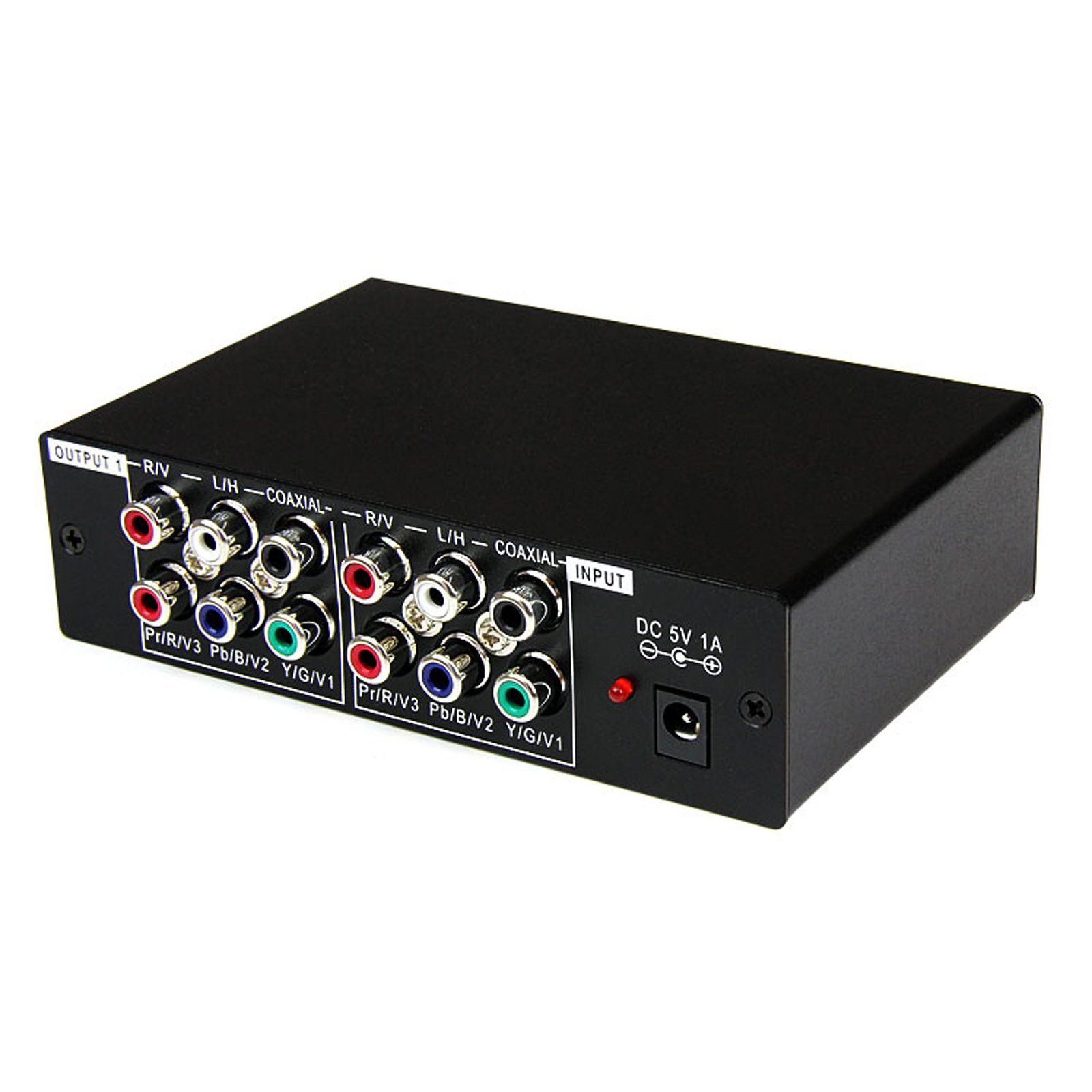
3 Port Component Video Splitter with Digital Audio
$110.99
Split a single Component(YPbPr) video signal with audio to 3 monitors or projectors
Specifications & Compliance
- UPC
- 065030817639
- Brand
- StarTech.com
- Included in Package
- 1 - component (YPbPr) A/V splitter, 1 - component RCA cable, 1 - RCA audio cable, 1 - composite RCA cable, 1 - universal power adapter (NA, EU, UK, ANZ)
- Shipping (Package) Weight
- 2.2 lb [1 kg]
- Weight of Product
- 19.4 oz [550.0 g]
- Product Length
- 5.6 in [14.1 cm]
- Product Width
- 1.5 in [38.0 mm]
- Product Height
- 4.1 in [10.5 cm]
- Package Depth
- 2.8 in [72 mm]
- Package Width
- 11.1 in [28.2 cm]
- Package Height
- 7.2 in [18.2 cm]
- Color
- Black
- Warranty
- 2 Years
- Connector 1
- RCA (Component Video, YPbPr)
- Connector 1 (Quantity)
- 3
- Package Quantity
- 1
- Connector 2
- RCA (Stereo Audio)
- Connector 2 (Quantity)
- 3
- Power Source
- AC Adapter Included
- Special Notes
- Three separate composite video sources can be distributed to up to 9 displays using this device (3 per video source)
- Output Voltage
- 5 DC
- Connector 3
- RCA (S/PDIF Coaxial Audio)
- Connector 3 (Quantity)
- 3
- Power Consumption
- 5
- Number of Ports
- 3
- Output Current
- 1
- Connector 4
- RCA (Component Video, YPbPr)
- Connector 4 (Quantity)
- 1
- AV Input
- Component, Audio RCA, Digital Coaxial
- AV Output
- Component, Audio RCA, Digital Coaxial
- Connector 5
- RCA (Stereo Audio)
- Connector 5 (Quantity)
- 1
- Connector 6
- RCA (S/PDIF Coaxial Audio)
- Connector 6 (Quantity)
- 1
Questions & Answers
Everything is hooked up but nothing is working. What should I do?
When you troubleshoot issues with a video splitter, there are some quick tests that you can complete to rule out potential problems. You can test to make sure that the following components are working correctly and are not the source of the issue: Video cables Video splitter Video source (such as a DVD player or computer) Video destination (such as a monitor or projector) Note: When you are testing setup components, you should avoid using video adapters. For example, if you are converting a VGA source to HDMI for use with an HDMI splitter, you should use an HDMI source when you test the components. To test your setup components, try the following: Use the cable, video splitter, video source, and video destination in another setup to see if the problem is with the components or the setup. Use a different cable, video splitter, video source, and video destination in your setup to see if the problem persists. Ideally, you should test a component that you know works in another setup. When you test your cables, it is recommended that you do the following: Test each cable individually. Use short cables when you are testing. When you test the video source and video destination, it is recommended that you do the following: Remove the video splitter from your setup and test to make sure that the video source and video destination work together without the video splitter. Test to make sure that the video source and video destination work together at the resolution that you want to use. Note: In order for your setup to work properly, the video source, splitter, and destination all need to support the resolution that you are using.
Which port on the video splitter is the master port?
Video splitters take the output for monitor port 1 and mirror it to the remaining outputs. By default, the first output port is the master port that is mirrored to each additional monitor. Make sure that you use the first output port when you use the video splitter. The master port is labeled on the splitter boxes from StarTech.com. On the splitter cables from StarTech.com, the master port is the top port. If you are having issues with a splitter interpreting the incorrect port as the master port, try the following: Unplug all of the video connections. If the splitter is powered, power cycle the splitter. Plug in all of the video connections again. Make sure that the first video connection plugged in is the one that you want to be the master port.
The image quality on some or all of my displays does not look very good through the video splitter. What do I do?
You might encounter resolution issues when you use a video splitter. This can occur because the information and resolution on one display are being copied and sent to each of the additional displays. You should make sure that all of the displays that you are using can support the output resolution. For more information, refer to the following FAQ: https://www.startech.com/faq/video_splitters_correct_port_usage
What is the difference between mirroring, spanning, and extending monitors?
Mirroring monitors means that you see the same thing on multiple monitors. Spanning monitors means that your computer interprets all of the monitors that are spanning as one giant monitor. You can see different things on each monitor, and your desktop, taskbar, Start menu, and background are stretched across the monitors. Extending monitors means that your computer interprets the monitors that you are extending as separate devices. You can see different things on each monitor, and your desktop background is displayed on each monitor. In general, video splitters can only be used to mirror monitors. If you want to extend your desktop across monitors, you need to make a separate video connection for each monitor that you are attaching. If you want to attach more monitors than your computer has video ports for, you can read about USB Video Adapters here: www.startech.com/AV/USB-Video-Adapters/ . If you are using a video card with a DisplayPort connection that supports DisplayPort 1.2 you can use MST hubs from StarTech.com to extend your desktop to each monitor.