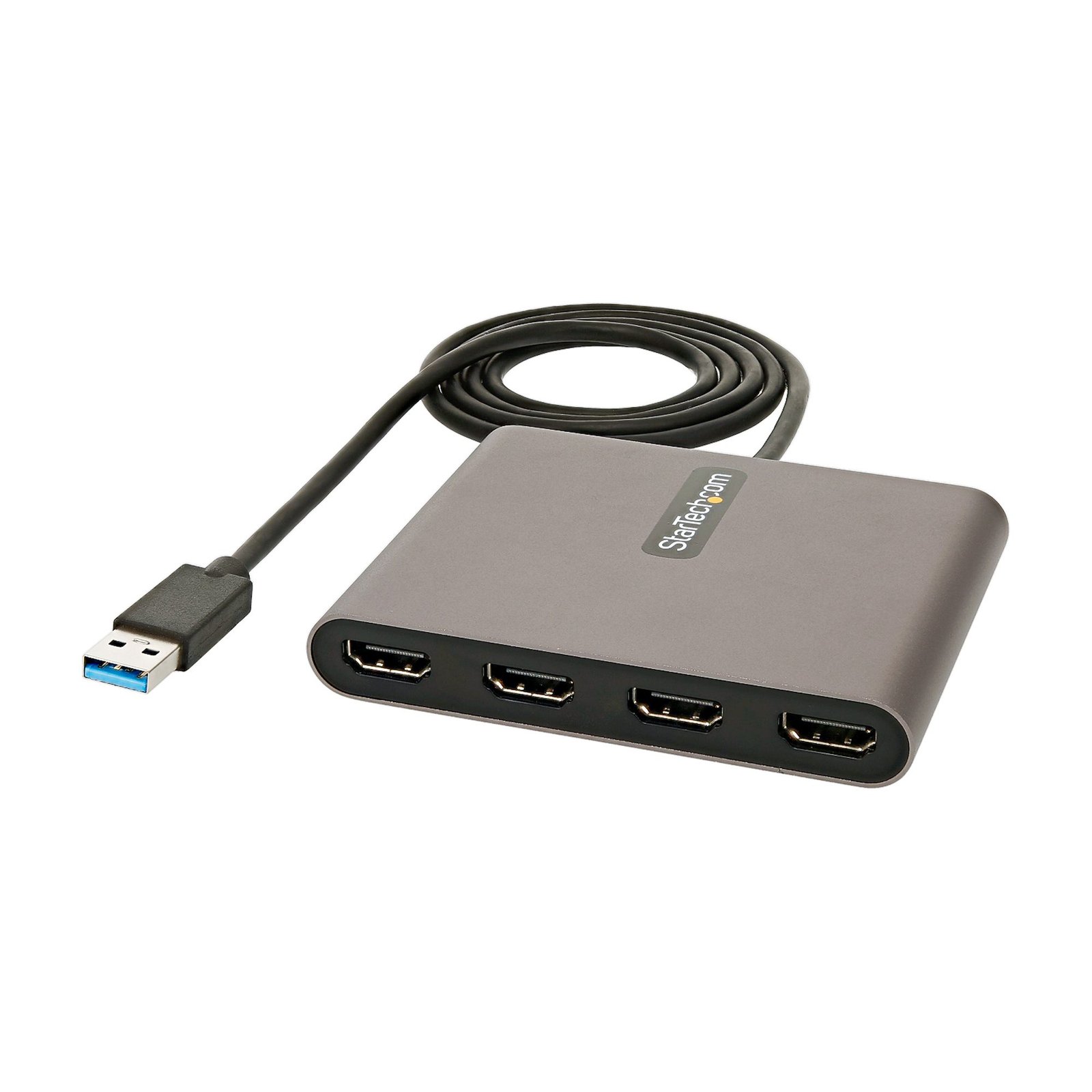
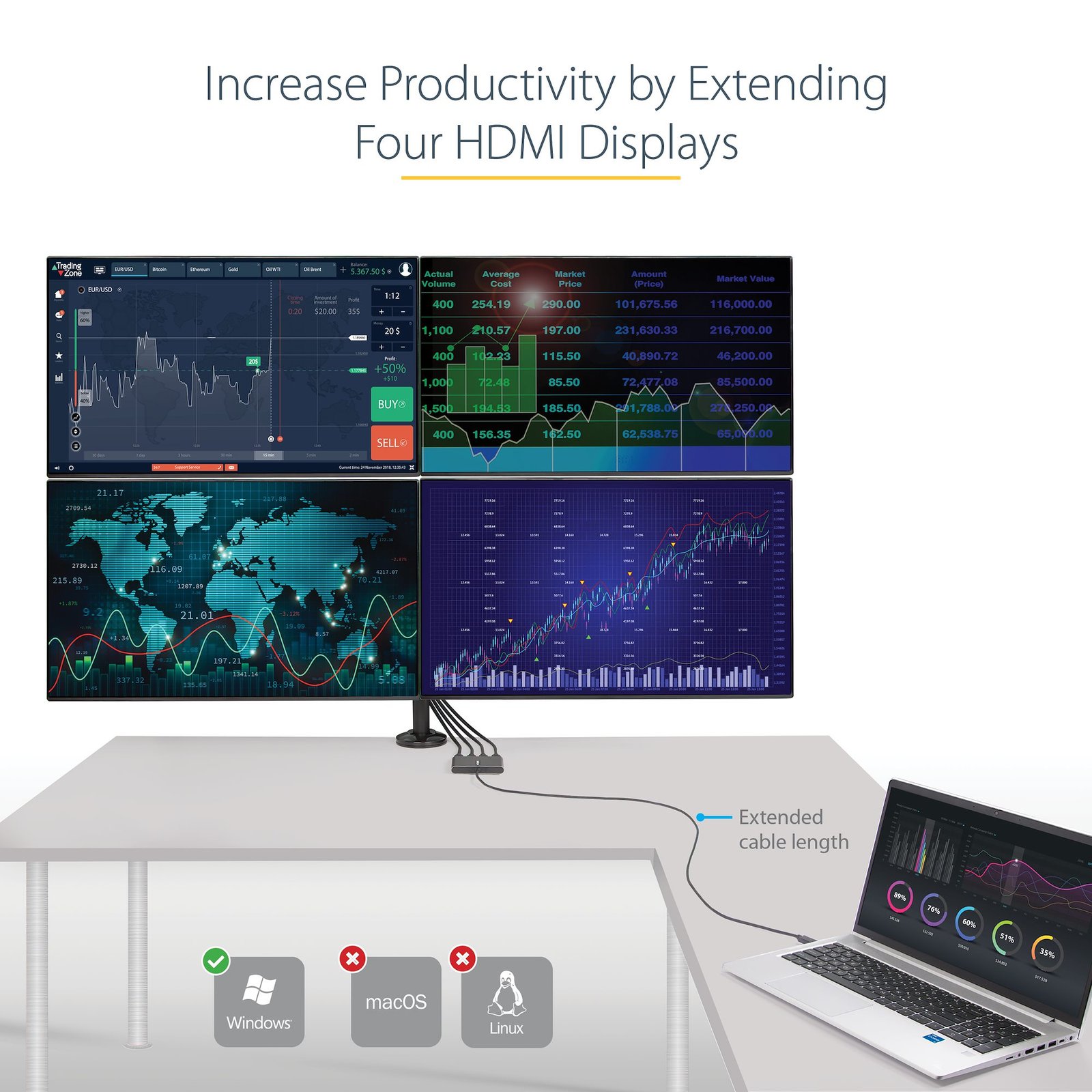
USB 3.0 to Quad HDMI Adapter, USB to 4x HDMI Monitor Converter for Windows (no support for macOS/ChromeOS/Linux) - TAA

$95.31

USB 3.0 External Video Adapter | 4x 1080p | Quad Monitor

SKU: USB32HD4 Category:

Specifications & Compliance

UPC
065030888721
Brand
StarTech.com
Included in Package
1 - USB-A to HDMI Adapter, 1 - Quick-Start Guide
Shipping (Package) Weight
9.8 oz [278 g]
Weight of Product
6.4 oz [180.0 g]
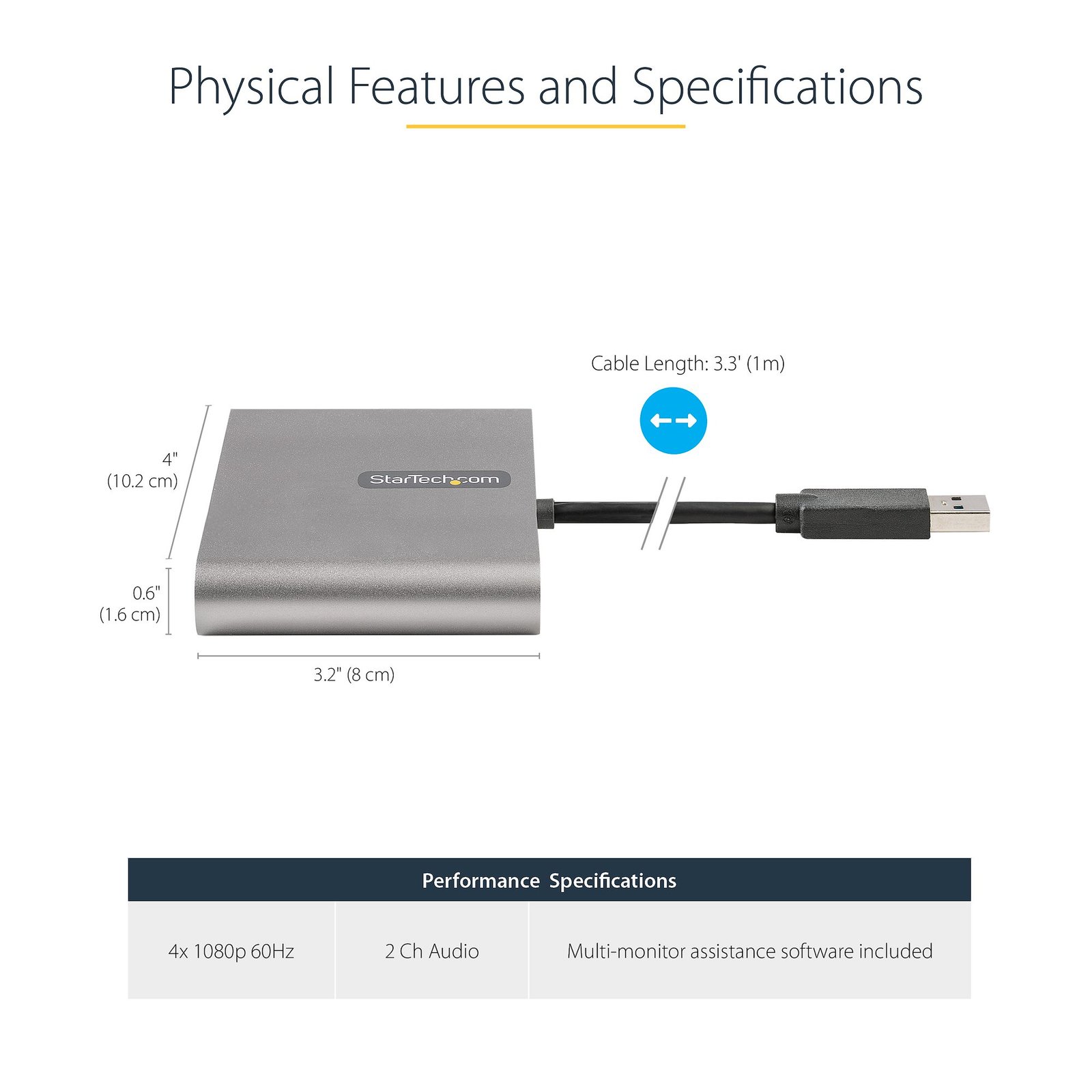
Product Length
4.0 in [10.1 cm]
Product Width
3.2 in [80.1 mm]
Product Height
0.6 in [16.0 mm]
Package Depth
8.3 in [21.1 cm]
Package Width
5.7 in [14.4 cm]
Package Height
1.6 in [40 mm]
Color
Space Gray
Cable Length
3.3 ft [1 m]
Warranty
3 Years
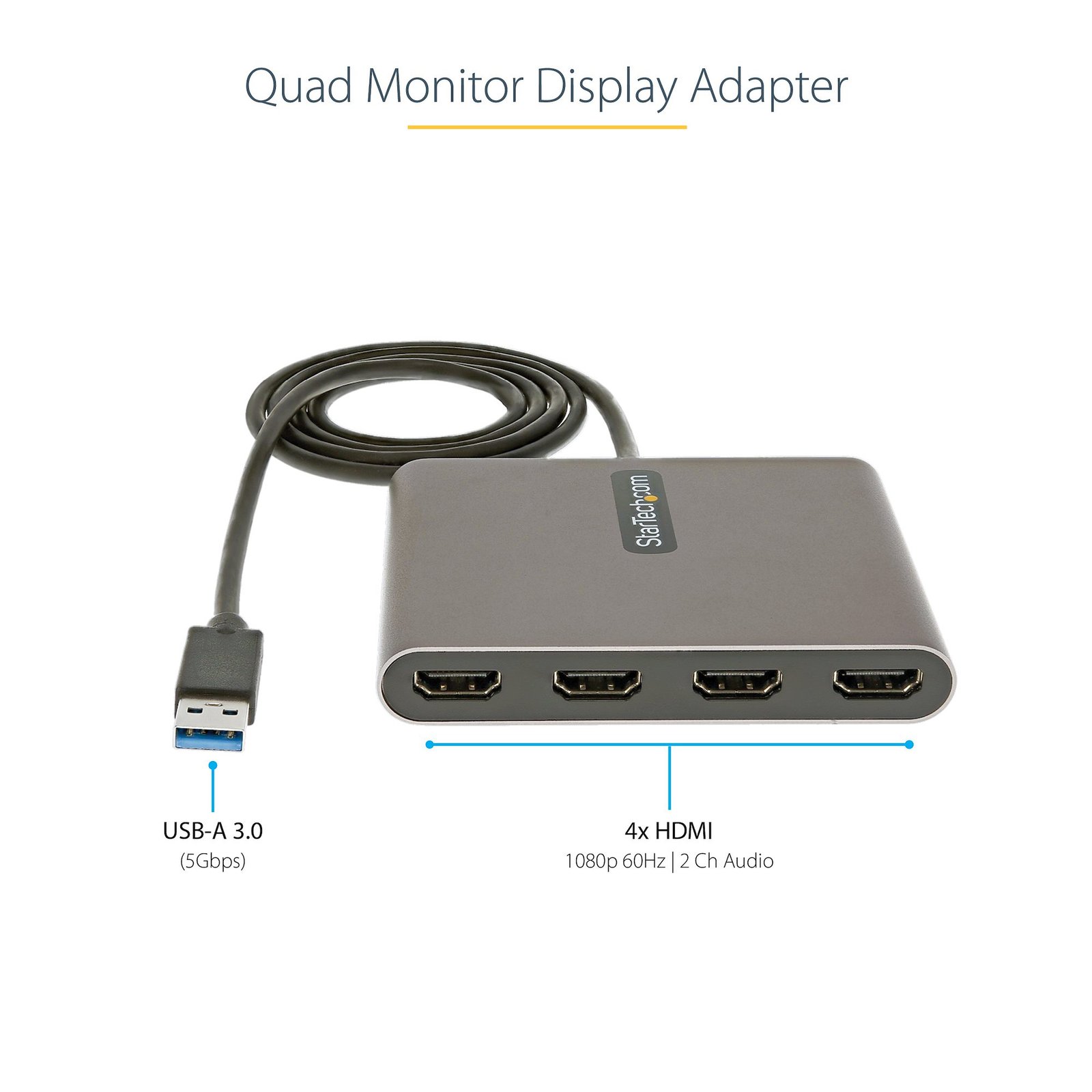
Connector 1
USB-A (5Gbps, 4.5W)
Connector 1 (Quantity)
1
Package Quantity
1
Connector 2
HDMI
Connector 2 (Quantity)
4
Operating Temperature
0°C to 45°C (32°F to 113°F)
Storage Temperature
-10°C to 75°C (14°F to 167°F)
Humidity
< 85% non-condensing
Material
Aluminum
Chipset ID
Trigger T6-688SL<br> IT66121
Special Notes
This USB video adapter is not intended for graphical-intensive applications, such as CAD or gaming
Number of Displays
4
AV Input
USB 3.2 Gen 1 (5Gbps)
AV Output
HDMI
Supported Resolutions
1920x1080 (1080p) / 60Hz
Audio Specifications
HDMI - 2 Channel Audio

Questions & Answers

How do I install a USB video adapter in Windows 7, Windows 8, Windows 10, or Windows 11? (.exe method)
To install a USB video adapter in Windows, download the latest driver package from StarTech.com, run the Setup.exe installer as an administrator, restart the computer when prompted, and then connect the USB video adapter. Explanation: Do not connect the USB video adapter to the computer until the driver installation process instructs you to do so. Before installing the driver, ensure that Windows is fully updated with the latest service packs, security updates, and feature updates available for your operating system. To install the USB video adapter: Download the latest driver package from the StarTech.com Drivers & Downloads page. Locate the downloaded ZIP file and extract its contents. Open the extracted folder and right-click Setup.exe, then select Run as administrator. Follow the on-screen instructions to complete the driver installation. Restart the computer if prompted. After Windows has restarted, connect the USB video adapter to the computer. Windows will automatically complete the device installation and configure the adapter for use. During installation: The display may flicker or temporarily go blank. This is normal. Installation may take several seconds to complete. Additional monitors may become available once the driver installation finishes. If Run as administrator is not available, ensure that the installer is being launched from the extracted folder and not directly from within the ZIP file. After installation is complete, the USB video adapter should be ready to use and Windows can be configured to extend or mirror the desktop on the connected display.

How do I uninstall a StarTech.com USB video adapter driver from Windows?
To uninstall a StarTech.com USB video adapter driver, disconnect the USB video adapter from the computer, remove the USB Display Device (Trigger Family) software through Windows Programs and Features, and then restart the computer. Explanation: Before uninstalling the driver, physically disconnect the USB video adapter from the computer. To remove the USB video adapter software: Windows 11, Windows 10, Windows 8, Windows 7, and Windows Vista Open Control Panel . Select Programs and Features . Locate USB Display Device (Trigger Family) in the list of installed programs. Select the software and choose Uninstall . Follow the on-screen prompts to complete the removal process. Restart the computer if prompted. Windows XP Open Control Panel . Select Add or Remove Programs . Locate USB Display Device (Trigger Family) in the list of installed programs. Select the software and choose Remove . Follow the on-screen prompts to complete the removal process. Restart the computer if prompted. After the restart is complete, the USB video adapter driver and associated software will be removed from the system.

There is no video signal shown on the display. How do I fix this?
Our driver may not be installed or is out of date. Install the latest driver from StarTech.com’s website. The primary display adapter for the computer has an outdated or basic driver installed. Update the video driver using the manufacturer’s support site. The product requires an existing video controller (onboard or discrete) from Intel, AMD, or NVIDIA. The video controller must have a WDDM (Windows Display Driver Model), compatible driver. Most video controllers from 2008 or newer will meet this requirement. An incompatible operating system is being used (i.e., MCT based adapter and macOS). If using a Mac, we recommend exchanging the product for a DisplayLink based version. The display connected to the StarTech.com adapter is set to the wrong video input. Use the display’s on-screen display menu to select the correct input. The following only applies to computers running Windows 8.1 or older operating systems. USB video adapters and some USB docking stations use different chipsets (ex. DisplayLink/Synaptics, MCT, Fresco, Silicon Motion). They will not work together on the same computer. If you are running into problems trying to use multiple USB video products, please check our Tech Specs to determine which chipset each product uses. If they do not match, then they will not work together.

I’m not able to install the driver. How do I fix this?
Your user account may require administrator privileges to install the driver. If the computer is managed by the IT department or service provider, they may need to be contacted to help with this step.

Why can't I playback Netflix or other HDCP content with my USB video adapter?
Playback of HDCP content is not supported. Content from Netflix, Amazon Prime Video, Disney+, iTunes, Hulu, etc. may not work on USB-connected displays. We recommend using these apps on displays connected to your video card or motherboard. If using a laptop, use the integrated display, or the video ports built-in to the laptop.

Audio is not working. How do I fix this?
Ensure the Sound Playback device in Windows (or Output device in macOS) has been set to be our USB audio device.

Some graphics are not rendered correctly on the USB connected display when using Microsoft Office applications or web browsers. How do I fix this?
If hardware acceleration is enabled on any of your software applications, it can result in poor resource management and limit the performance of your video device. If you experience this problem, you should disable hardware acceleration in the program(s) that were impacted. To disable hardware acceleration in common applications and operating systems, complete one of the following series of steps, depending on what software application(s) or operating system that you are running. Chromium-Based Microsoft Edge: Click the Options icon (it has three dots on it). Click Settings . Click System . Uncheck Use hardware acceleration when available . Internet Explorer 9 and later Note: Earlier versions of Internet Explorer do not use hardware acceleration. Click the Start button. Open Control Panel . Click Network and Internet . Click Internet Options . Click the Advanced tab. Browse to the Accelerated graphics screen. Select the Use software rendering instead of GPU rendering check box. Click Apply . Restart your computer. Mozilla Firefox Open Firefox. Press the Alt key. Click Tools and Options . Click the Advanced icon. Click the General tab. Under Browsing , clear the Use hardware acceleration when available check box. Click the OK button. Restart your web browser. Google Chrome Open Google Chrome. Click the Options icon (it has three horizontal lines on it). Click Settings . Click Show advanced settings . Scroll to the bottom of the screen and clear the Use hardware acceleration when available check box. Restart your web browser. Microsoft Office 2013 / 2010 Open any program in Microsoft Office (for example, Microsoft Word). Click the File tab. In the menu on the left side of the screen, click Options . Click Advanced . Under Display , select the Disable hardware graphics acceleration check box. Close and restart all of the Microsoft Office programs that you had open. Windows 10 / 8 Press the Windows key + X . Click Control Panel . Click Personalization . Select a high-contrast theme. Windows 7 / Vista Click the Start button. Click Control Panel . Click Personalization . Select a non-Aero theme. Ideally, you should select a basic and high-contrast theme. Windows XP Click the Start button. Open the Control Panel . Select Display . Click the Settings tab. Click Advanced . Click the Troubleshooting tab. Move the Hardware Acceleration slider to None . Restart your computer.

Why does one of my connected displays turn off when my USB video adapter is connected?
While the purpose of our USB Video Adapters are to add an additional video output to your laptop or desktop computer, these adapters still require some resources from your internal video card. On a small number of video cards, adding a USB Video Adapter can exceed the limit of available resources, causing one of the connected displays to turn off. As a possible workaround for this issue, we recommend using a more powerful USB Video Adapter that has a higher amount of integrated RAM, such as our USB32VGAPRO (512MB), USB32DVIPRO (512MB), or USB32HDDVII (1GB).

Will my touchscreen / all-in-one computer work with a USB Video Adapter?
Touchscreen Monitors A mixture of touchscreen and non-touchscreen displays can cause a conflict with your internal video card. Because of this limitation, touchscreen functions may be disabled when the USB Video Adapter is connected, or the USB Video Adapter may not work at all. Contact the manufacturer of your system to confirm whether your specific model can support a secondary display or not. All-in-One Computers Many all-in-one computer systems limit the number of possible monitors to one. This is a limitation in how all-in-one computers are typically manufactured, so adding an external display may not be possible regardless of which USB video adapter is used. Contact the manufacturer of your system to confirm whether your specific model can support a secondary display or not.

Why am I experiencing issues with remote desktop software and USB video adapters?
When you use remote desktop software to access a computer with a USB video adapter, keep the following things in mind: Not all remote desktop software supports multiple monitors. Not all remote desktop software supports monitors that use USB video adapters. If the primary monitor is a monitor that uses a USB video adapter, you might run into problems. If you do, try to continue to log in as the display might come back once you log in.

How to Arrange Windows Monitors to Fix Mouse Issues
In order for your mouse to move properly between your monitors you must rearrange your monitors in Windows to match the physical location of your monitors on your desk. To do so, complete the following based on your operating system: Windows 11 Click on the Windows Icon in the Taskbar (or the Windows key on the keyboard) and search for Display Settings . Click on Multiple Displays. Click Identify to display the numbers on each connected monitor, showing how the operating system has assigned their positions. Click and drag the monitor icons to best match your physical setup. Click Apply to confirm the changes and close the window. Windows 10 and Windows 8 On your keyboard, press the Windows key + X and select Control Panel . Click Appearance and Personalization , then click Display . Click the Resolution or Adjust Resolution option from the left column, which will display your monitors as numbered icons. Click Identify to display the numbers on each connected monitor, showing how the operating system has assigned their positions. Click and drag the monitor icons to best match your physical setup. Click OK to apply the changes and close the window. Windows 7 and Windows Vista Click the Start button and select Control Panel . Click Appearance and Personalization, then click Display . Click the Resolution or Adjust Resolution option from the left column, which will display your monitors as numbered icons. Click Identify to display the numbers on each connected monitor, showing how the operating system has assigned their positions. Click and drag the monitor icons to best match your physical setup. Click OK to apply the changes and close the window. Windows XP Click the Start button and select Control Panel . Double-click Display . Click the Settings tab, which will display your monitors as numbered icons. Click Identify to display the numbers on each connected monitor, showing how the operating system has assigned their positions. Click and drag the monitor icons to best match your physical setup. Click OK to apply the changes and close the window. To mirror the image from your primary monitor instead of extending your desktop, refer to the following FAQ: http://www.startech.com/faq/Windows_Mirroring_Monitors

How to Mirror Displays on Windows
Windows 10 / 8 On your keyboard, press the Windows Key + X and select Control Panel . Click Appearance and Personalization , then click Display . Click the Resolution or Adjust Resolution option from the left column. Expand the drop-down menu next to “Multiple displays” and select Duplicate these Displays . Click OK to apply the changes and close the window. Windows 7 / Vista Click the Start button and select Control Panel . Click Appearance and Personalization, then click Display . Click the Resolution or Adjust Resolution option from the left column. Expand the drop-down menu next to “Multiple displays” and select Duplicate these Displays . Click OK to apply the changes and close the window. Windows XP Click the Start button and select Control Panel . Double-click Display . Click the Settings tab. Un-check the box beside Extend my Windows desktop onto this monitor . Click OK to apply the changes and close the window.

Can I use a USB video adapter if my computer does not have a functioning graphics card or integrated graphics?
No. A USB video adapter requires a functioning graphics card (GPU) or integrated graphics controller. A USB video adapter cannot replace or function as the computer’s primary graphics processor. Explanation: USB video adapters, including USB-to-HDMI and USB-to-DisplayPort adapters, expand a computer’s existing display connectivity. They rely on the computer’s graphics hardware and drivers to output video and do not contain a dedicated graphics processor that replaces a GPU. To use a USB video adapter: The computer must have a functioning dedicated GPU or integrated graphics controller. The system must boot using the existing graphics hardware so the primary display is recognized before the USB video adapter can output video. The USB video adapter can use technologies such as DisplayLink to extend or duplicate the computer’s display. The latest drivers for the existing graphics controller must be installed for proper operation. If the computer has no graphics hardware, or the graphics hardware is not recognized, the USB video adapter will not output video. A USB video adapter is designed to add display connectivity to a computer with existing graphics capabilities. It does not replace or emulate a graphics card.

The top and bottom portion of the video signal is cut off on the HDMI Display. How do I fix this?
Using the On-Screen Display menu for the display, enter the Menu system and go into “Picture Mode” then “Aspect ratio” and change from “16:9” to “Just scan” or “1:1 pixel mapping.” The wording may vary depending on the manufacturer of the display.

What is the difference between mirroring, spanning, and extending monitors?
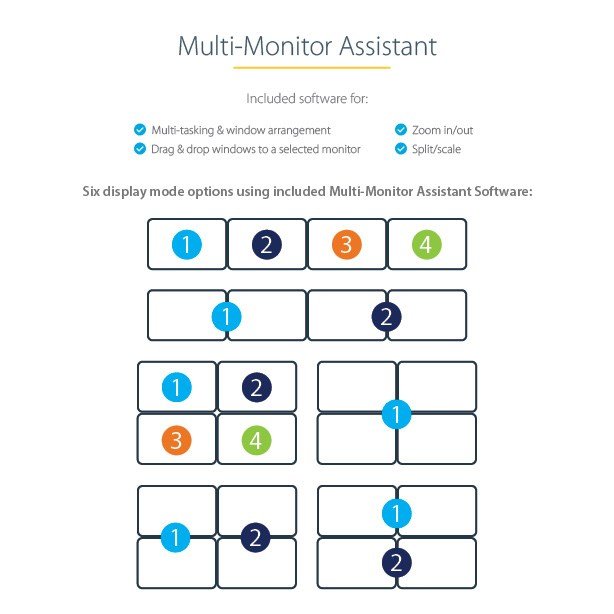
Mirroring monitors means that you see the same thing on multiple monitors. Spanning monitors means that your computer interprets all of the monitors that are spanning as one giant monitor. You can see different things on each monitor, and your desktop, taskbar, Start menu, and background are stretched across the monitors. Extending monitors means that your computer interprets the monitors that you are extending as separate devices. You can see different things on each monitor, and your desktop background is displayed on each monitor. In general, video splitters can only be used to mirror monitors. If you want to extend your desktop across monitors, you need to make a separate video connection for each monitor that you are attaching. If you want to attach more monitors than your computer has video ports for, you can read about USB Video Adapters here: www.startech.com/AV/USB-Video-Adapters/ . If you are using a video card with a DisplayPort connection that supports DisplayPort 1.2 you can use MST hubs from StarTech.com to extend your desktop to each monitor.