
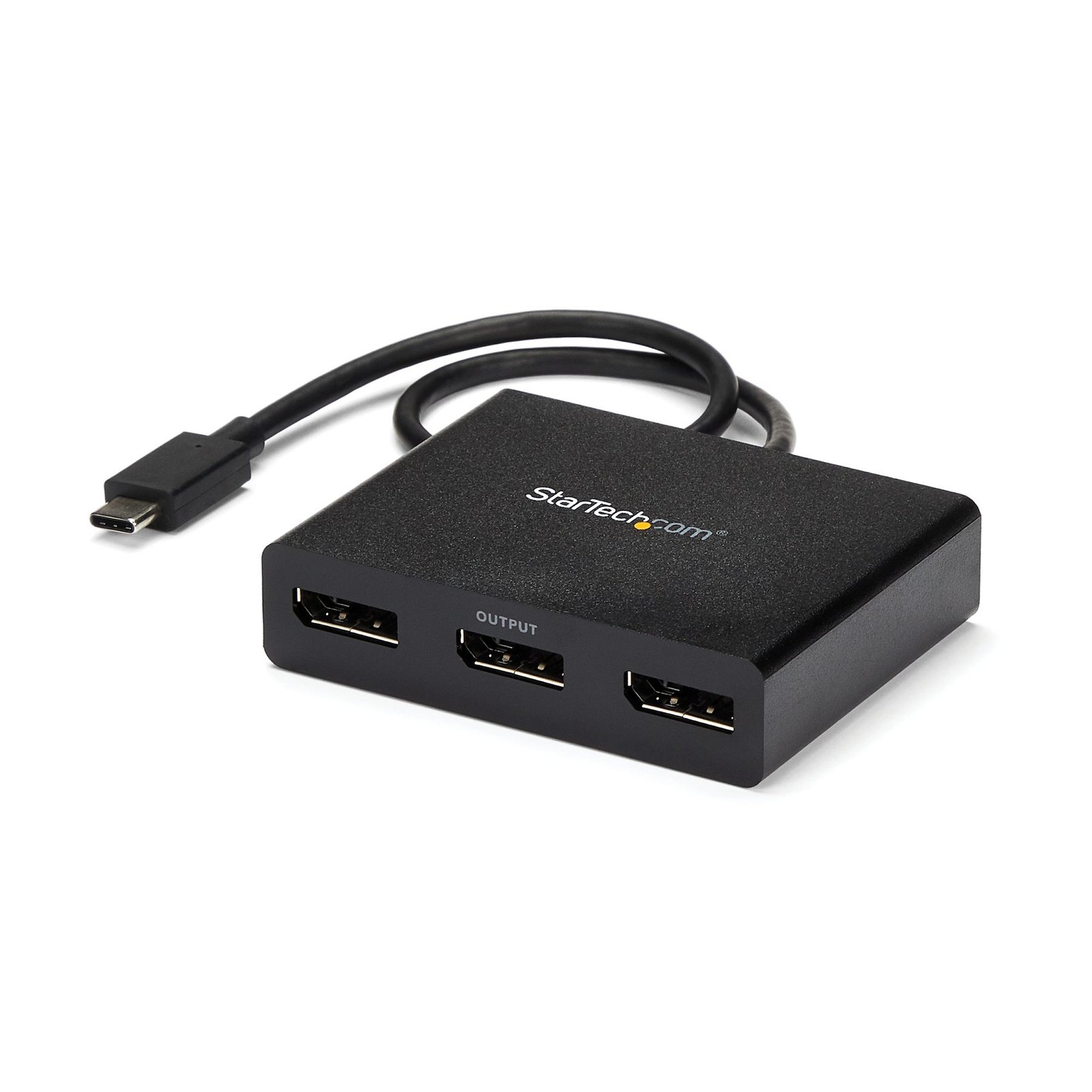
3-Port USB-C Multi-Monitor Adapter, USB Type-C to 3x DisplayPort 1.2 MST Hub, Triple 1080p 30Hz DP Laptop Display Extender / Splitter, Windows Only - Replaced by MST14CD123DP
$85.06
Create a high-performance triple-display workstation by connecting a USB Type-C™ device to three independent DisplayPort™ monitors
Specifications & Compliance
- UPC
- 065030864503
- Brand
- StarTech.com
- Included in Package
- 1 - MST hub, 1 - quick-start guide
- Shipping (Package) Weight
- 5.9 oz [168 g]
- Weight of Product
- 3.0 oz [86.0 g]
- Product Length
- 3.1 in [78.0 mm]
- Product Width
- 2.4 in [60.0 mm]
- Product Height
- 0.7 in [18.0 mm]
- Package Depth
- 5.7 in [14.4 cm]
- Package Width
- 6.9 in [17.6 cm]
- Package Height
- 1.3 in [34 mm]
- Color
- Black
- Cable Length
- 12.7 in [32.2 cm]
- Warranty
- 3 Years
- Connector 1
- USB-C DP++ (DP Alt-Mode)
- Connector 1 (Quantity)
- 1
- Package Quantity
- 1
- Connector 2
- DisplayPort
- Connector 2 (Quantity)
- 3
- Operating Temperature
- 0°C to 45°C (32°F to 113°F)
- Storage Temperature
- -20°C to 70°C (-4°F to 158°F)
- Material
- Plastic
- Chipset ID
- MegaChips - STDP4320 <br> VIA/VLI - VL100
- Special Notes
- Your USB-C equipped device must support video (DP alt mode) to work with this adapter
- Power Delivery
- No PD Pass-Through
- Number of Ports
- 3
- Maximum Digital Resolutions
- 3840x2160 @ 30hz
- Audio
- Yes
- Number of Displays
- 3
- AV Input
- USB-C
- AV Output
- DisplayPort - 1.2
- Wide Screen Supported
- Yes
- Supported Resolutions
- <p>Note: MST shares 21.6 Gbps across all attached displays. Higher resolutions can restrict the available bandwidth with the remaining ports, please see our guideline below for determining an ideal resolution for your setup.</p> <p><b>Average resolution bandwidth allocation</b></p> <p><small>1920x1080 (High-definition 1080p) @60hz - 22%<br> 1920x1200 @60hz - 30%<br> 2560x1440 @60hz - 35%<br> 2560x1600 @60hz - 38%<br> 3840 x 2160 (Ultra HD 4K) @30hz - 38%</small></p> <p><small>Note: Exceeding 100% will reduce functionality.</small></p>
- Audio Specifications
- DisplayPort - 5.1 Channel Audio
- HDR Support
- No
- Maximum Cable Distance To Display
- 6.6 ft [2 m]
Questions & Answers
How do I set up my MST hub?
To set up a MST hub, connect the hub to a DisplayPort 1.2 or later output that supports Multi-Stream Transport (MST), connect power and displays, and then configure the displays in your operating system. Explanation: Before installing the MST hub, verify that your computer's DisplayPort output supports Multi-Stream Transport (MST). DisplayPort outputs that do not support MST cannot drive multiple displays through an MST hub. To set up the MST hub: Connect the MST hub to a DisplayPort 1.2 or later output on the computer. Connect the power adapter to the MST hub, if required. Connect the DisplayPort monitors or compatible video adapters to the MST hub. Turn on the displays and then start the computer. Open the display settings in your operating system and verify that all connected displays are detected. If one or more displays are not detected: Verify that the latest graphics drivers are installed. Press and hold the Scan button (if available) on the MST hub for approximately five seconds to rescan the connected displays. Confirm that the DisplayPort output on the computer supports MST. Verify that all cables and adapters are securely connected. If the displays are detected but cannot achieve the desired resolutions or refresh rates, verify that the combined bandwidth of all connected displays does not exceed the maximum bandwidth supported by the DisplayPort output and the MST hub. The maximum supported bandwidth is listed in the product specifications.
The video signal is flickering. How do I fix this?
Try using shorter or higher quality video cables. Press the scan button (where applicable) on our product firmly for about half a second. Then open Screen Resolution or Display Settings and ensure all numbered displays are set to Extend. For good measure, ensure each display is set to a 60 Hz refresh rate before trying to use a higher refresh rate. If using passive DisplayPort to DVI or HDMI cables or adapters, replace them with active DisplayPort to DVI or HDMI adapters (Ex. DP2DVIS, DP2HD4KS). Note: these adapters will require a DVI or HDMI cable to be used to connect the monitors. The primary display adapter for the computer has an outdated or basic driver installed. Update the video driver using the manufacturer’s support site.
Everything is hooked up but nothing is working. What should I do?
When you troubleshoot issues with an MST hub, there are some quick tests that you can complete to rule out potential problems. You can test to make sure that the following components are working correctly and are not the source of the issue: Video cables Video source Video destination MST Hub To test your setup components, try the following: Use the video cables, video source, video destination, and MST hub in another setup to see if the problem is with the components or the setup. Use a different video cable, video source, video destination, and MST hub in your setup to see if the problem persists. Ideally, you should test a component that you know works in another setup. Note: Some 4K displays, even if set to 1920x1080 resolution, will still reserve the full 4K bandwidth. As a result, this may prevent some displays from outputting a video signal or prevent certain resolutions from being available on the other displays. When you test your cables, it is recommended that you do the following: Test each cable individually. Use short cables when you are testing. Eliminate the use of adapters, extenders, or splitters where possible. When you test the MST hub with your computer system, do the following: Make sure that the computer/graphics adapter is MST compatible. For more information, refer to the following FAQ: http://www.startech.com/faq/mst-hubs-gpu-compatibility . Make sure that the latest graphics drivers are installed. The latest drivers are available on the website of the manufacturer of the graphics adapter. Use compatible adapters. For example, DisplayPort to HDMI and not HDMI to DisplayPort. Note: Drivers are not required for the MST hub. To check to see if Windows is detecting the monitor, on a computer that is running a version of Windows 8 or Windows 10, do the following: On your keyboard, press the Windows key + X and click Control Panel . Click Appearance and Personalization , then click Display . In the left column, click Resolution or Adjust Resolution . Your monitors will be displayed as numbered icons. To see which monitors are detected, click the Display menu. To display the numbers on each of the connected monitors and see how the operating system has assigned their positions, click Identify . To check to see if Windows is detecting the monitor, on a computer that is running a version of Windows 7, do the following: Right-click on the desktop and click Screen Resolution . To see which monitors are detected, click the Display menu. In the left column, click Resolution or Adjust Resolution . Your monitors will be displayed as numbered icons. To display the numbers on each of the connected monitors and see how the operating system has assigned their positions, click Identify .
My monitors are flickering when used through my MST hub. What do I do?
If you are experiencing flickering issues with the MST hub, your monitors may be at a 59 Hz refresh rate. If they are at 59 Hz, you need to adjust the refresh rate to 60 Hz. In order to change your monitor's refresh rate, complete the following: Right-click anywhere on your desktop. Click Screen resolution or Display settings . At the top of the screen, select the monitor that you want to change the refresh rate for. Click Advanced settings or Display adapter properties . On the Monitor tab, click the Screen refresh rate drop-down list. Note: This step may vary depending on your operating system and graphics card.
Some or all of my monitors are not waking up after my computer or tablet comes back from Sleep mode. What do I do?
If the displays connected to your MST hub do not wake up after your computer goes to sleep, change the input on the monitor(s) from Auto to the correct input (for example, DisplayPort or HDMI). This prompts the monitor to send its identification data to the correct port instead of scanning for ports when the signal is lost. After you select the correct input on the monitor(s), press the Scan button to initiate the handshake (EDID) process. For more information on the Scan button, refer to the following FAQ: http://www.startech.com/faq/mst-hubs-scan-button . If you set the monitor to the correct video port and press the Scan button and the issue is still not resolved, you need to disable sleep mode on your computer. To disable sleep on a computer running a version of Windows, complete the following: Open Control Panel . Click Power Options . Note: Depending on how you have the View by options set in Control Panel , you might have to click Hardware and Sound to see Power Options . Click Change plan settings for the plan in use. For both entries, change Put the computer to sleep to Never . Click Save Changes .
How to Arrange Windows Monitors to Fix Mouse Issues
In order for your mouse to move properly between your monitors you must rearrange your monitors in Windows to match the physical location of your monitors on your desk. To do so, complete the following based on your operating system: Windows 11 Click on the Windows Icon in the Taskbar (or the Windows key on the keyboard) and search for Display Settings . Click on Multiple Displays. Click Identify to display the numbers on each connected monitor, showing how the operating system has assigned their positions. Click and drag the monitor icons to best match your physical setup. Click Apply to confirm the changes and close the window. Windows 10 and Windows 8 On your keyboard, press the Windows key + X and select Control Panel . Click Appearance and Personalization , then click Display . Click the Resolution or Adjust Resolution option from the left column, which will display your monitors as numbered icons. Click Identify to display the numbers on each connected monitor, showing how the operating system has assigned their positions. Click and drag the monitor icons to best match your physical setup. Click OK to apply the changes and close the window. Windows 7 and Windows Vista Click the Start button and select Control Panel . Click Appearance and Personalization, then click Display . Click the Resolution or Adjust Resolution option from the left column, which will display your monitors as numbered icons. Click Identify to display the numbers on each connected monitor, showing how the operating system has assigned their positions. Click and drag the monitor icons to best match your physical setup. Click OK to apply the changes and close the window. Windows XP Click the Start button and select Control Panel . Double-click Display . Click the Settings tab, which will display your monitors as numbered icons. Click Identify to display the numbers on each connected monitor, showing how the operating system has assigned their positions. Click and drag the monitor icons to best match your physical setup. Click OK to apply the changes and close the window. To mirror the image from your primary monitor instead of extending your desktop, refer to the following FAQ: http://www.startech.com/faq/Windows_Mirroring_Monitors
Why is my DisplayPort converter not passing audio?
If a DisplayPort converter with audio is not passing sound from the source to the destination, complete the following: Make sure that the DisplayPort connection on the video card is the default audio playback device. Make sure that the video card has the DisplayPort audio codec installed. If not, visit the video card manufacturer's website to find out how to update the video card driver.
My DisplayPort display is not working when I try to output 4K at 30Hz with this device. How do I resolve this issue?
To output 4K to a DisplayPort display at 30Hz, your monitor must support the resolution and refresh rate. If your monitor also supports 4K at 60Hz (DP 1.2 or higher), you may also need to set the monitor to work at 30Hz. To resolve this issue, use the buttons on your monitor to change the DisplayPort settings to DP1.1. For more information about how to change your monitor settings, refer to the website of the manufacturer of your monitor.
How do I configure additional displays in Windows?
Windows 11 To configure displays in Windows 11, complete the following: Press the Windows + I (capital letter i) keys together to open Settings Click 'System' > 'Display' Click 'Duplicate these displays' and choose 'Extend these displays' (if needed). Click ‘Identify’ to determine the number assigned to each display. Drag and drop each display accordingly to the physical layout on your desk. Click the Apply button. Windows 10 To configure displays on Windows 10, complete the following: Press the Windows + I (capital letter i) keys together. Click 'System' > 'Display' Under the ‘Multiple displays’ section, select ‘Extend Desktop To This Display.’ Click ‘Identify’ to determine the number assigned to each display. Drag and drop each display accordingly to the physical layout on your desk. Click the Apply button.
How to Mirror Displays on Windows
Windows 10 / 8 On your keyboard, press the Windows Key + X and select Control Panel . Click Appearance and Personalization , then click Display . Click the Resolution or Adjust Resolution option from the left column. Expand the drop-down menu next to “Multiple displays” and select Duplicate these Displays . Click OK to apply the changes and close the window. Windows 7 / Vista Click the Start button and select Control Panel . Click Appearance and Personalization, then click Display . Click the Resolution or Adjust Resolution option from the left column. Expand the drop-down menu next to “Multiple displays” and select Duplicate these Displays . Click OK to apply the changes and close the window. Windows XP Click the Start button and select Control Panel . Double-click Display . Click the Settings tab. Un-check the box beside Extend my Windows desktop onto this monitor . Click OK to apply the changes and close the window.
What is an MST hub, and how can I tell if it will work in my setup?
You may have heard of MST hubs, and have been wondering what they are, and whether or not they will work in your setup. So what are MST hubs? MST hubs are devices that take one DisplayPort or Mini DisplayPort video connection, and go to many video connections, usually extra DisplayPort, Mini DisplayPort, DVI or HDMI connections. This is accomplished through DisplayPort's MST, or Multi Stream Transport function. MST hubs allow you to mirror / duplicate your monitors so the same window are shown on all of the monitors, or extend your desktop, so that you can have different window on each monitor. So how can you tell if you can use a MST hub? MST hubs require that the video card's DisplayPort or Mini DisplayPort output support DP1.2 or greater, which supports MST. Some MST hubs also specifically require HBR2, or High Bit Rate 2 support. HBR2 allows for higher resolutions like 4K and up. You can check whether or not a StarTech.com MST hub requires HBR2 on the individual product pages, under the Technical Specifications tab. There are a few other important things to note. Video cards can technically support DP1.2, but not support MST or HBR2, so it is important to check with your video card manufacturer that your video card specifically supports DP1.2, MST, and HBR2 (if necessary). Currently Mac OSX does not support MST hubs, regardless of whether or not the video card does. This is an operating system restriction, so running Windows on an Apple computer through a program like Bootcamp will allow you to use MST hubs.
Does a DisplayPort MST hub work with macOS for multiple extended displays on a Mac?
No, macOS does not support multiple extended displays through a DisplayPort MST hub on Mac systems using Intel or NVIDIA GPUs. Explanation: DisplayPort Multi-Stream Transport (MST) enables a single DisplayPort connection to drive multiple independent displays. While a DisplayPort MST hub can be connected to a Mac via Mini DisplayPort (mDP) or compatible ports, macOS does not support MST-based display extension on Intel and NVIDIA GPUs. As a result, all connected monitors will duplicate the same mirrored image instead of operating as separate extended displays. This limitation is specific to macOS, not the MST hub hardware. When the same Mac hardware runs Microsoft Windows (for example, via Boot Camp), MST functionality may be available depending on GPU and driver support.
Should passive or active video signal converters be used with a DisplayPort MST hub?
It depends on the output type: use passive converters for DisplayPort to HDMI or DVI, and use active converters for DisplayPort to VGA. Explanation: DisplayPort MST hubs support Dual Mode (DP++), which allows the hub to output HDMI or DVI signals using passive video signal converters. Passive converters rely on the DisplayPort source device to perform signal conversion, which is supported for digital formats such as HDMI and DVI. For more information, refer to the following FAQ: http://www.startech.com/faq/displayport_converter_dp_multi_mode . VGA requires an analog signal, while DisplayPort outputs a digital signal. A DisplayPort MST hub cannot convert digital signals to analog, so an active converter is required for DisplayPort to VGA. Active converters perform the necessary digital-to-analog conversion. Device-specific limitations may apply. For example, when using a Microsoft Surface Dock, passive HDMI or DVI adapters may cause compatibility issues with a DisplayPort MST hub. In this case, Microsoft recommends using active converters instead. This limitation does not apply to the Surface Pro 3 Docking Station. Compatibility may also vary between specific VGA adapters and monitors.
Can a DisplayPort MST hub bypass the maximum number of displays supported by a video card (GPU)?
No, a DisplayPort MST hub cannot bypass or increase the maximum number of monitors supported by a video card (GPU). Explanation: A DisplayPort MST hub splits a single DisplayPort connection into multiple outputs, but the total number of monitors is still limited by the video card (GPU) and its specifications. For example, if a GPU supports up to three displays, the system cannot exceed three monitors even when using one or more MST hubs. When multiple MST hubs are used, the combined number of connected monitors must remain within the GPU’s maximum display limit. Exceeding this limit can result in monitors not being detected or display configuration issues. The video card (GPU) must also support DisplayPort Multi-Stream Transport (MST), typically available with DisplayPort 1.2 or later, for multiple displays to function through an MST hub. For more information, refer to: https://www.startech.com/faq/mst-hubs-gpu-compatibility
What is USB-C?
USB-C is a reversible USB connector type that can support data transfer, video output, and power delivery, depending on the capabilities of the connected devices, cables, and host ports. Explanation: USB-C is a physical connector standard used by multiple USB and Thunderbolt technologies. Depending on the supported protocol and hardware, USB-C connections can support: USB data transfer speeds ranging from USB 2.0 up to USB4 performance levels USB 10Gbps, 20Gbps, 40Gbps, and higher data transfer rates, depending on the USB or Thunderbolt specification USB Power Delivery (USB PD) for bidirectional power delivery, including charging support up to 240W with supported devices and cables Alternate Modes, such as DisplayPort Alternate Mode (DP Alt Mode), for video output over USB-C Thunderbolt 3, Thunderbolt 4, and USB4 functionality on compatible systems Not all USB-C ports, cables, or devices support the same features or performance levels. For example, some USB-C connections may only support charging or basic USB data transfer, while others support video output, high-speed data transfer, or Thunderbolt functionality. To use a specific USB-C feature, such as DisplayPort video output, USB 40Gbps data transfer, or USB Power Delivery, the USB host port, cable, and connected device must all support that feature. Refer to the technical specifications provided by the manufacturer to verify compatibility. For more information about Thunderbolt capabilities over USB-C, refer to the following FAQ: https://www.startech.com/faq/thunderbolt-3-port-capabilities
What is required for a USB-C device to work correctly?
A USB-C device requires compatible support from the host port, USB-C cable, and connected device for the specific features being used, such as USB data transfer, video output, power delivery, or Thunderbolt functionality. Explanation: USB-C devices can support different features depending on the product design and supported protocols. To ensure compatibility, the following components must support the required feature set: The USB-C host connection, such as the computer or docking station port The USB-C cable The connected USB-C device Some USB-C devices only require standard USB data support, while others may require additional technologies such as: DisplayPort Alternate Mode (DP Alt Mode) for video output USB Power Delivery (USB PD) for charging and power negotiation Thunderbolt 3, Thunderbolt 4, or Thunderbolt 5 support USB4 compatibility If the host device includes a Thunderbolt 3, Thunderbolt 4, or Thunderbolt 5 port, many USB-C devices and features may also be supported, depending on the device requirements and cable capabilities. Not all USB-C ports, cables, or devices support the same features or performance levels. Refer to the technical specifications provided by the manufacturer to confirm compatibility and supported modes.
What is the difference between mirroring, spanning, and extending monitors?
Mirroring monitors means that you see the same thing on multiple monitors. Spanning monitors means that your computer interprets all of the monitors that are spanning as one giant monitor. You can see different things on each monitor, and your desktop, taskbar, Start menu, and background are stretched across the monitors. Extending monitors means that your computer interprets the monitors that you are extending as separate devices. You can see different things on each monitor, and your desktop background is displayed on each monitor. In general, video splitters can only be used to mirror monitors. If you want to extend your desktop across monitors, you need to make a separate video connection for each monitor that you are attaching. If you want to attach more monitors than your computer has video ports for, you can read about USB Video Adapters here: www.startech.com/AV/USB-Video-Adapters/ . If you are using a video card with a DisplayPort connection that supports DisplayPort 1.2 you can use MST hubs from StarTech.com to extend your desktop to each monitor.
Related products
-
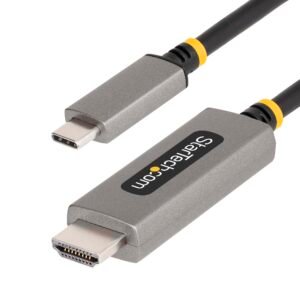
6.6ft (2m) USB-C to HDMI Adapter Cable, 8K 60Hz, 4K 144Hz, HDR10, USB Type-C to HDMI 2.1 Video Converter Cable, USB-C DP Alt Mode/USB4/Thunderbolt Compatible - USB-C Laptop to HDMI
$51.24 Add to cart -
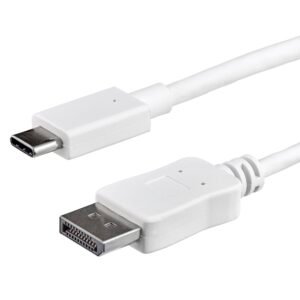
3.3ft (1m) USB C to DisplayPort 1.2 Cable 4K 60Hz - USB-C to DisplayPort Adapter Cable HBR2 - USB Type-C DP Alt Mode to DP Monitor Video Cable - Works with Thunderbolt - White
$18.44 Add to cart -
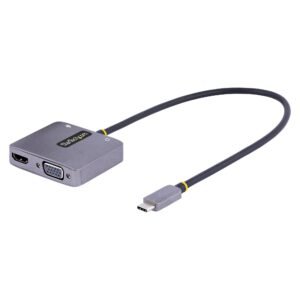
USB C Video Adapter, USB C to HDMI VGA Multiport Adapter, 3.5mm Audio, 4K 60Hz HDR, 100W PD Pass-Through, Thunderbolt 3/4 Compatible - USB C Display Travel Adapter
$23.99 Add to cart -
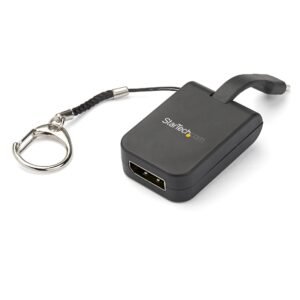
Compact USB C to DisplayPort 1.4 Adapter - 8K 60Hz/4K USB-C to DP Video Converter w/ Keychain Ring - USB Type-C DP Alt Mode (HBR3 HDR DSC) to DP Monitor Dongle - TB3 Compatible
$18.44 Add to cart