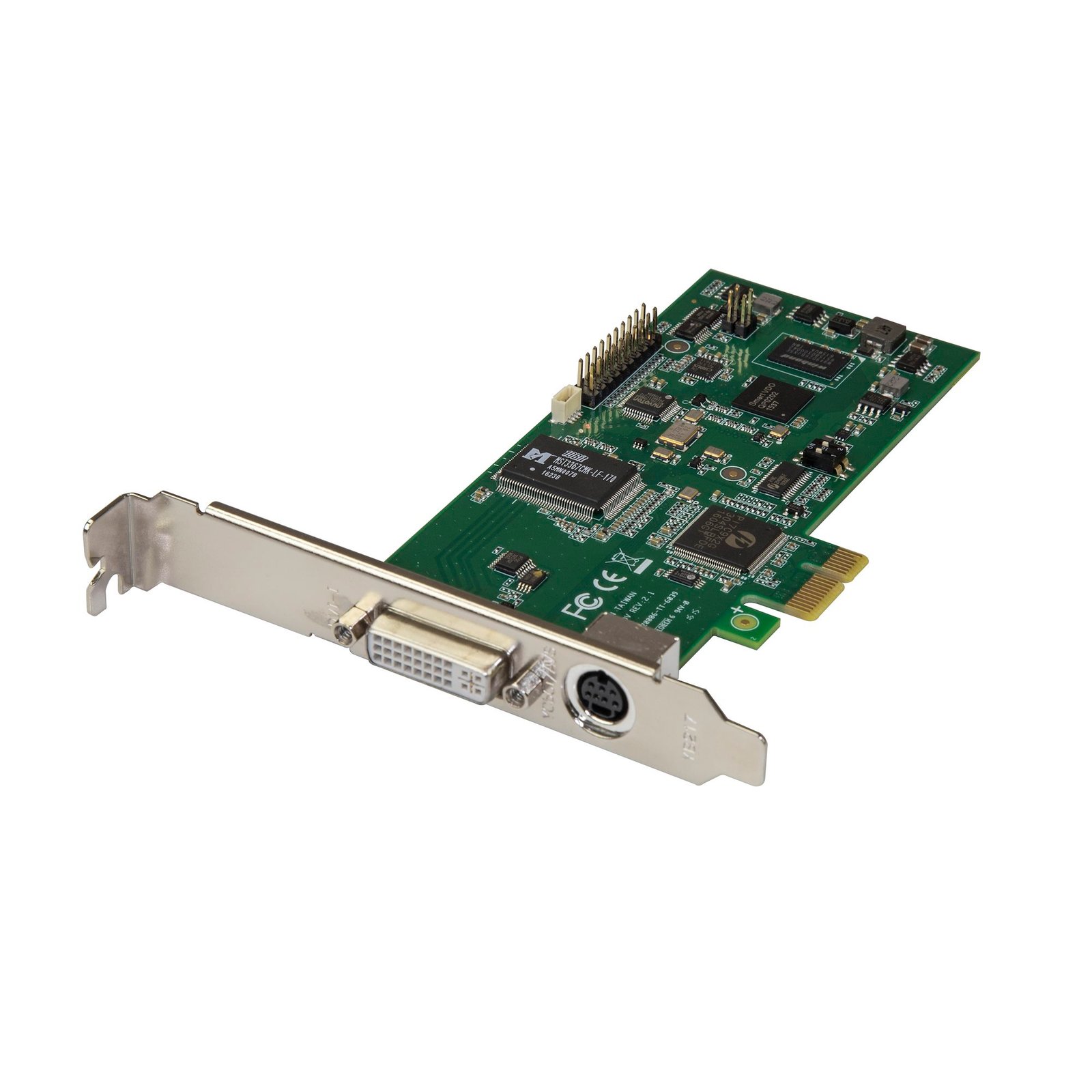
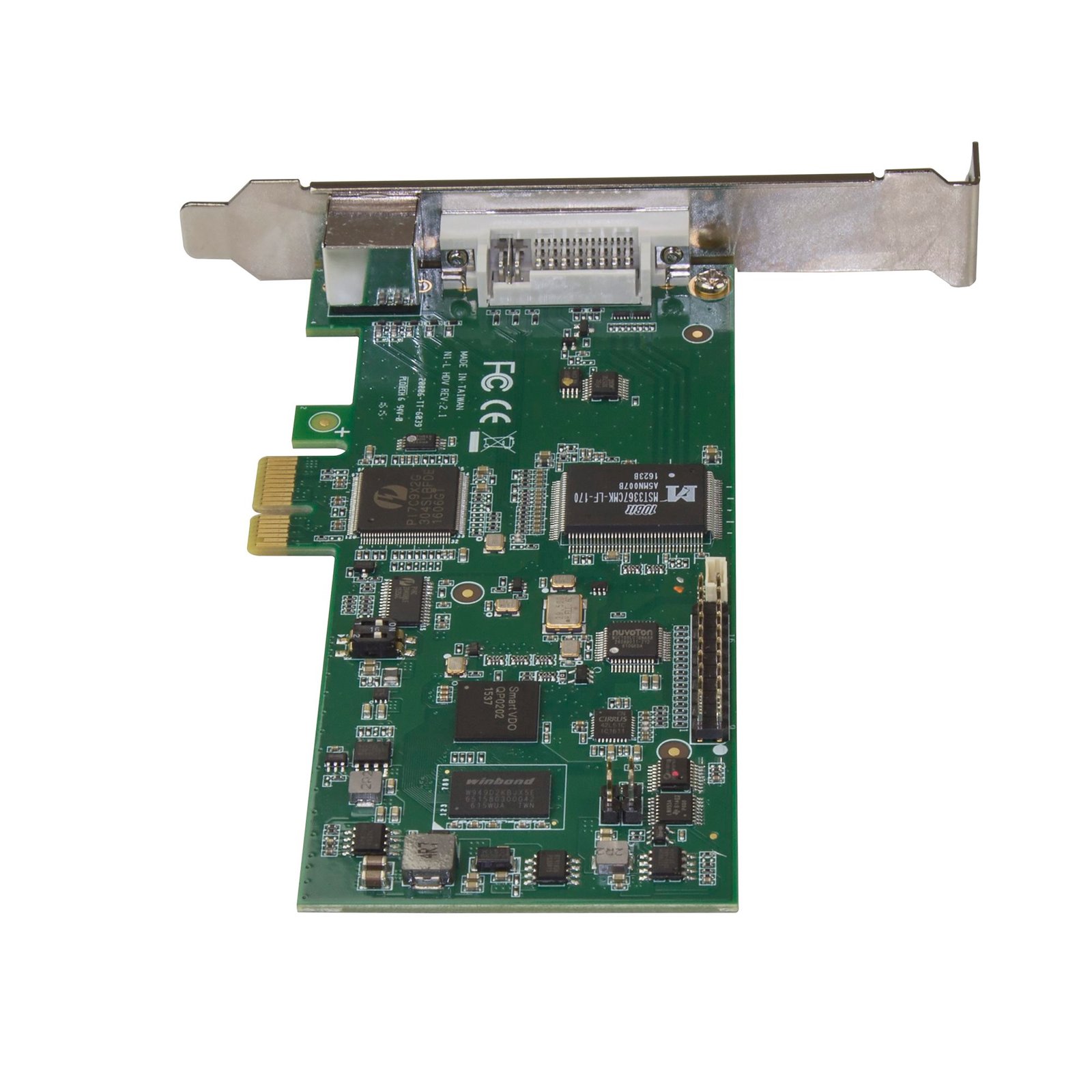
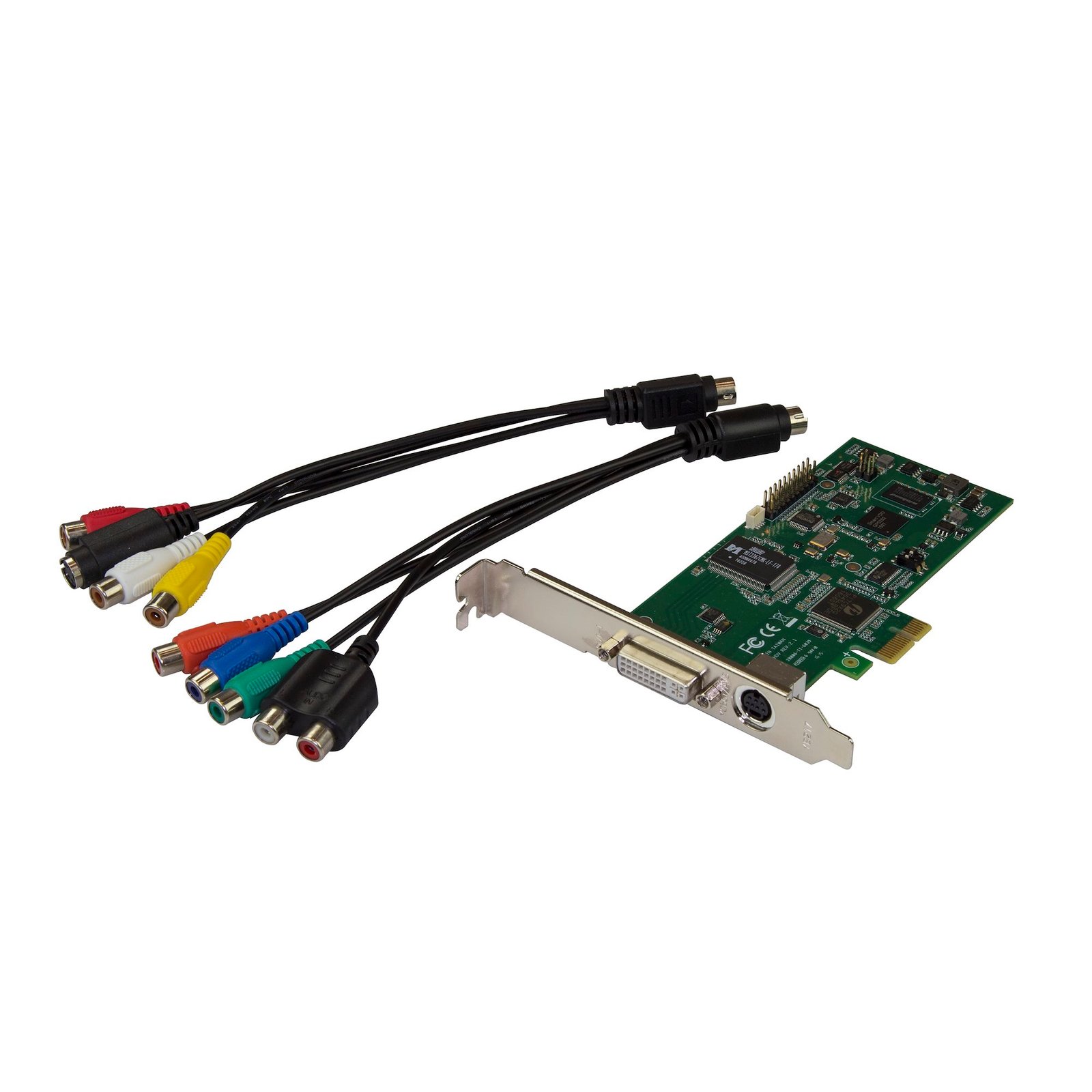
PCIe HDMI Video Capture Card - HDMI, VGA, DVI, or Component Video at 1080p60 - TAA
$368.99
Use this dual-profile internal capture card to record 1080p video at 60 frames per second
Specifications & Compliance
- UPC
- 065030875554
- Brand
- StarTech.com
- Included in Package
- 1 - PCI Express capture card, 1 - DVI to HDMI adapter, 1 - DVI to VGA adapter, 1 - component video breakout cable, 1 - s-video and composite video breakout cable, 1 - low-profile bracket, 1 - full-profile bracket (attached), 1 - quick-start guide
- Shipping (Package) Weight
- 11.2 oz [316 g]
- Weight of Product
- 2.5 oz [70 g]
- Product Length
- 5.6 in [14.1 cm]
- Product Width
- 2.7 in [69.0 mm]
- Product Height
- 0.6 in [15 mm]
- Package Depth
- 5.8 in [14.8 cm]
- Package Width
- 8.3 in [21.1 cm]
- Package Height
- 1.7 in [43 mm]
- Color
- Green
- Warranty
- 2 Years
- Connector 1
- DVI-I Dual-Link (29-Pin)
- Connector 1 (Quantity)
- 1
- Package Quantity
- 1
- Connector 2
- PCI Express x1
- Connector 2 (Quantity)
- 1
- Operating Temperature
- 0°C to 40°C (32°F to 104°F)
- Storage Temperature
- -5°C to 50°C (23°F to 122°F)
- Humidity
- 20~80% (non-condensing)
- Industry Standards
- NTSC, PAL-M, PAL-60, PAL, Video Encoding: MPEG4/H.264, DirectShow Compatible
- Chipset ID
- Mstar - MST3367CMK
- System and Cable Requirements
- <b>Expansion slot:</b> PCI-Express 2, <b>CPU:</b> i5-3330 or higher, <b>RAM:</b> 4GB or higher, <b>Operating system:</b> Microsoft® Windows® 10, 8.1, 8, 7 (32 or 64 bit)
- Maximum Digital Resolutions
- Video input: 1920x1080 (1080p/30/50/60) Video output: 1920x1080 (1080p/60)
- Audio
- Yes
- AV Input
- HDMI, DVI, VGA, Component
- Wide Screen Supported
- Yes
- Supported Resolutions
- 1080i/p, 720i/p, 576i/p, 480i/p
- Maximum Analog Resolutions
- 1920x1080 (1080p/30/50/60)
Questions & Answers
Why is my device not detected after updating to Windows 10?
A Windows 10 update may prevent a Capture Device from being detected by your Computer. Enabling access to your Camera and Microphone will resolve this issue. To enable access to your Camera: Click the Start icon. Click the Settings icon. Click the Privacy tile. Click Camera . Locate the slider that says Let apps use my camera . Toggle this slider to the On position. To enable access to your Microphone: Click the Start icon. Click Settings icon. Click Privacy tile. Click Microphone . Locate the slider that says Let apps use my microphone . Toggle this slider to the On position.
Why is StreamCatcher no longer working in Windows after January 12th 2021?
Adobe Flash-based applications will no longer run as of January 12, 2021. As a result, the original StreamCatcher software is not currently functional and is no longer available for download. StarTech.com has replaced the previous Flash based software with the new StreamCatcher Pro which is now available for free under the Drivers/Downloads section of all supported capture device product pages. Please uninstall the original software and download/install the new StreamCatcher Pro to continue using your StarTech.com capture devices. More information about Flash support being discontinued is available here from Adobe.