

HDMI Signal Booster - HDMI Extender - 4K 60Hz - TAA
$95.99
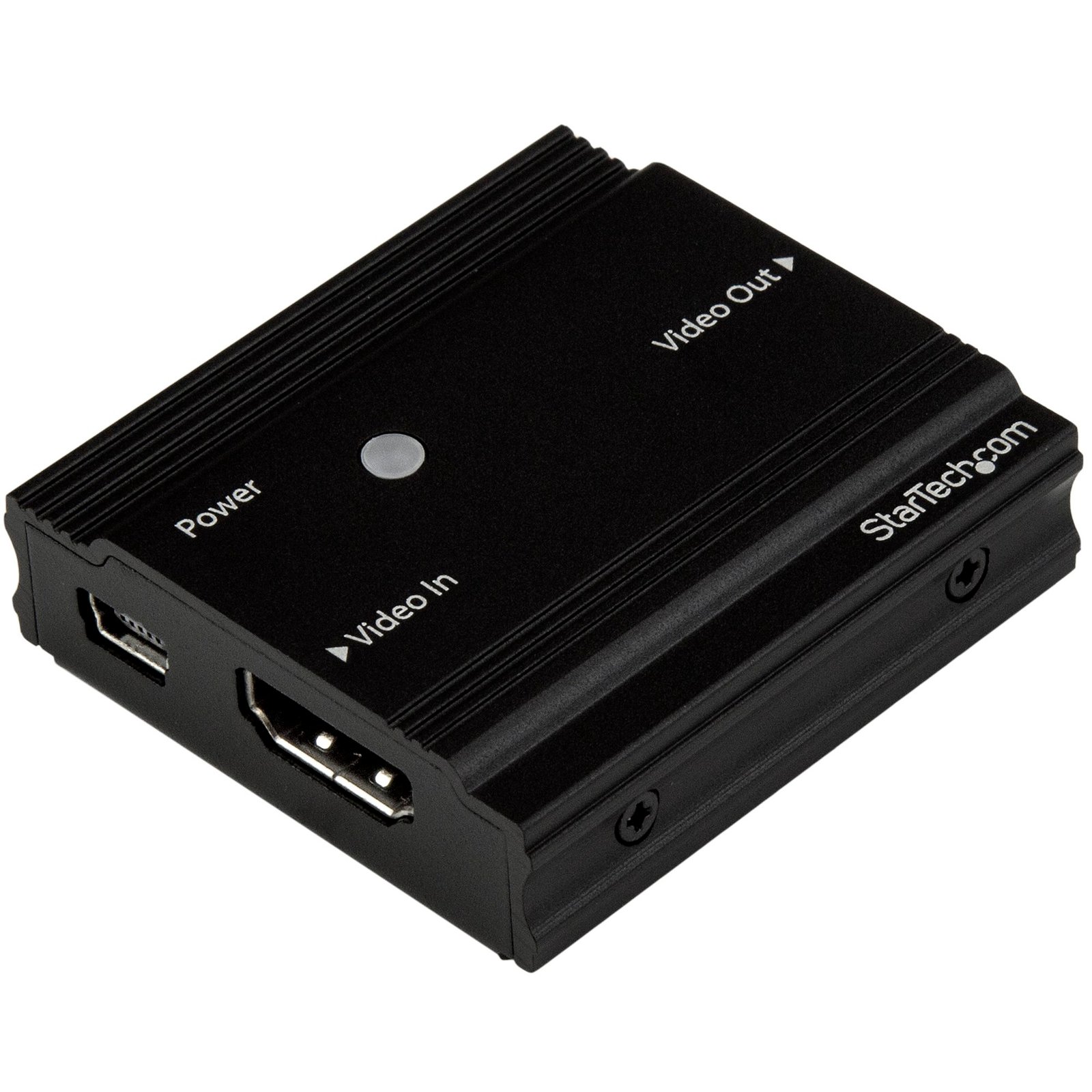
Use this repeater to amplify your 4K HDMI signal and extend it 30 ft. using a standard HDMI cable
Specifications & Compliance
- UPC
- 065030866422
- Brand
- StarTech.com
- Included in Package
- 1 - HDMI signal booster, 1 - 5 ft [1.5 m] USB power cable
- Shipping (Package) Weight
- 5.9 oz [168 g]
- Weight of Product
- 5.3 oz [150 g]
- Product Length
- 2.2 in [56 mm]
- Product Width
- 1.8 in [46 mm]
- Product Height
- 0.6 in [15 mm]
- Package Depth
- 4.0 in [10.2 cm]
- Package Width
- 6.3 in [15.9 cm]
- Package Height
- 1.9 in [48 mm]
- Color
- Black
- Warranty
- 2 Years
- Connector 1
- HDMI
- Connector 1 (Quantity)
- 1
- Package Quantity
- 1
- Connector 2
- HDMI
- Connector 2 (Quantity)
- 1
- Operating Temperature
- 0°C to 35°C (32°F to 95°F)
- Storage Temperature
- -5°C to 40°C (23°F to 104°F)
- Humidity
- 20°C to 80°C (68°F to 176°F)
- Power Source
- USB-Powered
- Input Voltage
- 5V DC
- Output Voltage
- 5 DC
- LED Indicators
- 1 - Power LED
- Maximum Digital Resolutions
- <b>At 10 m</b><br> Up to 4K at 60Hz <br><br> <b>At 25 m</b><br> Up to 4K at 30Hz<br><br> <b>At 35 m</b><br> Up to 1080p
- Audio
- Yes
- AV Input
- HDMI
- AV Output
- HDMI
- Wide Screen Supported
- Yes
- Supported Resolutions
- 3840x2160 (4K), 2560x1600, 1920x1200, 1920x1080 (1080p), 1280x720 (720p)
- Maximum Cable Length
- 114.8 ft [35 m]
- Cascadable
- No
- Rack-Mountable
- No
- Max Distance
- 35m [115ft]
- Cabling
- HDMI
Questions & Answers
Does this device require drivers or additional setup?
No. This device is plug and play and does not require drivers or additional software. Simply connect the source device and the destination device to begin using it. Explanation: This device is designed for plug-and-play operation and is automatically recognized by the connected system. To use the device: Connect the source device (such as a computer). Connect the destination device (such as a monitor, projector, or other compatible peripheral). Power on the connected devices, if required. No driver installation, software configuration, or additional setup is necessary. If the device is not detected, verify that: All cables are securely connected. The source and destination devices are compatible with the product. The correct input and output ports are being used.
What are the best practices for setting up an HDMI extender?
Answer: For the best performance, ensure that all devices in the HDMI signal path are compatible, use high-quality cabling, minimize the number of adapters and converters, and follow the installation guidelines for the HDMI extender. Explanation: Following these best practices can help maximize signal quality, improve reliability, and reduce compatibility issues when deploying an HDMI extender. Verify HDMI compatibility. Ensure that the source device, HDMI extender, and display all support the required HDMI features, such as resolution, refresh rate, HDR, HDCP, or 3D, if applicable. Minimize signal conversions. Use the fewest possible adapters, splitters, switches, and converters. Each additional device increases the possibility of signal loss, compatibility issues, or HDCP handshake failures. Choose an extender with sufficient range. Select an HDMI extender that supports a maximum transmission distance greater than the distance required for your installation to provide additional performance margin. Use high-quality network cabling. For CAT5e, CAT6, or CAT6a HDMI extenders, use cable that meets or exceeds the extender's specifications and has been properly tested. Maintain consistent network wiring. Ensure that all network cables, patch panels, wall jacks, and keystone jacks use the same wiring standard (T568A or T568B) throughout the installation. Avoid unnecessary cable stress. Keep network cable runs as straight as practical and avoid tight bends, excessive coiling, or cable damage. Reduce electrical interference. Route network cables away from sources of electromagnetic interference (EMI), such as fluorescent lighting, motors, transformers, and power cables. Provide proper grounding. Ensure that connected equipment is properly grounded to help reduce electrical noise and improve system stability. Following these recommendations helps maximize video quality, maintain reliable HDCP communication, and improve the overall performance of an HDMI extender installation.
I’m not seeing a video signal on the display. How do I fix this?
The power adapter may not be connected at the correct unit or may not be connected at all. Please check your product manual to see where your power adapter has to be positioned. An adapter to another video signal may be connected to the Transmitter or Receiver unit. Please avoid any converters for the initial setup. The Cat 5 or 6 cable coming from the transmitter or receiver unit may be connected to a network switch. Some of our video extenders will work in this configuration, but others will not. Please check your product manual to see if your model can be used connected to an IP network. For the initial setup, avoid connecting the Cat 5 or 6 cables to any network switch, hub, or router. The category of Unshielded Twisted Pair (UTP) cables may not meet StarTech.com’s requirements. Ensure at least Cat 5, 5e, or six cables are used, and they have eight wires. Some Cat 5 cables only have four wires. If using Cat 6 cables, be aware they have more twists per foot, so you may have to use shorter cable lengths if using Cat 6 cabling between your video extenders. Bundling up the UTP cabling connected to the extenders can cause crosstalk, which will prevent the video signal from showing on the display. Unwrapping the cable should resolve this issue.
The video signal is displayed, but the quality is not very good, or the colors are not accurate. How do I fix this?
Please check to see if your model has an adjustable Gain dial on the remote unit. If it does, use it to adjust the color until it is acceptable. Replace the VGA cable with a higher quality cable like StarTech.com’s MXT101MMHQ.
Everything is hooked up but nothing is working. What should I do?
When you troubleshoot issues with a video extender, there are some quick tests that you can complete to rule out potential problems. You can test to make sure that the following components are working correctly and are not the source of the issue: Video and Ethernet cables Video extender Video source (such as a DVD player or computer) Video destination (such as a monitor or projector) Note: When you are testing setup components, you should avoid using video adapters. For example, if you are converting a VGA source to HDMI for use with an HDMI extender, you should use an HDMI source when you test the components. To test your setup components, try the following: Use the cable, video extender, video source, and video destination in another setup to see if the problem is with the components or the setup. Use a different cable, video extender, video source, and video destination in your setup to see if the problem persists. Ideally, you should test a component that you know works in another setup. When you test your cables, it is recommended that you do the following: Test each cable individually. Use short cables when you are testing. When you test the video source and video destination, it is recommended that you do the following: Remove the video extender from your setup and test to make sure that the video source and video destination work together without the video extender. Test to make sure that the video source and video destination work together at the resolution that you want to use. Note: In order for your setup to work properly, the video source, extender, and destination all need to support the resolution that you are using.
What is a video extender, and how can I tell if it will work in my setup?
A video extender (such as an HDMI extender or DisplayPort extender) transmits audio and video signals over longer distances than standard cables, and compatibility depends on signal type, bandwidth, resolution, distance, and cabling. Explanation: A video extender is a transmitter and receiver system that extends a video signal beyond standard cable limits by sending it over media such as Cat5e/Cat6 Ethernet, fiber optic cable, or wireless. Common types include HDMI extenders and DisplayPort extenders, often used for long-distance AV distribution. To determine if a video extender will work in a specific setup, verify the following: Signal compatibility: The extender must support the same video standard as the source and display (e.g., HDMI, DisplayPort) Resolution and bandwidth: Confirm support for required resolutions and bandwidth (e.g., 1080p, 4K, refresh rate, color depth) Distance and cable type: Ensure the extender supports the required distance over the intended medium (e.g., Cat6, fiber) Infrastructure type: Some extenders require direct point-to-point connections, while others (IP-based extenders) support network switches Latency requirements: Check latency specifications for real-time applications (e.g., gaming, AV control) Feature support: Verify support for audio, USB, IR control, HDCP, and EDID if needed Power requirements: Confirm power is available for transmitter and receiver units If the video extender does not match the signal type, bandwidth, or infrastructure, it may result in no signal, reduced resolution, increased latency, or unstable performance.
Is a StarTech.com video extender compatible with set-top boxes, and what are the requirements?
Yes, a StarTech.com video extender is compatible with set-top boxes if the set-top box is HDCP-compliant and allows intermediary devices between the source and display; otherwise, it will not work. Explanation: A StarTech.com video extender can transmit video from a set-top box to a remote display, but compatibility depends on the set-top box’s signal protection and connection requirements. HDCP compliance required: The set-top box must support High-bandwidth Digital Content Protection (HDCP) in a way that allows video output through external devices. If HDCP implementation blocks transmission through intermediary hardware, the video extender will not display content. Intermediary device support required: The set-top box must allow a device, such as a video extender, to be placed between the source and the display. Some set-top boxes require a direct HDMI connection and will not output video through any intermediate device. If the set-top box does not meet both requirements, the StarTech.com video extender will not function correctly with that device.
What are some features of HDMI 2.0 and HDCP 2.2?
HDMI 2.0 supports 4K resolution (4096 × 2160) at up to 60 Hz, 21:9 aspect ratio support, up to four simultaneous audio streams, and bandwidth of up to 18 Gbps. HDCP 2.2 provides content protection for compatible 4K video sources and displays. Explanation: HDMI 2.0 introduced several enhancements over previous HDMI standards, including support for 4K resolution at up to 60 Hz, wider aspect ratios, increased bandwidth, and expanded audio capabilities. These features help support high-resolution video, multi-display environments, and advanced audio applications. HDCP 2.2 (High-bandwidth Digital Content Protection 2.2) is a digital content protection standard commonly required for protected 4K content from streaming services, media players, gaming consoles, and Ultra HD Blu-ray devices. To display HDCP 2.2-protected content, all devices in the signal path including the source device, display device, and any connected adapters, switches, extenders, or AV receivers must support HDCP 2.2. If a device does not support HDCP 2.2, protected content may not display correctly, may be limited to a lower resolution, or may generate an HDCP compatibility error. HDMI 2.0 is backward compatible with earlier HDMI standards. Newer specifications, such as HDMI 2.1, add support for higher bandwidth, higher refresh rates, and additional video and audio features.