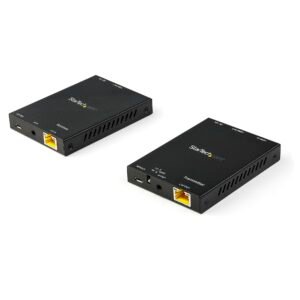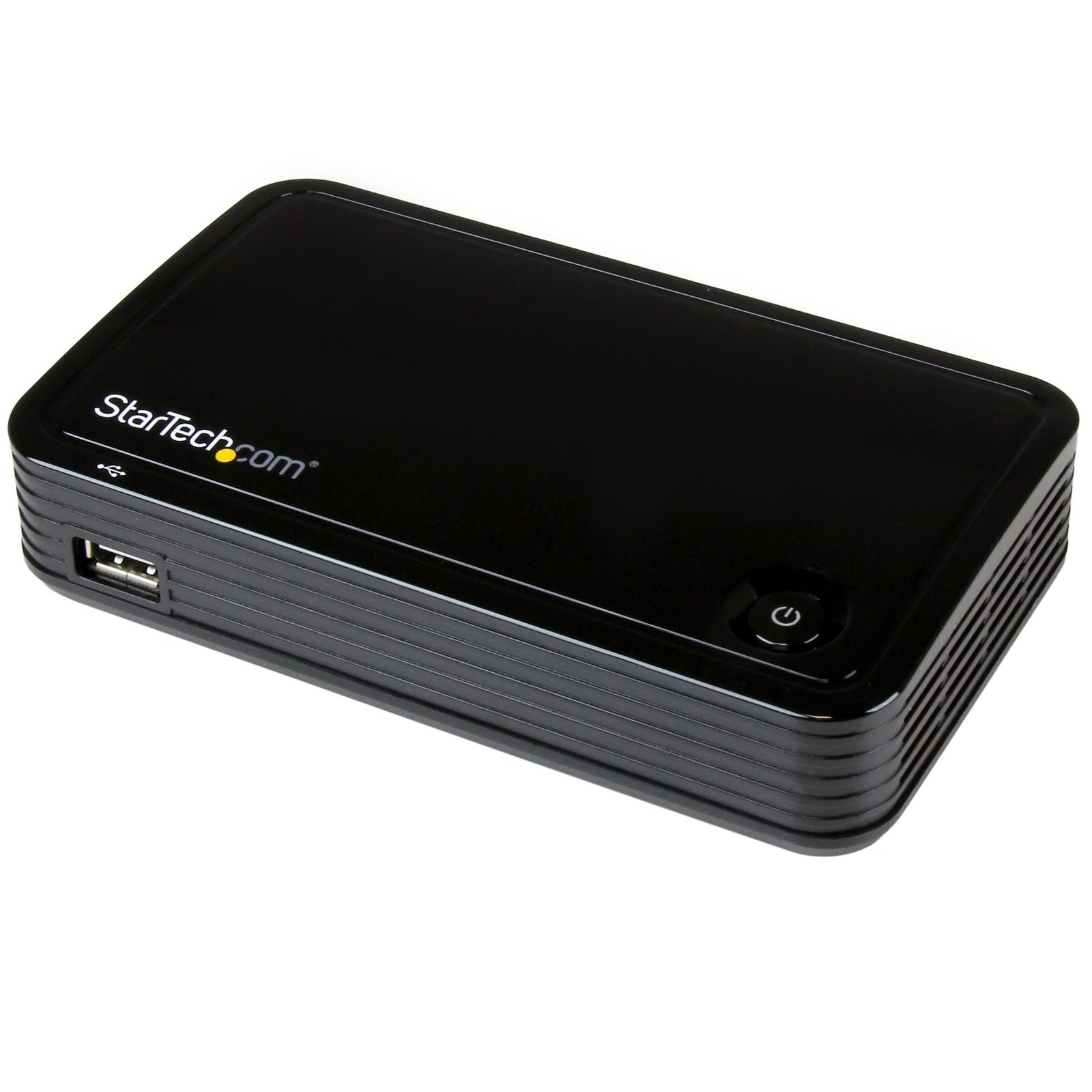
Wireless Presentation System - 1080p
$151.99
Wirelessly collaborate by sharing content from your Ultrabook or laptop over Wi-Fi to a VGA or HDMI display, and switch between users
Specifications & Compliance
- UPC
- 065030861427
- Brand
- StarTech.com
- Included in Package
- 1 - presentation hub, 1 - universal power adapter (North American), 1 - quick start guide
- Shipping (Package) Weight
- 18.3 oz [519 g]
- Weight of Product
- 6.3 oz [178.0 g]
- Product Length
- 5.8 in [14.8 cm]
- Product Width
- 3.6 in [92.0 mm]
- Product Height
- 1.3 in [33.0 mm]
- Package Depth
- 11.6 in [29.5 cm]
- Package Width
- 7.7 in [19.5 cm]
- Package Height
- 0.9 in [22 mm]
- Color
- Black
- Warranty
- 2 Years
- Connector 1
- USB-A (480Mbps, 2.5W)
- Connector 1 (Quantity)
- 1
- Package Quantity
- 1
- Connector 2
- Wi-Fi 4 (802.11n, 600Mbps)
- Connector 2 (Quantity)
- 1
- Operating Temperature
- 0°C to 45°C (32°F to 131°F)
- Storage Temperature
- -20°C to 60°C (-4°F to 140°F)
- Humidity
- 20%~60%
- Industry Standards
- IEEE 802.11n Draft 3.0, IEEE 802.11g
- Power Source
- AC Adapter Included
- Input Voltage
- 100 - 240 AC
- Output Voltage
- 5 DC
- Connector 3
- HDMI
- Connector 3 (Quantity)
- 1
- Power Consumption
- 5
- Number of Ports
- 2
- Input Current
- 0.3 A
- Output Current
- 1
- Audio
- Yes
- Connector 4
- VGA
- Connector 4 (Quantity)
- 1
- General Specifications
- <b>Note:</b> 1080p video resolution is supported only on Intel® HD Family Graphics Adapters (HD 2000 or above). All other graphics adapters will be limited to 720p.
- AV Output
- HDMI, VGA
- Supported Resolutions
- Standard: 1600x1200, 1280x1024, 1280x768, 1024x768, 800x600<br><br> Widescreen: 1920x1080, 1680x1050, 1440x900, 1366x768, 1280x800, 1280x720
- Cascadable
- No
- Connector 5
- RCA (Mono Audio)
- Connector 5 (Quantity)
- 1
- Connector 6
- TOSLINK (Optical S/PDIF)
- Connector 6 (Quantity)
- 1
- Cabling
- Wireless Ethernet
- Connector 7
- RJ-45
- Connector 7 (Quantity)
- 1
Questions & Answers
Why did the software not install properly in macOS High Sierra (10.13) or later?
Starting in High Sierra 10.13, macOS enforces stricter security policies than previous revisions. As a result of these changes, software packages, like those used in this installation, will need to be allowed within the macOS Security and Privacy settings, immediately after the software has been installed, in order for the device to operate. To allow the software, follow these steps after you've completed installation on your Mac: Open System Preferences . Open Security & Privacy . Click the Allow button near the bottom of the General tab. Note: The option to allow the software will be available within the Security & Privacy settings for 30 minutes. If the software is not allowed within that time frame, the software must be reinstalled in order for macOS to grant the opportunity to allow it again.
I’m not seeing a video signal on the display. How do I fix this?
The power adapter may not be connected at the correct unit or may not be connected at all. Please check your product manual to see where your power adapter has to be positioned. An adapter to another video signal may be connected to the Transmitter or Receiver unit. Please avoid any converters for the initial setup. The Cat 5 or 6 cable coming from the transmitter or receiver unit may be connected to a network switch. Some of our video extenders will work in this configuration, but others will not. Please check your product manual to see if your model can be used connected to an IP network. For the initial setup, avoid connecting the Cat 5 or 6 cables to any network switch, hub, or router. The category of Unshielded Twisted Pair (UTP) cables may not meet StarTech.com’s requirements. Ensure at least Cat 5, 5e, or six cables are used, and they have eight wires. Some Cat 5 cables only have four wires. If using Cat 6 cables, be aware they have more twists per foot, so you may have to use shorter cable lengths if using Cat 6 cabling between your video extenders. Bundling up the UTP cabling connected to the extenders can cause crosstalk, which will prevent the video signal from showing on the display. Unwrapping the cable should resolve this issue.
The video signal is displayed, but the quality is not very good, or the colors are not accurate. How do I fix this?
Please check to see if your model has an adjustable Gain dial on the remote unit. If it does, use it to adjust the color until it is acceptable. Replace the VGA cable with a higher quality cable like StarTech.com’s MXT101MMHQ.
What is this device’s default static IP address?
This device's default static IP address is 192.168.59.254.
When should I use a longer video cable instead of a video extender?
Use a longer video cable whenever possible; use a video extender only when the required distance exceeds the reliable limits of standard or active cables. Explanation: Direct cabling is the preferred method for video connections because it maintains signal integrity and reduces complexity. Standard maximum cable lengths for common video signals are: Video standard Maximum length DisplayPort 50 ft. (15.2m) HDMI 50 ft. (15.2m) DVI 50 ft. (15.2m) VGA 200 ft. (71m) Active cables can extend these distances by incorporating built-in signal amplification and are designed to exceed standard length limits while maintaining specified performance. Video extenders are used when cable length requirements exceed what passive or active cables can reliably support. Extenders transmit the signal over longer distances by boosting and then restoring it, while maintaining the same video standard from input to output.
What is a video extender, and how can I tell if it will work in my setup?
A video extender (such as an HDMI extender or DisplayPort extender) transmits audio and video signals over longer distances than standard cables, and compatibility depends on signal type, bandwidth, resolution, distance, and cabling. Explanation: A video extender is a transmitter and receiver system that extends a video signal beyond standard cable limits by sending it over media such as Cat5e/Cat6 Ethernet, fiber optic cable, or wireless. Common types include HDMI extenders and DisplayPort extenders, often used for long-distance AV distribution. To determine if a video extender will work in a specific setup, verify the following: Signal compatibility: The extender must support the same video standard as the source and display (e.g., HDMI, DisplayPort) Resolution and bandwidth: Confirm support for required resolutions and bandwidth (e.g., 1080p, 4K, refresh rate, color depth) Distance and cable type: Ensure the extender supports the required distance over the intended medium (e.g., Cat6, fiber) Infrastructure type: Some extenders require direct point-to-point connections, while others (IP-based extenders) support network switches Latency requirements: Check latency specifications for real-time applications (e.g., gaming, AV control) Feature support: Verify support for audio, USB, IR control, HDCP, and EDID if needed Power requirements: Confirm power is available for transmitter and receiver units If the video extender does not match the signal type, bandwidth, or infrastructure, it may result in no signal, reduced resolution, increased latency, or unstable performance.
How can I connect this HDMI output to a VGA, DVI, or DisplayPort display?
An HDMI output can be connected to VGA, DVI, or DisplayPort displays using the appropriate adapter or video converter. The required solution depends on the input type of the display and whether HDCP-protected content is being used. Explanation: This device outputs HDMI video signals. If the display or video destination uses a different connection type, an adapter or active video converter may be required. Common conversion options include: VGA: An active HDMI to VGA converter is required because HDMI uses digital video signaling and VGA uses analog video signaling. DVI: A passive HDMI to DVI adapter or cable can be used because HDMI and DVI share compatible digital video signaling. DisplayPort: An active HDMI to DisplayPort converter is required because HDMI and DisplayPort use different signaling technologies. HDCP Considerations Before converting an HDMI signal, determine whether the source content is protected by High-bandwidth Digital Content Protection (HDCP). HDCP is commonly used by devices such as: Blu-ray players DVD players Streaming devices Gaming consoles If the HDMI source is transmitting HDCP-protected content, conversion to an analog video format such as VGA may not be supported because VGA does not support HDCP. In these situations, video may not display correctly or may not display at all. Best Practices For the most reliable results: Use the fewest possible adapters and converters. Verify the required resolution and refresh rate. Confirm that the converter supports the desired signal direction and video format. Consider HDCP requirements when converting protected content.